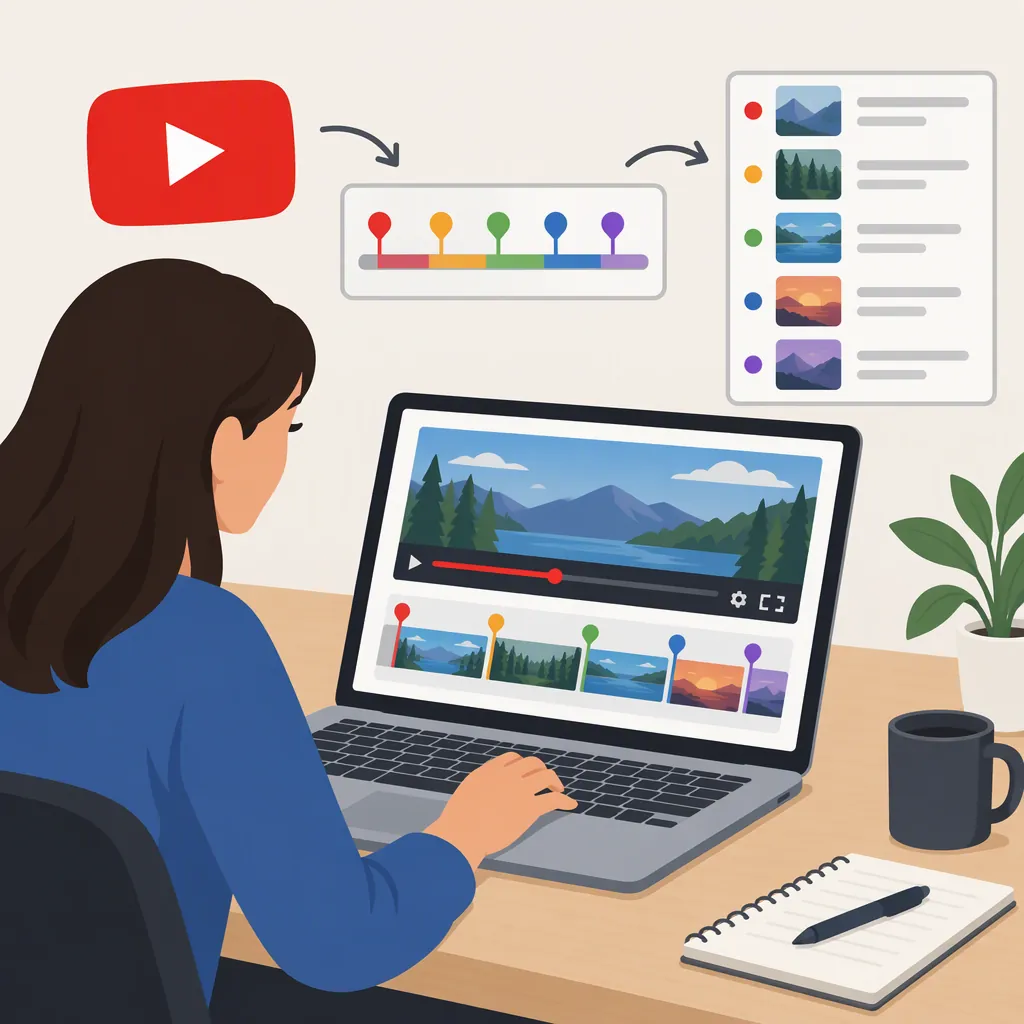
How to Make YouTube Chapters with Timestamps
To make YouTube chapters, open your video in YouTube Studio, select Content, choose the video, and edit its description. Add each chapter’s starting timestamp and title on a separate line. Begin with 00:00, include at least three entries in increasing order, and make every chapter at least 10 seconds long—including the last one. Save, then check the chapter segments on the video’s watch page. [c2]
Add Manual Chapters to the Description
Chapters divide a video into labeled sections so viewers can find and jump to topics. You add manual chapters by placing timestamps and titles in the video’s description. [c1]
- Review the finished video. Note the start of each meaningful topic. Use the final edit rather than an earlier version whose timing may differ. [c2]
- Open the video’s details. In YouTube Studio, select Content, then choose the video you can edit. [c2]
- Enter the chapter list in the description. Put one starting time and one descriptive title on each line. Separate the time from the title with a space. [c1][c2]
- Check the requirements. Start at
00:00, include at least three timestamps in increasing order, and ensure each chapter lasts at least 10 seconds. [c2] - Save and verify. Open the watch page and check that the chapter labels and starting points match the video. [c2]
For a new upload, you can also enter the chapter list while filling out the video’s description before completing the upload process. [c1]
Illustrative Chapter List
For a hypothetical three-minute tutorial, this list meets the stated timing requirements. Replace every time and title with ones that match your video:

```text
00:00 Introduction
00:30 Prepare the materials
01:15 Follow the main steps
02:30 Review the result
```

This is a formatting example, not a chapter list for an actual upload.
Check Timestamp Format and Chapter Length
Use a colon between minutes and seconds: 01:15, not 1.15 or 1m15sec. Follow the timestamp with a space and a concise title describing the section. [c1]
Each timestamp marks a chapter’s start, not its end. Calculate a chapter’s duration by subtracting its starting time from the next chapter’s starting time. For the final chapter, subtract its start from the video’s total length. The last chapter must also last at least 10 seconds. [c2]
In the illustrative three-minute list above, the final chapter starts at 02:30 and lasts 30 seconds. If that video instead ended at 02:35, the final chapter would last only five seconds. Choose an earlier relevant boundary or combine it with the preceding section rather than using an inaccurate boundary just to meet the minimum. [c2]
Pre-Save Chapter Checklist
- The first timestamp is 00:00.
- There are at least three chapter entries.
- Each timestamp and title occupies its own line.
- Starting times increase from top to bottom.
- Every chapter lasts at least 10 seconds.
- The final chapter is checked against the video’s actual end.
- Titles describe the content at their starting points.
- All timings match the finished edit.
Understand Automatic Chapters
YouTube can provide automatic chapters for eligible videos. The supplied guide describes finding the automatic-chapter option under Show more in the video’s settings, while noting that interface wording can change. [c2]
A manual chapter list overrides automatic chapters. Eligibility or an enabled setting does not guarantee that automatic chapters will appear, so inspect the actual watch page. Review any generated titles for accuracy rather than assuming they describe the content correctly. [c2]
Troubleshoot Missing Chapters
If chapter segments do not appear, check these items in order: [c2]
- Location: Confirm the list is saved in the video description, not only in a comment.
- Format: Check the
00:00start, separate lines, and increasing timestamps. - Length: Recalculate every chapter’s duration, including the final one.
- Access: Check chapter access and advanced-feature eligibility. Do not assume a particular subscriber count is the requirement.
- Restrictions: The cited guide notes possible restrictions involving active strikes or content that may be inappropriate for some viewers.
- Result: Reopen the watch page and distinguish clickable description timestamps from visible chapter segments.
If those checks do not resolve the issue, consult YouTube’s current help resources. The supplied guide does not establish a guaranteed waiting time or a universal formatting fix. [c2]
Source limitation: This article draws on two third-party tutorials, not a supplied YouTube Help document. They support the workflow described here, but account-specific access and current interface details should be checked in YouTube itself.
FAQ
How Many Timestamps Do YouTube Chapters Need?
The supplied guide states that a manual chapter list needs at least three entries, beginning at 00:00 and continuing in increasing time order. Each chapter must last at least 10 seconds. [c2]
Can I Add Chapters to an Existing YouTube Video?
Yes. For an upload you can edit, open YouTube Studio, select Content, choose the video, and add the timestamp list to its description. Save and check the watch page. [c2]
Does the First Chapter Have to Be Called Introduction?
Use 00:00 as the first timestamp. The supplied sources emphasize clear, descriptive titles; the Gling example uses “What we are making” rather than “Introduction.” Choose a title that accurately describes your opening section. [c1][c2]
Can I Create Chapters by Putting Timestamps in a Comment?
Put the chapter list in the video’s description. The supplied troubleshooting guide specifically advises checking that it is not only in a comment. [c2]