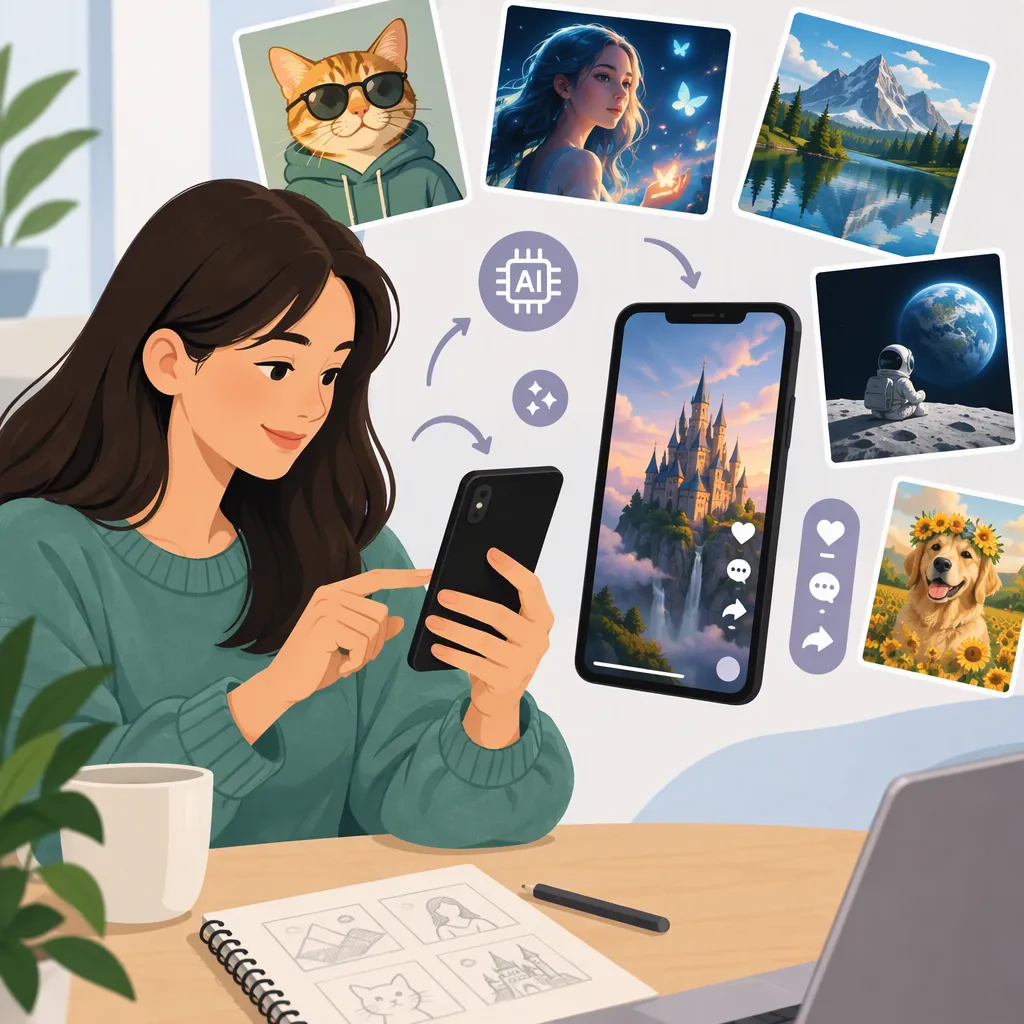
How to Make a TikTok AI Image Trend
To make a TikTok AI image trend, identify whether the example uses a still-image transformation, a timed slideshow, or animated motion. Create the artwork with a prompt or a permitted reference photo, review the results, and assemble the reveal in an editor if timing is part of the format. Image generation alone does not reproduce every trend’s movement or transitions. The supplied sources illustrate workflows, but do not verify what is trending on TikTok today. [c1]
Identify the Format Before Choosing a Tool
The search phrase “ai image generator tiktok trend” can describe several different tasks. Start by separating the artwork from the presentation:
- Still-image transformation: A portrait or scene becomes a stylized image.
- Before-and-after reveal: An original image appears first, followed by its generated version.
- Multi-image sequence: Several transformations share a recognizable subject or visual theme.
- Animated character: The subject moves rather than simply changing appearance.
The supplied CapCut page lists examples such as AI photoshoot and cartoon filter templates. These are useful format references, not proof that a particular style is currently popular. [c2] Pict.AI’s guide also distinguishes portrait generation from effects, timed transitions, and editing templates. [c1]
Before generating anything, examine the example you want to adapt. Note what changes, what stays recognizable, and whether the reveal depends on sound. Reproduce the general structure with your own permitted material rather than copying another creator’s complete post.
Format Identification Worksheet
Example description: ____
Date observed: ____
Visual style: ____
Starting image: ____
What changes: ____
What stays consistent: ____
Still image, slideshow, or animation: ____
Audio or transition cue: ____
Material I have permission to use: ____
Unverified assumptions: ____
Prepare the Image and Define What Must Stay
For a face-based transformation, use your own photo or a consenting adult’s portrait. Crop out unrelated people and identifying background details. Check the service’s retention and deletion information before uploading; cropping is not a substitute for understanding its privacy practices.
If recognizability matters, prefer a workflow that accepts a reference image rather than expecting a text description to reproduce a particular face. Pict.AI’s guide cautions that stylization can alter facial proportions, skin tone, age, and distinguishing features. [c1]
Write two short lists: change and preserve. For example, change the outfit, lighting, and background; preserve the facial proportions, expression, and camera angle. Kling’s supplied photo-editing guide recommends a clear photo, a prompt explaining what should change and stay, and targeted refinement after review. This is workflow guidance, not a guarantee of likeness accuracy. [c3]
Reference-Based Transformation Prompt
Using the permitted reference photo, create a stylized retro studio portrait. Change the clothing to a simple vintage-inspired jacket and the background to a muted blue studio backdrop. Preserve the subject’s facial proportions, skin tone, hairstyle, expression, and camera angle. Use a vertical composition with space for a caption. Do not add text, logos, extra people, or accessories. Treat this as a creative transformation, not a documentary photograph.
Write a Prompt with a Clear Visual Target
For an image that does not need to resemble a real person, define the subject, setting, style, lighting, palette, and composition. Leave caption space deliberately rather than asking the generator to produce final lettering.
A practical starting canvas is vertical 9:16, such as 1080 × 1920 pixels. Pict.AI’s guide recommends this framing for slideshows and warns that interface elements or preview cropping can obscure important details. Treat it as a composition recommendation, not a verified universal upload requirement. [c1]
Review the first result before adding more prompt instructions. If the subject is too small, change the framing. If the background competes with it, simplify the setting. If a hand is distorted, try a simpler pose. Change one variable at a time so you can identify which revision helped.
Add readable captions in an editor. The supplied guide identifies generated lettering, logos, hands, and small accessories as possible failure points. [c1]
Text-To-Image Prompt Template
Create a vertical 9:16 image of [subject] in [setting]. Use [visual style], [lighting], and a [color palette] palette. Place one clear focal subject near the center, with uncluttered space for an editor-added caption. Keep the background simple. No text, logos, or platform interface elements.
Build the Reveal Separately from the Artwork
Once the images are acceptable, arrange them in the intended order. For a transformation sequence, keep the subject’s position and crop similar between frames so the visual change is easy to compare.
Use the following storyboard as a starting point, not a proven engagement formula. Set durations by previewing the sequence with the intended audio rather than assuming one timing pattern suits every example.
If the reference trend depends on a character actually dancing or speaking, do not substitute a slideshow and assume it is the same format. That requires a separate motion workflow. The distinction between still artwork and timed or moving presentation is also noted in the supplied Pict.AI guide. [c1]
Three-Stage Reveal Storyboard
Stage 1 — Setup: Show the permitted source image or an original introductory frame. Add a brief editor-written description of the transformation.
Stage 2 — Reveal: Cut to the selected generated image at the intended audio or visual cue. Keep the subject similarly framed.
Stage 3 — Comparison: Show a second variation or a side-by-side comparison. Add a clear description that the transformation is AI-generated.
Preview — Check readability, crop, transition placement, audio permission, and whether the sequence could be mistaken for a real event.
Check Privacy, Permissions, and Disclosure
Do not infer privacy protections from a tool’s trend-focused name or promotional description. As one concrete example, the supplied Google Play listing for 80s AI Photo Trend Generator reports developer-declared collection of financial information and device or other IDs, and states that data cannot be deleted. Those statements concern that listing, not every image generator, and are not an independent privacy audit. [c4]
Before posting, review the current service terms, permissions for your source material and audio, and TikTok’s current AI-content rules. The supplied Pict.AI guide discusses labeling realistic AI content, but no official TikTok policy page was provided. This article therefore does not establish the exact current labeling requirement. [c1]
A disclosure does not replace consent or make a misleading depiction harmless. Avoid presenting a fabricated portrait or scene as evidence of something that actually happened.
Pre-Publication Checklist
- I have permission to use the source image and any depicted person’s likeness.
- I removed unnecessary personal background details.
- I checked the generator’s retention, deletion, and usage terms.
- I checked permission for the audio and other assets.
- I reviewed current TikTok AI-content rules directly.
- I checked faces, hands, lettering, accessories, and cropping.
- I made the artificial transformation clear where viewers could otherwise be misled.
- I did not imply that a fabricated scene documents a real event.
Keep Trend Evidence Separate from Marketing
The supplied references are vendor pages and an app-store listing. They support examples, workflow descriptions, and stated limitations; they do not provide a reliable ranking of current TikTok trends or evidence that a particular prompt will go viral. [c1] [c2] [c3] [c4]
For your own trend notes, record the observation date, the format, and whether you encountered multiple independent examples rather than repeated promotion of the same template. Label a style as an observed example unless you have stronger evidence of wider adoption.
Keep conclusions modest: a recognizable format can guide a creative exercise, but it does not guarantee reach, engagement, or faithful reproduction of a face.
Trend Observation Log
Observation date: ____
Format or style: ____
Examples reviewed: ____
Independent creators or repeated template promotion: ____
Recurring visual element: ____
Recurring audio or edit cue: ____
What the evidence supports: ____
What remains unknown: ____
FAQ
Which AI Image Generator Should I Use for a TikTok Trend?
Choose by the task: text-to-image for an invented scene, reference-based editing for a recognizable transformation, and a separate motion workflow for animation. Check export options, privacy terms, and usage permissions. The supplied sources do not support naming one universally best tool. [c1] [c3]
Why Does the Generated Portrait Not Look Like Me?
Stylization can change facial proportions, skin tone, hair, and small distinguishing features. Use a clear permitted reference, reduce exaggerated style instructions, and compare each selected result with the original. These steps can guide revision but do not guarantee accurate likeness. [c1]
What Size Should I Use for a TikTok AI Image Slideshow?
A vertical 9:16 canvas, such as 1080 × 1920 pixels, is a practical starting point recommended by the supplied Pict.AI guide. Keep important details away from the edges and preview the actual post and cover crop. This is not a verified universal upload requirement. [c1]
Do These References Show Which AI Image Trend Is Popular Right Now?
No. They show template examples and promotional descriptions, not a verified, current measure of TikTok-wide popularity. Use them to understand formats, and keep any claim about current adoption separate from the production tutorial. [c2] [c4]