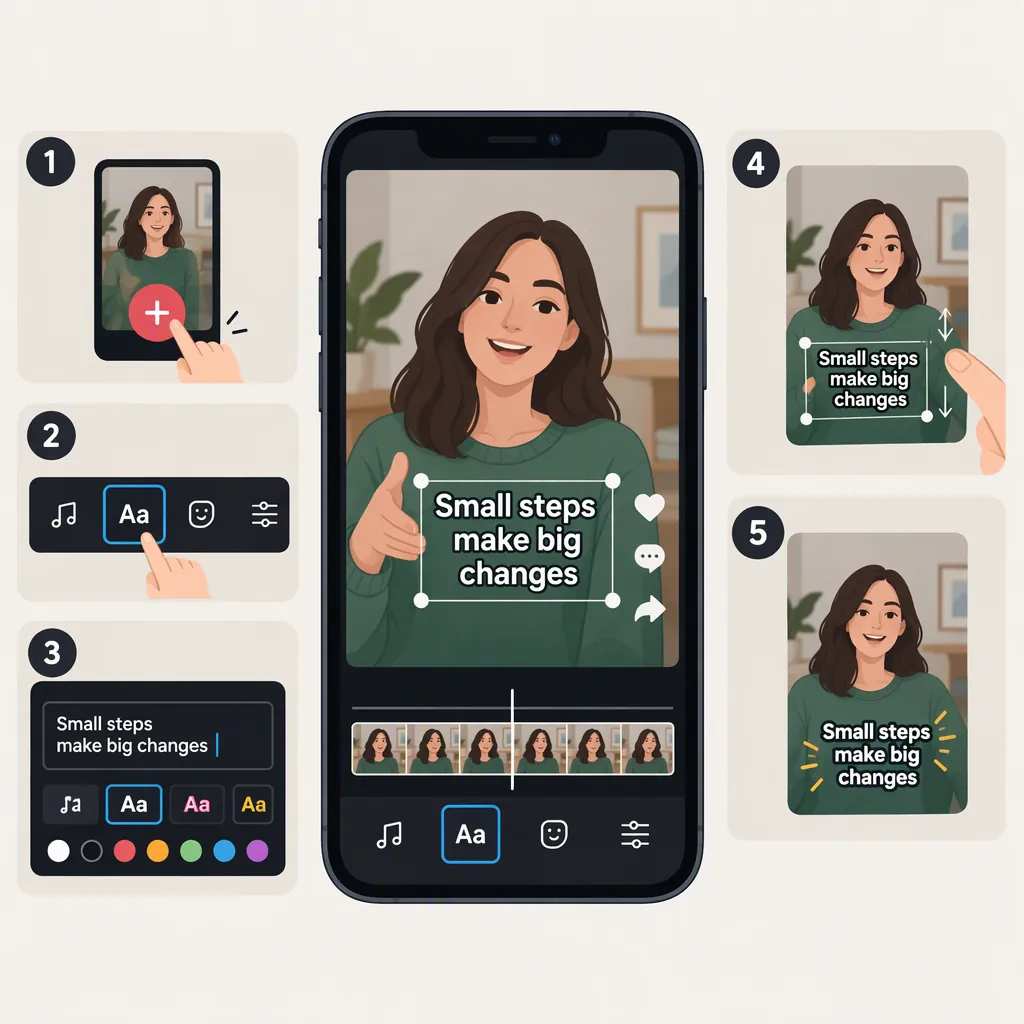
How to Put Words on a TikTok Video
To put words on a TikTok video, record or upload a clip, open the video editor, and tap Text. Type your words, choose a font and color, then drag the text into position and pinch to resize it. Tap the text and select Duration or Set duration to control when it appears. Preview the video before posting. These steps follow the supplied third-party tutorials; exact controls may differ from your app. [c1] [c2]
Add Words in the TikTok Editor
- Open your video. Tap the + button in TikTok to record a clip or upload one from your camera roll. You can also work with a draft. [c1]
- Find the text tool. Once you reach the video-editing screen, tap Text. The supplied tutorials show slightly different paths into the editor, so use the control labels rather than relying on an exact screen position. [c1] [c2]
- Type your words. Enter the phrase you want to display, then choose from the available fonts, colors, and styles. [c1]
- Position and resize the text. Drag the text to move it around the video. Pinch it to adjust its size. [c1]
This workflow adds words over the video itself. Riverside describes adding the post caption separately on the final project screen. [c2]
Set When the Words Appear
To make words appear for only part of the video:
- Tap the text box you want to time.
- Choose Duration or Set duration. Later calls this control “Duration,” while Riverside calls it “Set duration.” [c1] [c2]
- Drag the timing slider's edges to choose when the text starts and ends. [c2]
- Preview playback to check the timing, then confirm with the checkmark. [c1]
For words that change throughout the clip, add another text box and repeat the process. You can arrange the boxes in sequence or let them overlap. [c1] [c2]
Text Timing Worksheet
Use this planning template before setting each overlay's duration:

| Text Box | Words to Display | Start Cue | End Cue |
| --- | --- | --- | --- |
| 1 | [Opening phrase] | [Opening shot] | [First scene change] |
| 2 | [Main instruction] | [Action begins] | [Action ends] |
| 3 | [Closing summary] | [Result appears] | [End of clip] |

Replace the bracketed placeholders with your own words and visual cues. Preview each transition and adjust the timing if the text disappears before you can comfortably read it.
Edit and Check the Text Before Posting
If you need to change the wording before posting, tap the text box and choose Edit. Riverside also describes an optional Text-to-speech control that reads a selected text box aloud. [c2]
For a readability check, keep phrases short and choose colors that are easy to read—both are recommendations in Later's tutorial. [c1] Then review the whole video rather than checking only a paused frame.
Suggested checks:
- Read each phrase at normal playback speed.
- Shorten crowded text or leave it visible longer.
- Move text if it covers an important part of the shot.
- Check spelling and any unintended overlap between boxes.
Finish these checks before publishing. Riverside states that on-screen text is no longer editable once the video is live. [c2]
If the Controls Look Different
The supplied sources are third-party tutorials, not TikTok's official documentation. They agree on the basic workflow—add text, style it, set its duration, and preview—but differ on some labels and screen locations. [c1] [c2]
If your screen does not match a step exactly, look for Text in the video editor and tap the overlay to check its available options. These references do not establish the exact layout or feature availability for every current app version, device, or account.
FAQ
How Do I Make Words Appear at Different Times?
Create separate text boxes, then tap each one and choose Duration or Set duration. Adjust each box's start and end points so the phrases appear in sequence, and preview the result. [c1] [c2]
How Do I Make the Text Bigger or Move It?
Pinch the text overlay to change its size and drag it to reposition it in the video, as shown in Later's tutorial. [c1]
Can I Add More than One Text Box?
Yes. Tap Text again to add another overlay, then set its style, position, and timing. Separate boxes can appear together or at different moments. [c1] [c2]
Can I Change the Words After Posting?
According to Riverside's guide, you cannot edit the on-screen text once the TikTok video is live. Check the wording, placement, and timing before publishing. [c2]