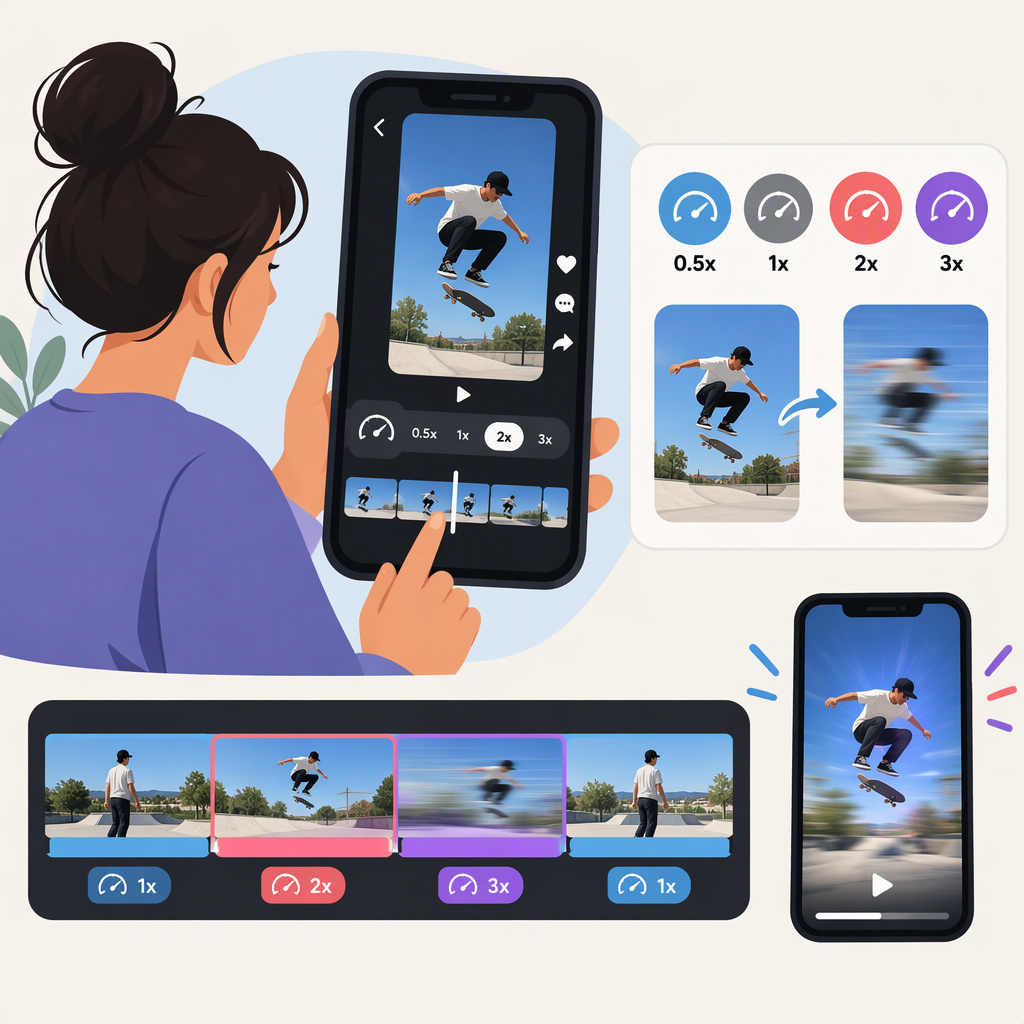
How to Speed up a Video on TikTok—And Mix Speeds in One Post
To speed up a TikTok recording, tap +, choose Speed, and select 2x or 3x before recording. To speed up footage you’ve already recorded or uploaded, open TikTok’s editing tools, select a video clip, tap Speed, and choose a speed under Normal or Curve. To use more than one pace in a post, split the footage into separate clips and set each clip’s speed individually. TikTok’s Help Center says each clip can have one speed option. (support.tiktok.com)
Speed up a Video While Recording
Use the recording control when you’re filming new footage and want the speed effect applied as you capture it:
- Open TikTok and tap Add post (+).
- Tap Speed in the side panel.
- Choose 2x or 3x to speed up the video. TikTok lists 1x as standard recording speed and 0.3x and 0.5x as slower options.
- Record your video, then continue to the editing screen to review it. (support.tiktok.com)
Speed up an Existing or Uploaded Clip
For footage already on your device, start a post and tap Upload. Select the video and tap Next, then open Edit to reach the editing tools. If you’ve recorded in TikTok, tap Edit after recording; TikTok notes you may need to tap Continue first. (support.tiktok.com)
Then adjust the clip:
- From the editing screen, tap the video clip or tap Edit at the bottom.
- Tap Speed.
- Choose Normal or Curve, then select a speed.
- Tap the exit button to save the change to that clip.
- Preview the edited video before posting. (support.tiktok.com)
TikTok’s editing instructions describe the Normal and Curve options, but do not list every speed choice available in that editor. The recording-speed choices above are documented separately; don’t assume the two menus offer identical options. (support.tiktok.com)
Combine Normal, Fast, and Slow Sections
TikTok’s editing tools let you split a clip and apply a speed option to each resulting clip. That makes it possible to build a post with different-paced sections:
- Open the editing screen and tap the clip, or tap Edit at the bottom.
- Move the playhead to where you want a new section to begin, then tap Split.
- Repeat at the other points where the pace should change.
- Select one section at a time, tap Speed, choose Normal or Curve, and pick a speed.
- Exit the speed control to save the setting for that section, then preview the joins between clips.
TikTok says you can add only one speed option to each clip. If you want a section to return to its original pace after a sped-up part, split the video again so the normal-speed portion is its own clip. (support.tiktok.com)
Choose a Workflow and Check Duration and Sound
Choose the recording speed control when you’re filming new footage and want to set its pace as you record. Choose the editing speed control when you need to change footage already recorded or uploaded—or when you want different sections of one post to play at different speeds. The editing method gives you clip-by-clip control; TikTok’s documented recording control sets the speed while recording. (support.tiktok.com)
For unchanged footage, playback speed and duration move in opposite directions: at 2×, a 10-second clip takes about 5 seconds; at 0.5×, it takes about 20 seconds. This is a general calculation, not a promise about a particular TikTok edit. Trimming, splitting, or other edits can change the finished video’s total length.
TikTok’s editing guidance explains how to add or replace a sound, but it does not specify how original audio’s pitch or timing behaves after a speed change. Before posting, preview the video and check that speech or other original audio sounds right, any added sound remains aligned, the speed transitions feel intentional, and the final duration is what you expect. (support.tiktok.com)