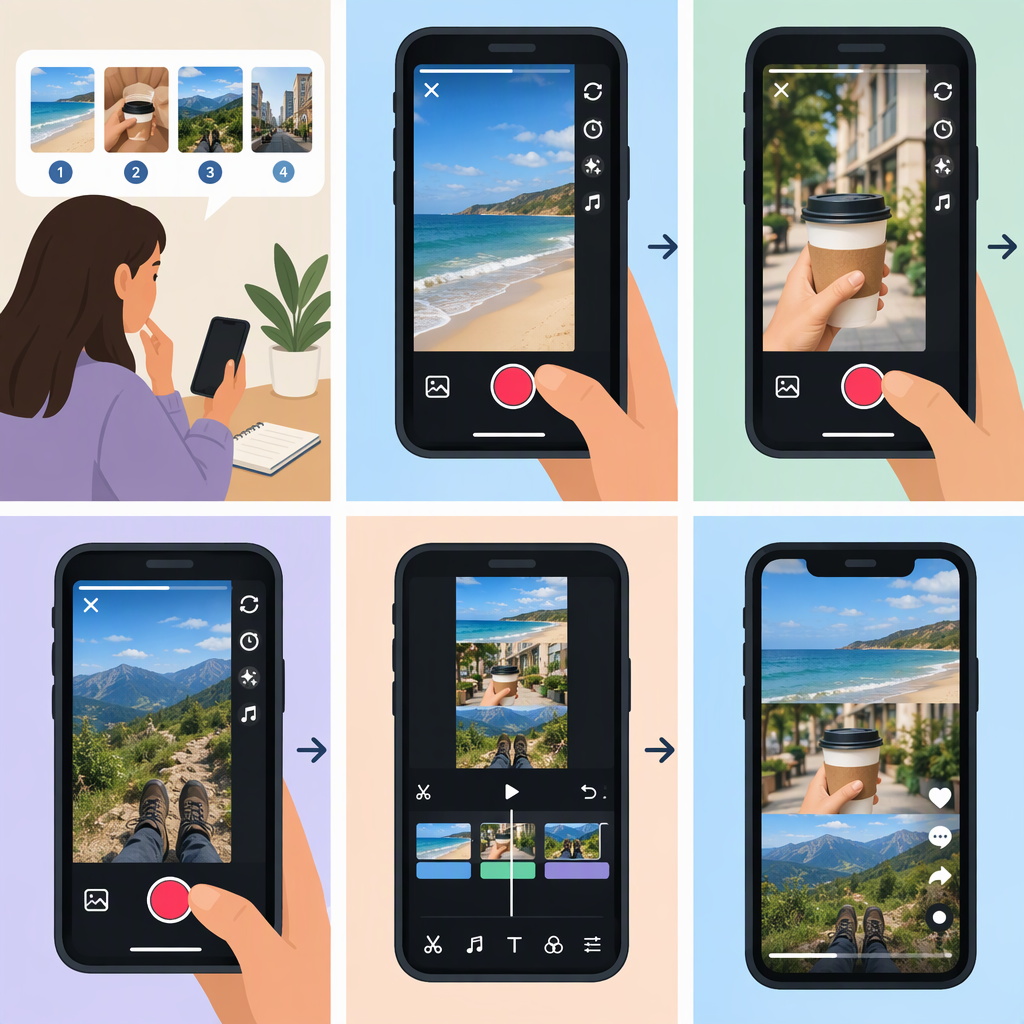
How to Make a TikTok Video with Multiple Clips
Quick Answer
In the TikTok app, tap Add post (+), choose a video length, and tap Record to begin. Tap Record again to stop the segment, then tap it again to record another segment in the same video. When you’re done, tap Continue ✓ to move to editing. TikTok’s Help Center describes the Record button as starting and stopping recording; repeating that start-and-stop action lets you capture separate segments before continuing. (support.tiktok.com)
Record Multiple Clips
- Open TikTok and tap Add post (+) at the bottom of the screen.
- Select a video length. If you want to add a sound before recording, note that TikTok says the sound’s length determines the video length.
- Tap Record to capture your first segment.
- Tap Record again to stop. To add another segment to the same video, tap Record to start again, then tap it to stop. Repeat as needed.
- Tap Continue ✓ when you’ve finished recording to move to editing.
The Help Center says videos recorded in TikTok can be up to 10 minutes long; it doesn’t establish a separate per-segment limit in the cited camera-tools guidance. (support.tiktok.com)
Review and Edit the Video
After tapping Continue ✓, review the assembled video on the editing or preview screen. TikTok documents options to add text and stickers or emojis after recording or uploading. It also points to enhanced editing for additional options. The documented steps here do not establish that you can delete, reorder, or retake an individual recorded segment in this workflow, so don’t count on those controls being available. (support.tiktok.com)
Save It or Continue Toward Publishing
Publishing is optional. On the Post page, tap Drafts to save the video for later. TikTok says drafts appear in the videos tab on your profile and are only available to others after you post them. Drafts may be removed if TikTok is uninstalled and reinstalled, or if the account is moved or switched to another device; drafts can’t be shared or transferred between accounts. If you’re ready to publish instead, continue through the posting flow and review the options shown before confirming. (support.tiktok.com)