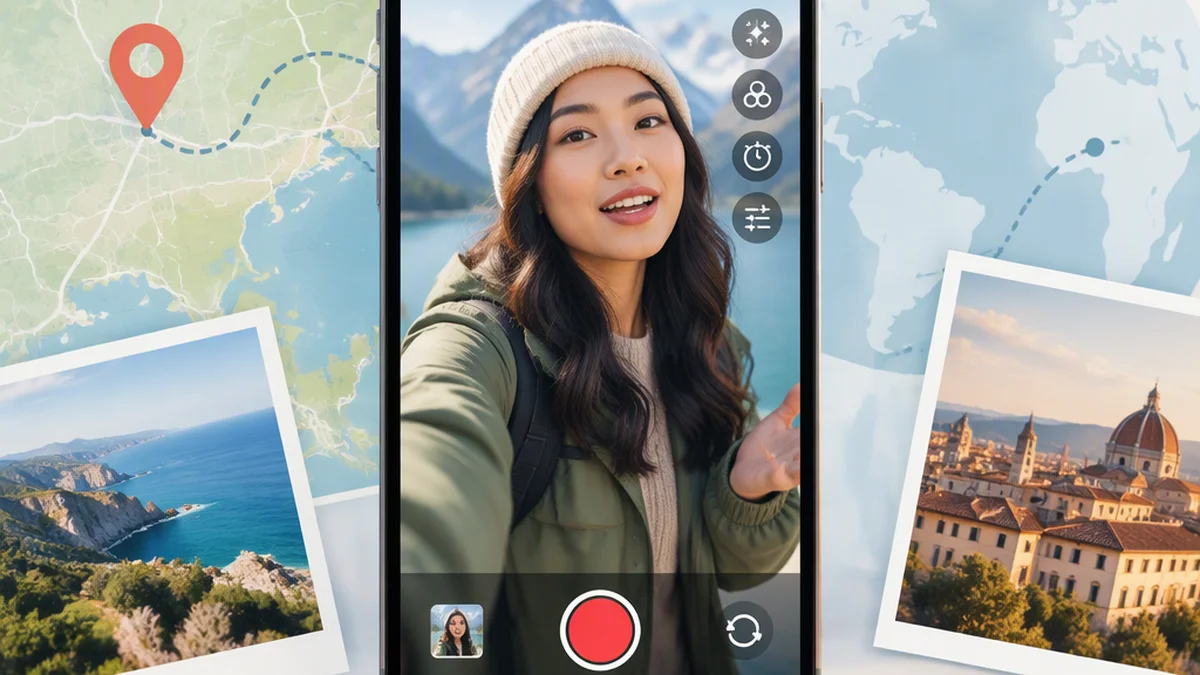
How to Use Green Screen on TikTok
To use Green Screen on TikTok, tap the plus (+) button, open Effects, search for “Green Screen,” choose the photo or video version, select your background media, and record. The effect replaces your visible background digitally, so you do not need a physical green backdrop.
How to Use Green Screen on TikTok with a Photo Background
TikTok’s standard Green Screen effect places a still image behind you while you record. Use it for explanations, reactions, presentations, or visual demonstrations.
- Open TikTok and tap the plus (+) button to create a video.
- Tap Effects on the camera screen.
- Search for “Green Screen.” Searching directly can be easier than browsing categories, whose labels and layout may change.
- Select Green Screen, rather than Green Screen Video.
- Choose a photo from your phone library or an image offered by the effect.
- Check the preview. Position yourself so you do not cover the important part of the image, and make sure your face, hands, and any objects you are holding remain visible.
- Tap the record button and record your video.
- When you finish, continue to the editing screen to add any available text, sound, voiceover, captions, or stickers.
- Review the background, your outline, and the audio before posting.
TikTok’s Newsroom guide describes this photo-background workflow: open the create screen, select Effects, choose Green Screen, select a photo, and record.
Example: Use a map behind you while explaining a route, or a screenshot while pointing out a specific detail.
How to Use Green Screen Video on TikTok
For a moving background, choose Green Screen Video. It is a separate effect from the still-photo version.
- Tap the plus (+) button in TikTok.
- Open Effects and search for “Green Screen.”
- Select Green Screen Video.
- Choose a video clip from your phone library or the media offered by the effect.
- Check the preview and adjust your position in the frame.
- Tap the record button to record yourself while the background video plays.
- Review the composition and make any available edits before publishing.
Example: Appear in front of a short screen recording while explaining the steps shown in it.
Short background clips may be easier to coordinate with your speaking. Hollyland’s guide notes that a background video may keep advancing when recording is paused, rather than restarting between takes. Test the timing in your preview, since behavior can differ between app versions.
Use background media you created, licensed, or otherwise have permission to publish. Saving a video or image to your device does not automatically give you reuse rights; consider music rights and the privacy of anyone shown as well.
How to Use Multiple Backgrounds in One TikTok
To show several photos in one Green Screen video, record in sections and change the background between sections within the same recording session.
- Choose the first photo and record your opening section.
- Tap the record button to stop that section. Stay on the recording screen—do not tap the checkmark or continue to editing yet.
- Reopen Effects, select Green Screen if needed, and choose the next photo.
- Record the next section.
- Repeat for each additional background.
- When all sections are recorded, continue to editing and preview the transitions.
Mojo’s guide describes recording in parts and changing the Green Screen background between sections. If your current recording screen does not let you reopen Effects or switch the photo, check whether your app version supports this workflow before recording the full video.
Keep your phone position, camera angle, lighting, and distance from the camera consistent so the cuts look intentional. Plan each background change before recording.
Example: Record an introduction over the first image, explain one point over the second, and finish with a summary over the third.
How to Find the Same Green Screen Effect from Another TikTok
If another TikTok uses an effect you want to try:
- Open the post and look for the effect label, usually near the lower-left area of the viewing screen.
- Tap the label.
- Choose the option to use the effect.
Mojo’s guide describes accessing an effect through another post. The label’s location and wording may vary. If it is missing, search for “Green Screen” from the Effects panel on the create screen instead.
Using the same effect does not grant permission to reuse the creator’s background images, videos, or other content.
How to Use Green Screen in a TikTok Duet
Some TikTok versions offer a Green Screen-style layout within Duet. To check:
- Open the TikTok video you want to respond to.
- Tap Share.
- Select Duet, if the creator has enabled it.
- Tap Layout.
- Choose the Green Screen-style layout if available.
- Record your response and review it before posting.
Your camera feed may appear in the foreground while the original video plays behind you. Hollyland’s guide describes this layout, but Duet availability depends on the creator’s settings and TikTok’s current interface. If it is unavailable, you can use Green Screen Video with media you have permission to publish.
Tips for Cleaner Green Screen Results
Improve the Lighting and Your Outline
Use even, front-facing light. Strong backlighting, deep shadows, or an underlit face can make the effect’s outline less precise. A steady window or another light in front of you can help.
If parts of your clothing or body are actually being cut off, improve the lighting and slow down your movements. You can also try clothing that is easier to distinguish from your real filming surroundings.
Keep Yourself Visually Distinct from the Digital Background
If your clothing remains intact but looks lost against the selected image or video, that is a composition issue—not necessarily a detection failure. Choose clothing or a digital background with more color contrast so viewers can see you clearly.
Choose a Readable Background
Use an image with a clear subject rather than a crowded scene, or a video without distracting motion. Keep important details away from the area where your face and hands will appear.
Move Deliberately
Fast sideways movement, sudden turns, and rapid gestures can make the outline less stable. If the effect struggles, slow down or record shorter sections.
Plan Room for Text and Interface Elements
Check that your face, captions, and important background details do not compete for the same space. Leave room for TikTok’s interface elements when framing the shot.
Check the Audio Separately
Green Screen changes the visual background; it does not fix echo, traffic noise, wind, or unclear speech. Record in a quieter space when possible and listen to the result before posting.
Green Screen Is Missing or Not Working: Troubleshooting
TikTok’s controls and effect availability can vary by app version, device, region, and account. Start with the issue that matches what you see.
| Problem | What to try |
|---|---|
| Green Screen does not appear | Search directly for “Green Screen” in Effects, check both the photo and video options, and look for an available TikTok app update. |
| TikTok cannot access your photos or videos | Review TikTok’s permissions in your phone settings. Allow access to the camera and the relevant photo or media library. The wording differs between iPhone and Android. |
| Body or clothing edges are blurry, jagged, or cut off | Improve front-facing lighting and reduce fast movement. Try clothing that stands out from your real surroundings. Hair, transparent materials, and thin objects may be harder to separate. |
| Clothing is visible but blends into the digital background | Choose a different background or clothing with stronger color contrast. This is different from the effect cutting away part of your clothing. |
| The wrong background type appears | Choose Green Screen for a still photo and Green Screen Video for a moving clip. |
| The background advances while recording is paused | Rehearse the timing, use a shorter clip, or record in one continuous take when practical. |
| The effect lags or performs poorly | Improve lighting, close unnecessary apps, and try a shorter or less complex background clip. If the issue continues, it may be a device-compatibility or temporary effect problem. |
| You cannot change photos between sections | Stay on the recording screen rather than entering editing. If Effects remains unavailable, check whether your app version supports changing backgrounds during the same recording session. |
FAQ
Do I Need a Physical Green Screen to Use Green Screen on TikTok?
No. TikTok’s built-in effect digitally replaces the visible background. You need access to the effect in the TikTok app and a photo or video to use behind you.
What Is the Difference Between Green Screen and Green Screen Video?
Green Screen uses a still photo as the background. Green Screen Video uses a moving video clip. Choose the effect that matches your background media.
Can I Use Multiple Photos in One TikTok Green Screen Video?
Yes, where the recording interface supports it. Record one section, stay in the same recording session, reopen Effects, choose another photo, and continue recording. Keep the camera position and lighting consistent.
Why Does My Clothing Disappear When Using Green Screen?
If clothing is actually being removed, the effect may be struggling to identify your outline. Improve front-facing lighting, reduce fast movement, and try clothing that is more distinct from your real filming surroundings.
If the clothing is still visible but looks similar to the selected digital background, increase the color contrast between the two.
Why Can’t I Find Green Screen on TikTok?
Search for “Green Screen” in the Effects panel and check for an app update. If you find the effect but cannot choose media, review your photo or video permissions. Availability and controls are not identical across all devices and accounts.