TikTok Live Green Screen: How to Find It and What to Check
Can You Use a Green Screen on TikTok Live?
TikTok offers green-screen effects for videos, but its public help material does not confirm a specific way to apply one during a LIVE or whether you can change it after the broadcast starts. So don’t assume the instructions for recording a regular TikTok video also work in LIVE.
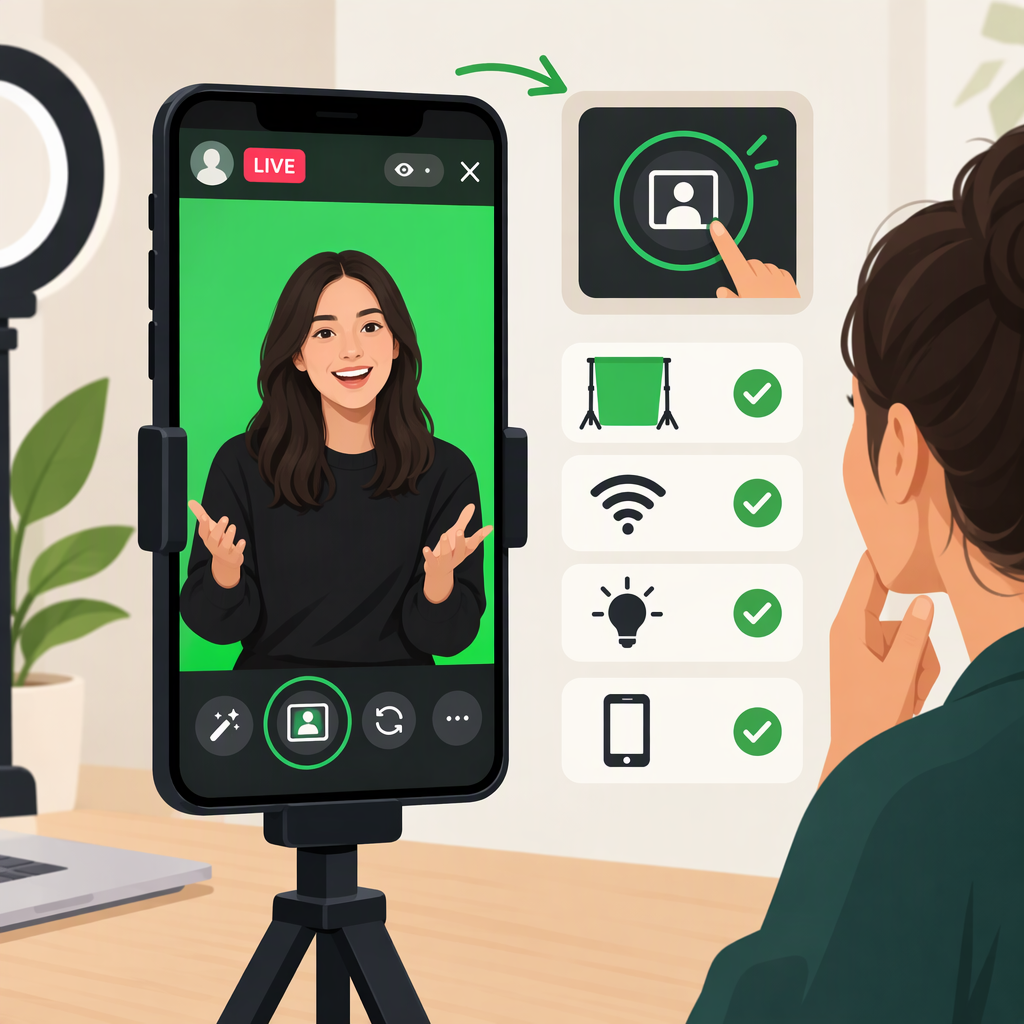
If you want to check your own LIVE setup, open the LIVE setup screen and look for an Effects option before starting. If it appears, preview the available effects and confirm that the background looks right before going LIVE. Treat this as a check of the controls available in your app—not a guaranteed TikTok-supported path. If there is no relevant effect, the public guidance available here does not establish another in-app method or confirm that the effect is available to your account.
TikTok’s general effects instructions describe applying an effect on the camera screen to record a video. They do not describe using that effect in a LIVE. (support.tiktok.com)
Check Whether You’re Using the Right Feature
TikTok’s published green-screen instructions explain how to use the effect when creating a video: tap +, choose Effects, select the green-screen effect, choose a photo background, and record. That guidance is for recording a video; it does not establish that the same effect is available in LIVE. (newsroom.tiktok.com)
TikTok also says LIVE creators may have access to features such as effects and other LIVE settings, but that does not confirm that every account has a green-screen effect specifically. (support.tiktok.com)
Keep these two checks separate:
- Can you start a LIVE? Check whether LIVE is available to your account.
- Can you use a green-screen effect in that LIVE? Look for the effect in the LIVE controls available to you. Access to LIVE does not, by itself, establish access to a particular effect.
If You Can’t Find the Effect
Try these checks without assuming any one of them will unlock the feature:
- Look in the LIVE controls, not only the video-recording Effects menu. TikTok documents effects for recording videos, but that menu is not proof that an effect is available during LIVE.
- Check whether LIVE itself is available to your account. TikTok notes that access to LIVE features may vary. Its public information cited here does not specify green-screen eligibility requirements.
- Update TikTok, then check the LIVE setup controls again. This is a general troubleshooting step, not a confirmed fix for a missing LIVE green-screen effect.
- If you’re using LIVE Studio, consult its own help or report the issue in TikTok. TikTok’s LIVE Studio help gives an in-app route for reporting a problem: Profile → ☰ → Settings and privacy → Report a problem. The cited LIVE Studio guidance does not confirm a green-screen control. (tiktok.com)
If the effect still does not appear, the available public guidance does not establish whether the cause is your account, device, region, app version, or a feature limitation. Avoid relying on ordinary video-effect instructions as proof that the effect should be available in LIVE.
If the Background Looks Wrong
These are general visual-quality suggestions, not TikTok LIVE requirements or a guarantee of a clean result:
- Light yourself evenly. Avoid strong shadows or large changes in brightness across your face and body. TikTok’s Creator Academy recommends even lighting for cleaner green-screen content and says uneven lighting can contribute to flicker or rough edges. (tiktok.com)
- Keep your framing steady. Use a stable phone or camera position and avoid moving in and out of the frame unnecessarily. TikTok’s Creator Academy recommends stable framing for green-screen content. (tiktok.com)
- Choose a clear background image. For recorded green-screen videos, TikTok recommends high-resolution visuals and fitting them to a vertical 9:16 frame. That is video guidance; the public sources cited here do not confirm which background options or framing controls are available in LIVE. (tiktok.com)
- Separate a visual problem from an access problem. If the effect is present but the cutout looks poor, try improving the light and stabilizing the shot. If the effect is absent from the LIVE controls, changing your lighting will not establish that the feature is available.
Bottom Line
TikTok documents a green-screen effect for recorded videos, but the public documentation cited here does not confirm the exact mobile LIVE setup steps, whether the effect can be changed mid-LIVE, or green-screen-specific eligibility rules. Check the controls shown in your LIVE setup, preview any effect before starting, and use TikTok’s in-app reporting route if you need help with a missing control.