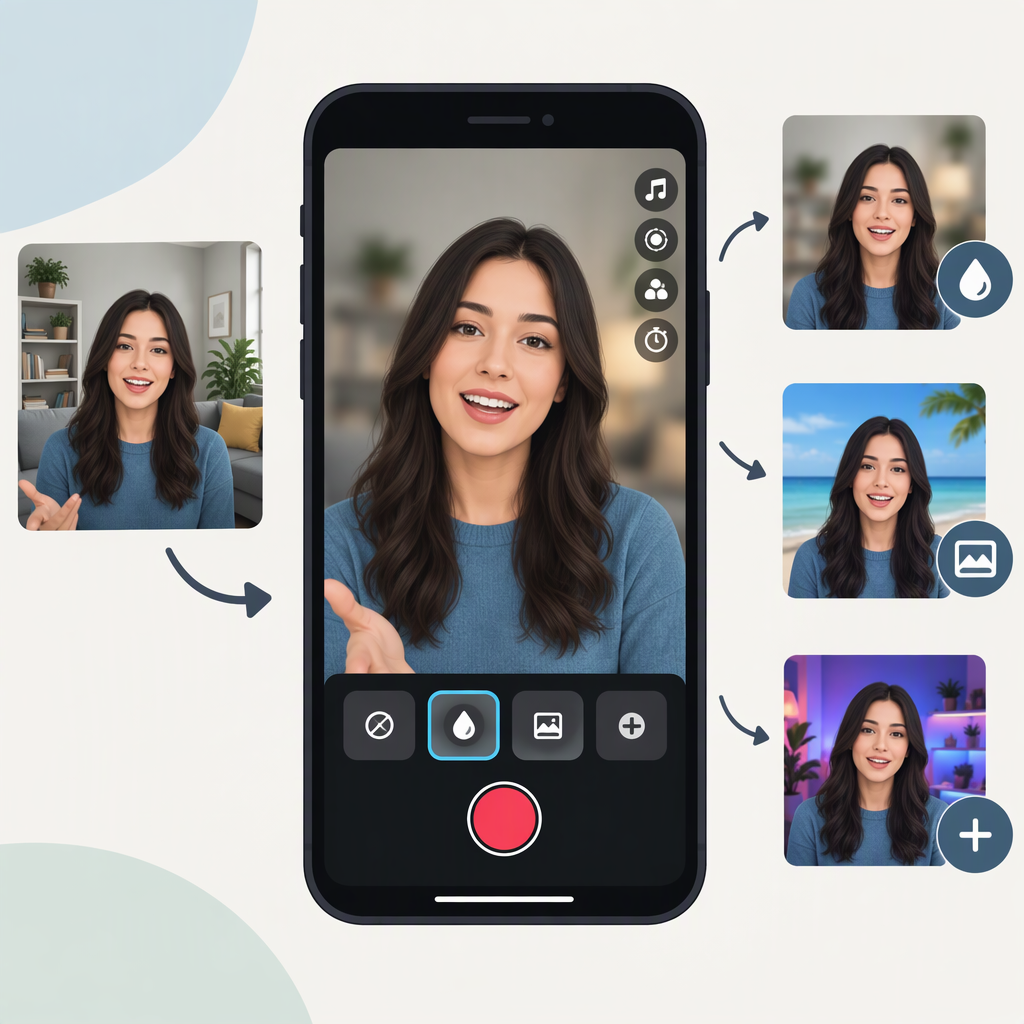
How to Blur or Change the Background in a TikTok Video
TikTok’s Help Center explains how to browse and preview effects, but it does not document a specific background-only blur control or a built-in solid-color replacement workflow. If you want to try an effect inside TikTok, check the Effects panel and preview what’s available in your app. For a more controlled result—including a solid-color backdrop—edit the clip before uploading it.
Try TikTok Effects First
To check whether TikTok offers an effect that gives you the result you want:
- Open TikTok and tap Add post (+).
- Tap Effects on the camera screen.
- Browse the available effects and tap one to preview it.
- Check the preview: make sure the effect blurs or changes the background while keeping the subject as clear as you want.
- If it works for your clip, return to the camera and record with the effect.
TikTok says effects can be added before or after recording, but some are available only at one of those stages. Its instructions for recording with an effect describe selecting and previewing it from the camera screen. The Help Center does not identify a particular native background-blur effect or guarantee that one will appear in your Effects panel. (support.tiktok.com)
Make an Existing Clip’s Background Blurry
For an existing video, use a video editor with a background-blur feature, then upload the edited result to TikTok. CapCut’s guidance covers background blur in its mobile app and desktop editor. In the editor, import the clip, choose its background-blur feature if available, adjust the effect, and review the result across the whole clip before exporting. Menu names and availability can vary, so follow the controls shown in your version of the app. (capcut.com)
Check several frames, especially when the subject moves. If the blur spills onto the subject or leaves parts of the original background sharp, adjust the effect or use a different clip. Do not rely on a visual blur to hide private details unless you confirm those details are obscured throughout the video.
Replace the Background with a Solid Color
For a solid-color result, an external editor is a documented option. CapCut Web describes removing a video background and replacing it with a solid color, an image, or other visuals. A basic workflow is:
- Open a new project in a video editor that supports background removal and import your clip.
- Remove the background using the editor’s background-removal control.
- Add a solid-color background behind the isolated subject and choose the color offered by the editor.
- Preview the clip from beginning to end, checking edges around hair, hands, and movement.
- Export the finished video, then upload it to TikTok.
The solid-color choices depend on the editor’s controls; TikTok’s Help Center does not specify a built-in color palette for replacing a video background. CapCut says its web editor supports background replacement with solid colors, images, or other visuals. (capcut.com)
Blur or Solid Color: Which Should You Use?
Blur softens the original scene while leaving it visible. A solid color replaces the scene with a flat backdrop. Choose based on the look you want—and inspect the full exported video before posting. Background removal can produce imperfect edges, so neither method should be assumed to work equally well for every subject or clip.
In short: try TikTok’s Effects panel if you want an in-app option, but don’t assume it includes a background-only blur or solid-color control. For a specific background treatment, edit the clip in a video editor and upload the finished version.