How to Make a TikTok Video with Background Music
Add Background Music to a TikTok Video
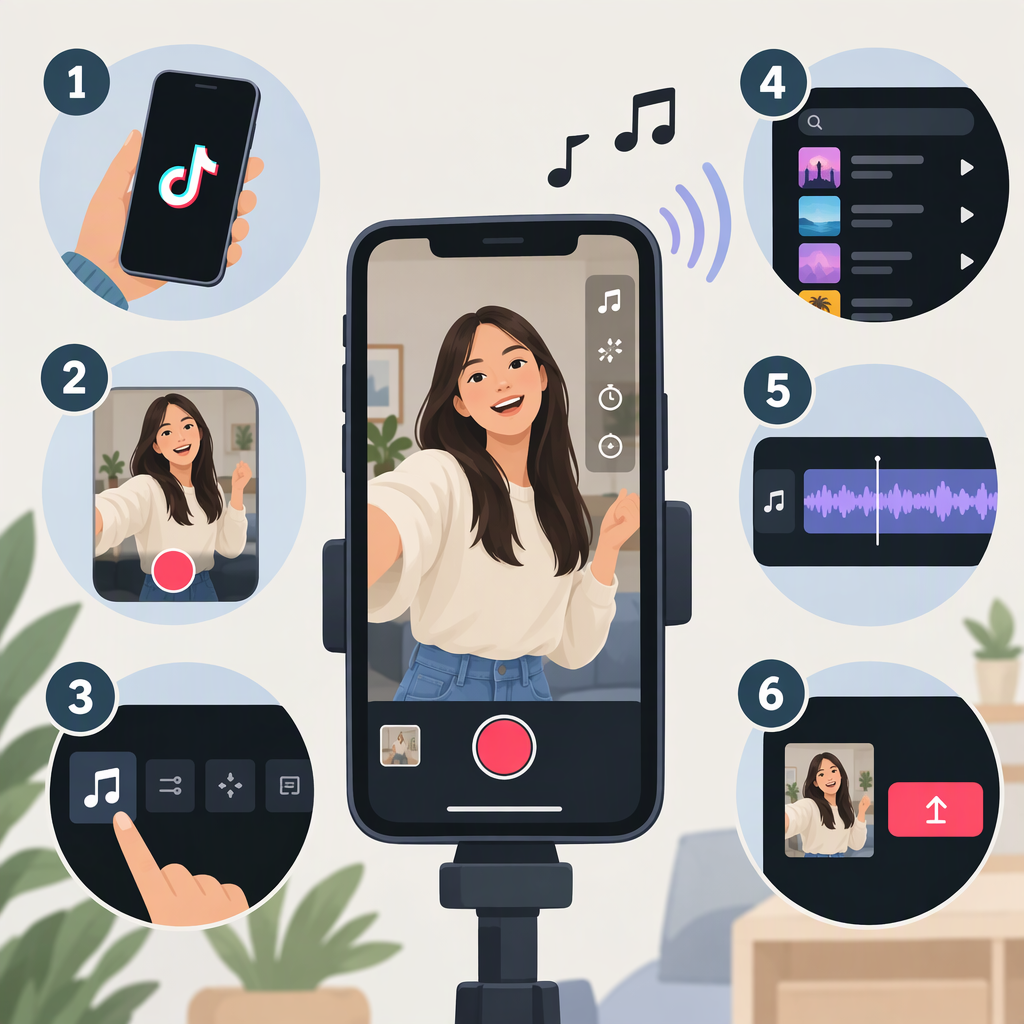
In the TikTok app, tap Add post (+), then either record a video or tap Upload to select one from your device. You can add a sound before recording or while editing. Tap Add sound, preview or search for a track, select it, and use Edit if you want to adjust the sound clip. Preview the finished video before posting, especially if it includes speech or important original audio. TikTok’s labels and available options can vary by account or app experience. (tiktok.com)
Record a Video and Add a Sound
- Open TikTok and tap Add post (+).
- Choose a video length and tap the Record button. When you finish recording, tap Continue.
- Tap Add sound at the top of the recording screen. Tap a sound to preview it, browse Recommended, Favorites, or Recent, or use Search to look for a sound.
- Select the sound and confirm it. TikTok’s instructions also describe using Edit to adjust the sound clip and tapping the video to add the sound.
- Play the video from the beginning and listen through to the end before posting. (tiktok.com)
You can also choose a sound before recording. TikTok notes that when you select a sound before recording or uploading, the video length is determined by the sound length. (support.tiktok.com)
Add Music to a Video You Already Have
- Tap Add post (+), then tap Upload and select a video from your device.
- Continue to the editing screen. TikTok says you can add a sound after recording or uploading; open the sound option, find and preview a track, and add it to the post.
- Preview the video with its added sound before you continue to the posting screen. (tiktok.com)
Choose a Sound That Fits—And Check It Against Speech
Pick music to support the video rather than compete with it. Consider the mood, pace, length, and whether the video depends on spoken words or other original audio. For example, for a short spoken cooking tip, a restrained instrumental section may fit better than a busy vocal track. That is an illustrative choice, not a TikTok rule or a tested result.
Preview the whole video, not just the track’s preview. Listen for whether each spoken sentence is easy to understand and whether important sounds in the original video still come through. If the music competes with speech, try a less busy section or a different sound. TikTok’s public sound instructions confirm previewing and editing a sound clip; its available documentation does not establish a universal ideal volume or a specific audio-mixing control for every video workflow. Use only controls actually shown in your editor. (support.tiktok.com)
Check Music-Use Guidance Before Posting
A sound appearing in TikTok’s library does not, by itself, establish that you can use it for every purpose or outside TikTok. TikTok says that when content promotes a brand, product, or service, it recommends using music from its Commercial Music Library (CML), which it describes as pre-cleared for commercial use. TikTok says its licenses for music outside the CML do not cover commercial use in content. If you use an original sound or music from outside the CML with content disclosure turned on, TikTok requires a Music Usage Confirmation stating that the post has no copyright-protected music or that you obtained the necessary licenses. (support.tiktok.com)
For commercial or promotional content, check the CML for a sound that fits your intended post. TikTok says CML sounds can be used for organic or paid content and offers filters including region, usable placements, mood, genre, and duration. Availability in the app depends on account type: TikTok’s guidance says a Business Account sees Commercial Sounds when adding sound, while a personal account sees all sounds and can select Commercial Sounds from the sound options. Check the region and placements relevant to your use rather than assuming a track is suitable everywhere. (ads.tiktok.com)
For other content, still check that the sound is available for your intended use and follow TikTok’s copyright guidance. TikTok says its rules prohibit content that infringes another person’s copyright, and that intellectual-property laws can vary by jurisdiction. Platform guidance is not individualized legal advice; for a specific legal question, consult a qualified professional. (support.tiktok.com)
Before You Post
- Play the full video and confirm the music starts where you expect.
- Check that speech and important original audio remain understandable.
- If the video promotes a brand, product, or service, verify the sound’s commercial-use suitability, region, and placement in TikTok’s CML guidance.
- Remember that TikTok may remove a sound; its Help Center says affected videos can be muted. If that happens, review the notice on the video for available next steps. (support.tiktok.com)