How to Make a TikTok Video with Snapchat Filters
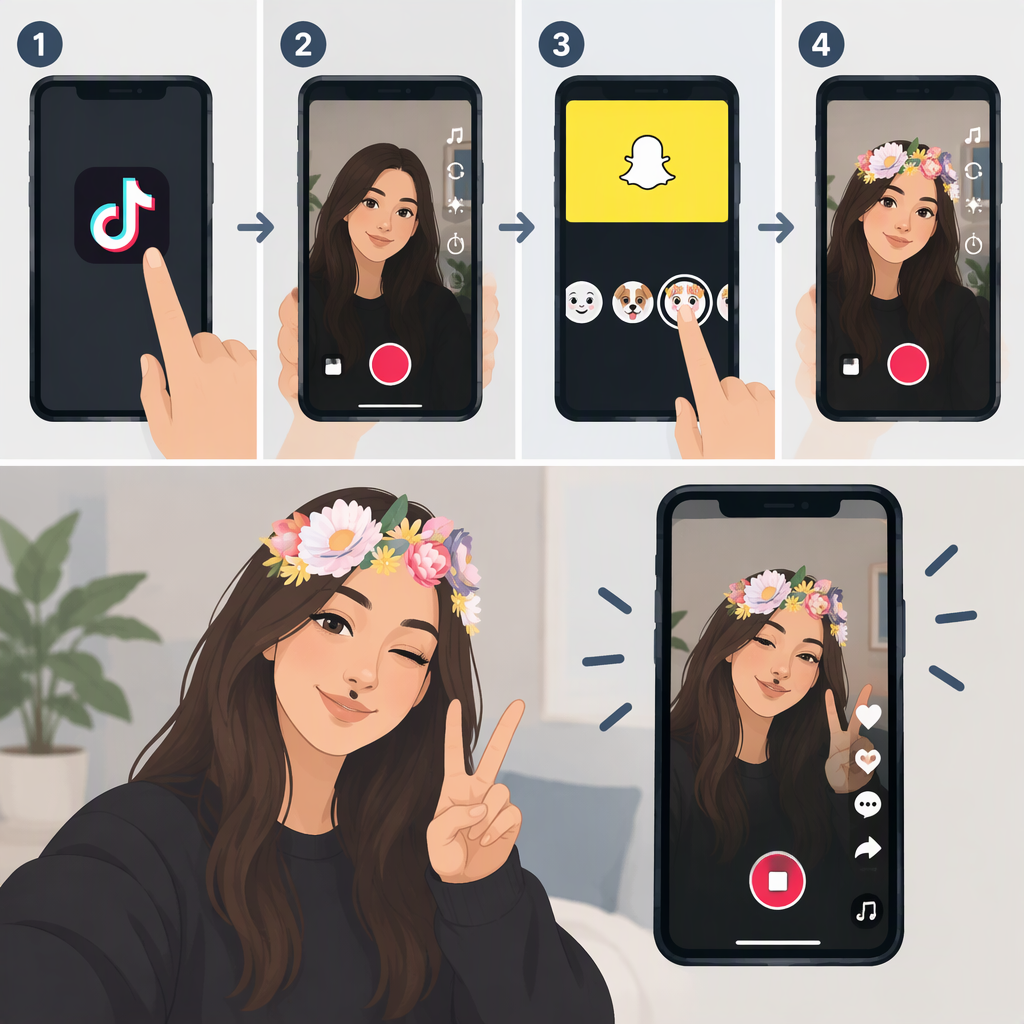
To make a TikTok video with a Snapchat effect, record the video in Snapchat, save it to your phone’s Camera Roll, and upload that saved clip in TikTok. Snapchat calls its augmented-reality effects Lenses—they’re different from Snapchat’s color and location Filters. TikTok can add its own effects after you upload a clip, but its editing tools do not make the original Snapchat Lens an editable TikTok effect. (help.snapchat.com)
Record a Video with a Snapchat Lens and Save It
- Open Snapchat’s Camera screen. Swipe through the Lens carousel and tap the Lens you want. Snapchat says Lenses are used while creating Snaps; some Lenses may not be available on all devices. (help.snapchat.com)
- Tap and hold the camera button to record a video Snap. Review the preview. (help.snapchat.com)
- Save the Snap. If you want to choose the save destination in advance, open your Snapchat settings and go to Memories → Save Button, then select Memories & Camera Roll or Camera Roll. If the Snap is already in Memories, press and hold it, tap Export, and choose where to save it. (help.snapchat.com)
- Confirm the video appears in your phone’s Camera Roll or other device location you can access from TikTok. Saving only to Memories may mean you need to export it before it is available in your device’s media library. (help.snapchat.com)
Upload the Saved Video to TikTok and Post It
- Open TikTok and tap Add post (+).
- Tap Upload and select the Snapchat video from your device. TikTok’s posting guidance describes uploading a video from the device, then moving on to edits and posting. (support.tiktok.com)
- Check the preview to make sure you selected the right clip. Add any TikTok edits you want, then tap Next to reach the post settings. Review the caption and privacy settings, then tap Post when you’re ready. The exact screen or button wording may vary with the app version. (support.tiktok.com)
If TikTok can’t find the clip, first check that it was saved to your device—not just Snapchat Memories. If prompted, allow TikTok access to the media you want to upload; permission names and settings depend on your device.
Can You Edit a Snapchat Filter After Importing the Video?
Treat the Snapchat Lens as part of the recorded video: choose it in Snapchat before you record. TikTok says you can add effects after uploading a video, but those are TikTok edits; its guidance does not describe reopening or adjusting the original Snapchat Lens as a separate effect. What a Lens looks like in the final clip can depend on the Lens and device. (help.snapchat.com)
So, if you want a Snapchat Lens, select it before recording. If you want a TikTok effect, upload the clip and add that effect in TikTok. You can also use both, but preview the result before posting.