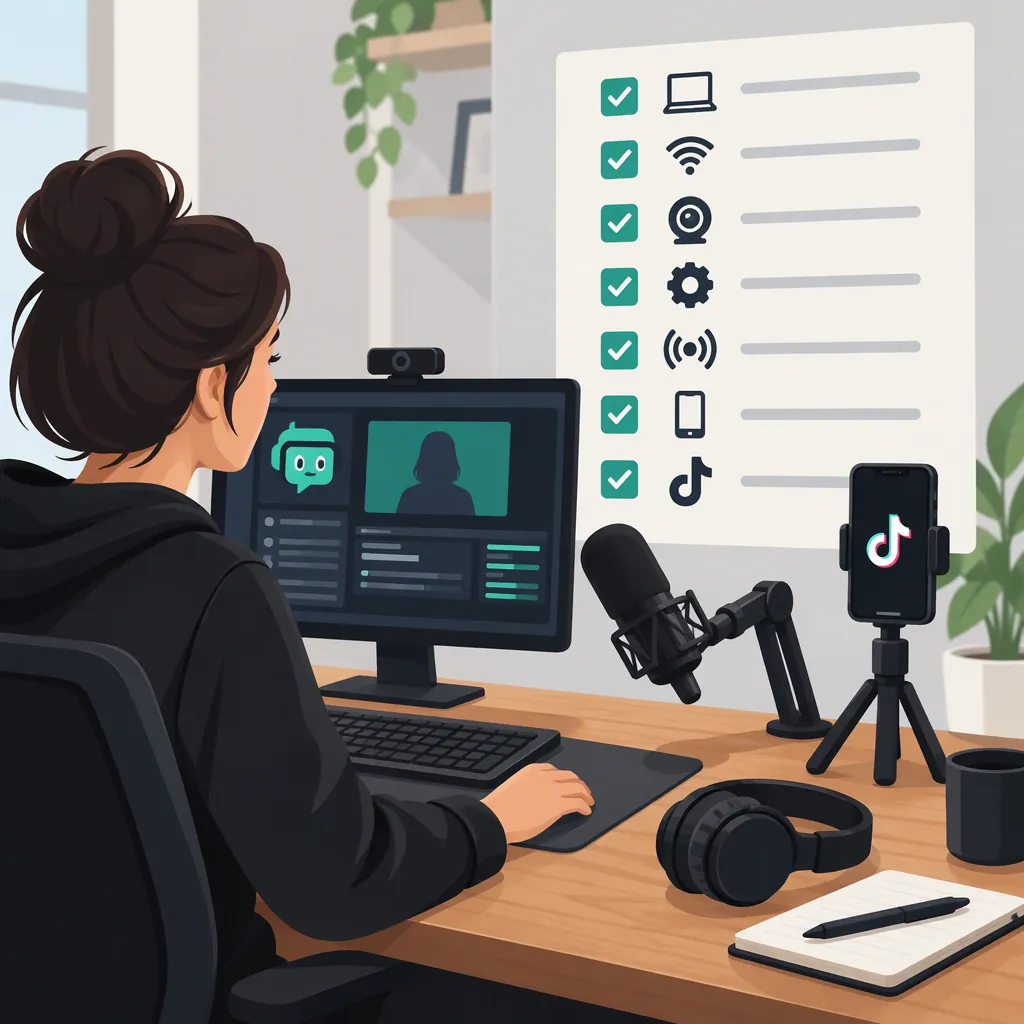
Streamlabs TikTok Setup: Connection Preflight and Testing Checklist
To prepare Streamlabs for TikTok LIVE, first confirm the desktop broadcasting method available to your TikTok account. Then use that supported connection route, arrange your video and audio, and verify the receiving output before relying on the setup. A working local preview is not proof that TikTok is receiving your broadcast.
Scope and Documentation Limits
This checklist focuses on preparing Streamlabs Desktop for TikTok LIVE. It is a preflight and testing workflow, not a version-specific configuration tutorial.
The cited Streamlabs TikTok guide index lists articles about desktop broadcasting, stream keys, settings optimization, and Dual Output. The index alone does not establish account eligibility, exact connection screens, supported software versions, or encoder values. Use the detailed guide relevant to your connection route before entering credentials or starting a broadcast. [c1]
1. Confirm Your Tool and TikTok Account Access
Before changing output settings, identify the software and account you intend to use:
- Record your Streamlabs tool and installed version. Keep those details available when checking setup documentation; do not assume instructions for another Streamlabs tool apply.
- Confirm the intended TikTok account. Check the LIVE and desktop broadcasting options currently shown for that account.
- Identify the offered connection route. Look for instructions that explicitly provide account authorization or server details and a stream key. Do not infer desktop broadcasting access merely from the ability to use LIVE elsewhere.
- Stop if the route is unclear or unavailable. Resolve access or documentation questions before configuring a destination.
No follower threshold, regional availability rule, or approval timeline is established here. The Streamlabs index describes its stream-key guide as covering both cases requiring a key and streaming without one, but it does not explain which conditions apply to your account. [c1]
Streamlabs–TikTok Live Access Worksheet
- Streamlabs tool: ______
- Installed version: ______
- Intended TikTok destination account: ______
- TikTok LIVE access checked on: ______
- TikTok LIVE desktop connection method shown: ______
- Detailed connection guide checked: ______
- Missing access or unresolved requirement: ______
- Ready to configure the connection: yes / no
Do not record passwords, authorization tokens, or stream keys in this worksheet.
2. Find the Relevant Setup Guide
Use the Streamlabs TikTok guide index to locate the article matching your next unresolved question. These titles are listed in the index; their detailed instructions are not reproduced here. [c1]
| Your next question | Guide listed in the index |
|---|---|
| How do I begin desktop broadcasting to TikTok? | “How to Go Live on TikTok from a Desktop” |
| Does my connection route require a stream key? | “How to Find Your TikTok Stream Key” |
| How should I configure Streamlabs Desktop output? | “How to Optimize Streamlabs Desktop for Live Streaming on TikTok” |
| Where are the Dual Output instructions? | “How to Set up Dual Output in Streamlabs for TikTok Streams” |
Check that the instructions match your installed tool and the connection method actually offered to your account. A listed guide title is not confirmation that every account has access to that feature or route. [c1]
3. Configure Only the Supported Connection Route
Use the following as a conditional checklist alongside the applicable detailed instructions—not as a substitute for verified menu steps.
If Account Authorization Is Offered
- Follow the documented authorization prompts.
- Check that you are authorizing the intended TikTok account.
- Before broadcasting, confirm any destination information displayed by the software.
- If authorization fails, record the error without exposing account credentials.
If Server Details and a Stream Key Are Provided
- Follow the detailed instructions to locate the matching destination fields in Streamlabs.
- Copy the server value and stream key exactly into their respective fields.
- Keep the key out of screenshots, recordings, shared notes, and troubleshooting logs.
- Recheck the destination before starting a broadcast.
If Neither Route Is Available
Do not substitute another account’s credentials or assume that changing resolution or bitrate will unlock access. Leave the connection unresolved until you have a supported route and instructions that match it.
Connection checkpoint: the documented setup steps should be completed for the intended account, with no unresolved connection error. End-to-end delivery still needs a separate check.
4. Prepare the Video Layout and Audio
Once you have established a connection route, check the presentation separately.
Video
For a portrait-oriented broadcast, arrange the camera, captured content, and text for that layout rather than using an unchanged landscape composition.
- Keep essential content inside the intended frame.
- Inspect text and captions at a small viewing size.
- Check for unwanted cropping.
- Remove private windows and notifications from the captured area.
This checklist does not prescribe a resolution, bitrate, or frame rate. Use the requirements in the applicable destination instructions rather than treating an unverified preset as universal.
Audio
If your installed software offers local recording, make a short sample:
- Speak at your expected broadcast volume.
- Include any intended game, media, or background audio.
- Listen for distortion, echo, missing sources, or background audio that overwhelms speech.
- Correct one issue at a time and record another sample.
A local sample checks presentation; it does not verify TikTok delivery.
Streamlabs–TikTok Live Preflight Checklist
- Streamlabs tool and version recorded.
- Intended TikTok destination account confirmed.
- Supported TikTok LIVE connection route documented.
- Required connection steps completed.
- Intended video orientation and framing checked.
- Text and overlays readable at a small viewing size.
- Private content removed from the capture.
- Microphone and intended background audio checked.
- Local sample reviewed, if available.
- Test visibility understood before broadcasting.
5. Test and Troubleshoot by Layer
Before using any test option, determine whether it is local, private, or public. Do not assume a test broadcast is hidden from viewers.
Check these layers in order:
| Layer | What to verify |
|---|---|
| Access | The intended TikTok account offers the required broadcasting route. |
| Connection | The intended destination is selected and required authorization or credentials are configured. |
| Video | The preview shows the intended content without unwanted cropping or private information. |
| Audio | A sample contains the intended sources clearly. |
| Delivery | During an authorized broadcast, the receiving view shows and plays the expected output. |
If a problem appears, record the symptom and change one setting at a time. When an error names a specific condition, consult current documentation for that error rather than guessing a fix.
Streamlabs–TikTok Live Troubleshooting Log
- Streamlabs tool and version: ______
- TikTok destination account identifier, if needed: ______
- Symptom: ______
- Layer: access / connection / video / audio / delivery
- Exact error text, with credentials removed: ______
- Single change made: ______
- Result after rechecking: ______
- Next unresolved question: ______
FAQ
Do I Need a TikTok Stream Key for Streamlabs?
Check the connection method offered to your account. The Streamlabs index describes a guide covering situations that require a stream key and streaming without one, but it does not establish the conditions for either route. Do not assume every account uses the same method. [c1]
What Bitrate and Resolution Should I Use?
No numerical preset is verified here. Streamlabs lists a TikTok settings-optimization guide, but the index does not include its recommendations. Use the applicable destination requirements and detailed setup instructions, then test the selected settings. [c1]
Can I Follow This Checklist Without Version-Specific Instructions?
You can use it to organize access checks, protect credentials, prepare the presentation, and record test results. You still need detailed instructions matching your tool and account to complete the connection. The cited index provides an entry point to the desktop and stream-key guides, not their configuration steps. [c1]
Does a Correct Streamlabs Preview Mean I Am Live on TikTok?
No. A local preview checks what the software is showing, not whether the intended account is authorized or the destination is receiving it. Verify delivery separately during an authorized broadcast, after checking whether that broadcast will be public.