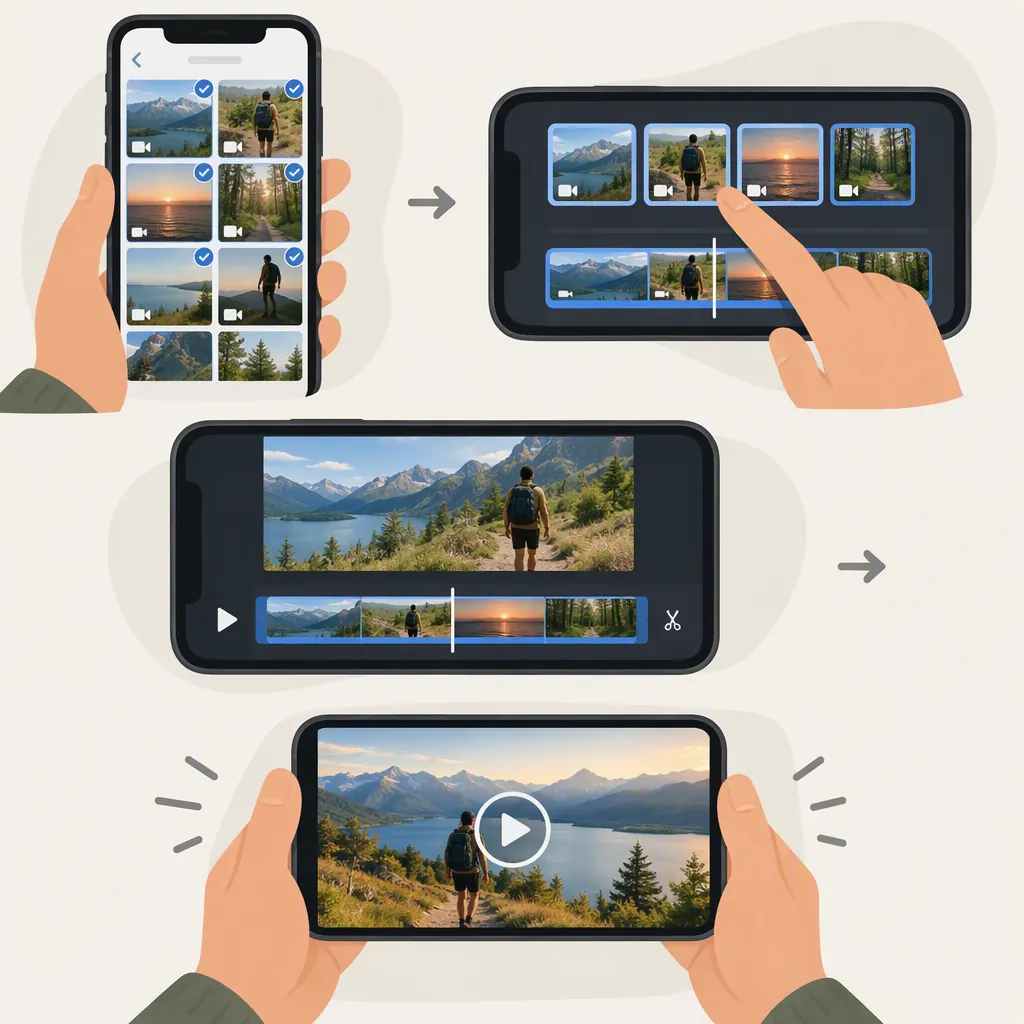
How to Stitch Video from Your Camera Roll on TikTok
To make a Stitch-style video from your camera roll, put a short excerpt of another creator’s video first, add your response immediately after it, and upload the combined video to TikTok. Add creator credit manually: this is a manual response edit, not TikTok’s native Stitch workflow. NapoleonCat’s August 2023 guide describes this camera-roll workaround and notes that it does not automatically tag the original creator. [stitch-guide]
Interface note: The guide’s TikTok instructions reflect August 2023, so button labels and available options may differ in your app. The timeline steps below are general editing suggestions, not verified instructions for a particular editor.
Native Stitch Vs. a Camera-Roll Edit
Choose the workflow that fits the footage you have and the result you want:
- Native TikTok Stitch: Open another creator’s video, select Share → Stitch, trim the source excerpt, and record a response. The guide says this workflow automatically tags the original creator in the caption and lets viewers access the original video for context. [stitch-guide]
- Camera-roll edit: Combine a saved source excerpt with your response without using the native Stitch feature. The guide says creator tagging is not automatic in this workflow, so add attribution yourself. Do not assume the upload has a native Stitch association with the original post. [stitch-guide]
Your camera roll may contain only the other creator’s video, or it may also contain a response you have already recorded. Either way, you can prepare both clips before assembling the manual edit.
How to Combine a Saved Video with Your Response
1. Check the Source and Permission
Confirm whose video you are using and whether you have permission or another valid basis for reusing it. Having a saved copy is not proof of permission, and credit is not a substitute for checking whether reuse is appropriate.
If you still need the source clip, NapoleonCat’s guide describes Share → Save video as a way to save a TikTok video. If that option is unavailable, do not assume you can bypass the creator’s restrictions. [stitch-guide]
2. Prepare Your Response
If your response is already in your camera roll, select the recording you want to use.
If you have not recorded it yet, record your response and save it to your camera roll before editing. Respond to the specific point you plan to include in the opening excerpt so the two clips make sense together.
3. Add Both Clips to One Timeline
Start a project in a video editor that supports multiple clips, then import:
- The other creator’s source video.
- Your response video.
Add both clips to the same timeline, with the source video first and your response second. The intended sequence is:
Source excerpt → Your response
For this workflow, place the clips one after another rather than layering them to play at the same time.
4. Trim the Source Excerpt
Find the part of the original video you want to respond to. Depending on your editor, you can:
- Drag the clip’s start and end trim handles to keep only the relevant section.
- Split the clip at the desired beginning and end, then delete the unwanted portions.
NapoleonCat’s guide recommends a five-second opening clip for its camera-roll workaround. That recommendation does not establish a universal five-second limit for manually edited uploads. [stitch-guide]
Keep enough context to represent the original point accurately. Do not cut away a qualification that changes the apparent meaning of what the creator said.
5. Place Your Response Directly After the Excerpt
Move your response so its beginning meets the end of the trimmed source clip. If needed, trim unwanted silence from the start of your response.
Preview the join and check that:
- There is no unintended blank gap between clips.
- The clips do not overlap unintentionally.
- Neither speaker is cut off mid-word.
- Viewers can tell when the original excerpt ends and your response begins.
A simple cut is sufficient for this sequence. You do not need to add a transition effect.
6. Review Audio, Labels, and Captions
Play the combined timeline from the beginning. Check that both clips are understandable and that captions accurately identify who is speaking.
For the opening excerpt, consider a label such as “Clip from @originalcreator; my response follows.” The guide recommends an opening label to signal that viewers are seeing another creator’s clip before the response. [stitch-guide]
7. Export and Upload the Combined Video
Export the timeline as one video file and save it to your camera roll. Play the exported file to confirm that both clips appear in the correct order and that the audio and captions are intact.
Then open TikTok’s upload workflow and select the combined file. NapoleonCat’s guide describes starting with the plus button and choosing a saved video; use the corresponding upload controls available in your app. [stitch-guide]
8. Add Attribution Manually
Identify the original creator in your caption and explain what you are responding to. Manual creator tagging is necessary for the camera-roll workaround described by the guide because it does not use native Stitch attribution. [stitch-guide]
Do not imply that the creator collaborated with or endorsed you unless that is actually the case.
Pre-Upload Review Checklist
- Confirm permission or another valid basis for using the source clip.
- Verify the original creator’s username.
- Preserve the excerpt’s meaning and necessary context.
- Place your response immediately after the source excerpt.
- Check for blank gaps, unintended overlap, and cut-off speech.
- Review audio, captions, and the exported file.
- Add manual creator credit. [stitch-guide]
- Treat the result as a manual response edit, not a native Stitch.
How to Use Native Stitch Instead
If you want to record a new response within TikTok rather than assemble saved clips, NapoleonCat’s guide gives this native workflow: [stitch-guide]
- Open the video you want to respond to.
- Tap Share, then find Stitch.
- Select and trim the source excerpt.
- Tap Next and record your response.
- Edit the result, review the caption and settings, and publish. [stitch-guide]
The guide also describes creator controls that allow or restrict Stitch, including controls for individual videos. If Stitch is unavailable, check whether the creator permits it rather than assuming the feature is broken. Do not use a camera-roll edit merely to get around a creator’s restriction. [stitch-guide]
Keep Credit and Context Clear
A useful manual-edit caption identifies the original creator and explains your contribution. The guide recommends tagging the creator and labeling the opening excerpt so viewers know a response follows. [stitch-guide]
Manual Response Caption Template
Opening clip: @originalcreator. My response follows. I’m responding to [specific point]. This is a manually edited response video.
Before uploading, watch the excerpt and your response together. Check that your edit does not make the original statement seem more absolute, less qualified, or otherwise different from its original meaning. If a short excerpt cannot preserve the necessary context, consider summarizing the point in your own words instead.
FAQ
Can I Use a Prerecorded Response in a Native TikTok Stitch?
The available reference does not establish whether the current native Stitch interface accepts prerecorded responses. Its native workflow tells users to record a response after selecting the source excerpt, while its camera-roll method is described as a workaround outside the Stitch feature. Check your current app rather than assuming an upload option is available. [stitch-guide]
What If Only the Other Creator’s Video Is in My Camera Roll?
Record your response and save it, then import both videos into one editing project. Put the source excerpt first and your response immediately after it. If you prefer to record within native Stitch instead, the guide describes selecting Share → Stitch on the original post before recording your response. [stitch-guide]
Does a Camera-Roll Stitch Have to Start with Exactly Five Seconds?
No universal five-second requirement is established by the reference. The guide recommends a five-second opening clip for its camera-roll workaround, but that is not evidence of a fixed limit for every manually edited response. Preserve the relevant context and check current upload requirements separately. [stitch-guide]
Will Uploading a Combined Video Automatically Credit the Original Creator?
Do not rely on automatic credit. The guide says its camera-roll workaround does not automatically tag the original creator, unlike native Stitch. Add the creator’s username manually and make the boundary between their clip and your response clear. [stitch-guide]
What Should I Do If Stitch or Save Video Is Unavailable?
The guide describes creator settings that can restrict Stitch and a Share → Save video option for saving footage. Do not assume an unavailable option is an error or permission to bypass a restriction. Check whether the creator permits the intended use before proceeding with a manual edit. [stitch-guide]
Sources
- [stitch-guide] Here’s How to Stitch on TikTok (and when to do it)