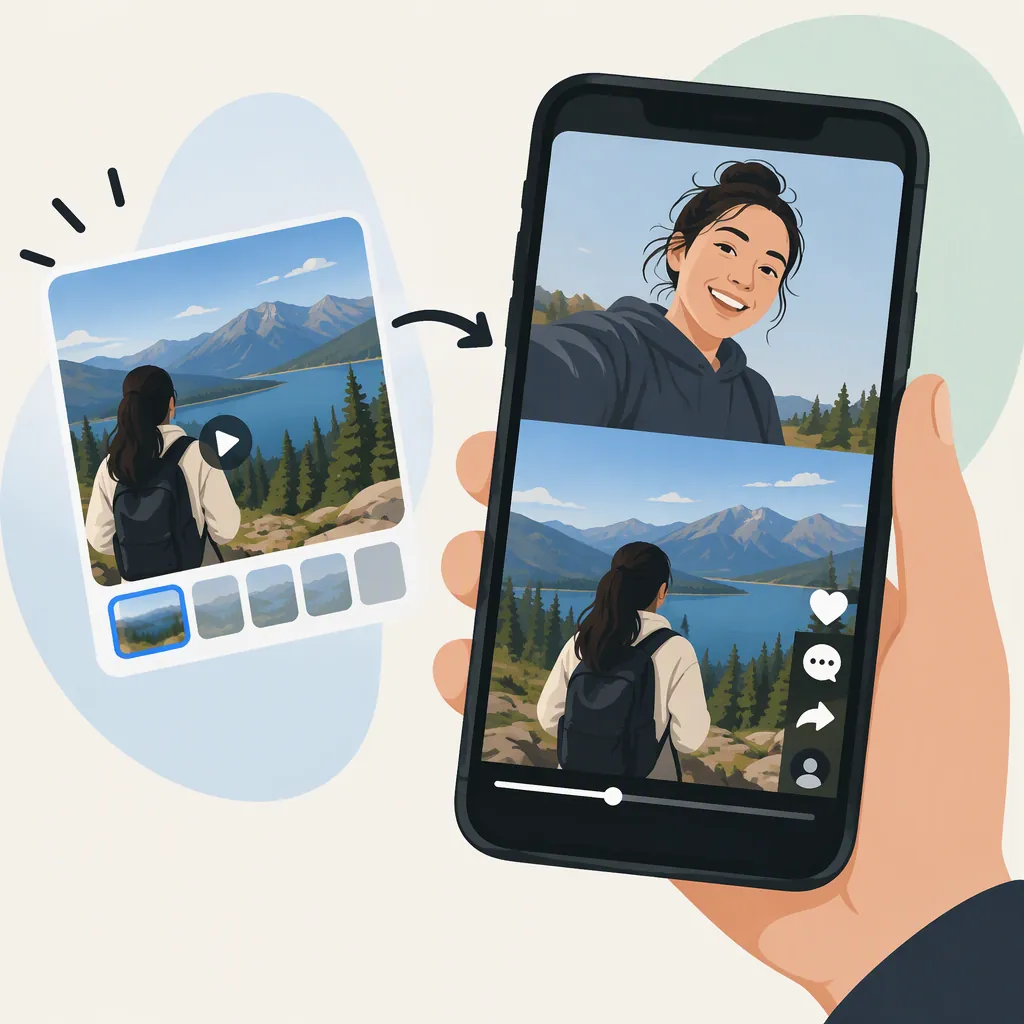
How to Use a Camera Roll Video for a TikTok Stitch
According to the supplied High Social guide, TikTok’s native Stitch workflow requires recording your response in the app; it does not let you insert a prerecorded camera roll response. The workaround is to combine an authorized copy of the original clip with your saved response, then upload the edited video as a regular post. That does not create the native Stitch link to the original. This guidance comes from third-party sources, not current TikTok documentation. [c2]
Native Stitch Versus a Camera Roll Upload
A native TikTok Stitch places an excerpt from another video before a response you record. SocialCoach describes selecting a one-to-five-second excerpt, then recording your contribution in TikTok. [c1]
A camera roll workaround creates a similar sequence through editing: the original excerpt first, followed by your prerecorded response. High Social describes this as a manually assembled alternative, not the same native Stitch workflow. It says the uploaded result will not automatically link to the original video or mention its creator. [c2]
Choose native Stitch if the built-in connection to the original matters. Choose a manually edited upload if using your existing recording matters more—and you have permission to reuse the source clip.
The supplied sources are third-party guides dated March 2024 and updated April 2025. They do not establish the exact interface or feature availability in your current app.
How to Combine the Clip with Your Saved Response
High Social documents a workaround using TikTok’s upload and editing tools. Treat the button names below as a guide rather than a guarantee of your current interface. [c2]
- Confirm permission to reuse the original. Ask the creator before saving and republishing their footage, and explain how you plan to use it. Do not use this workaround to evade a creator’s disabled Stitch setting. High Social recommends asking permission and respecting that setting. [c2]
- Save the authorized source video. Open its Share menu and use Save video, if available. The supplied guide starts with this option; if it is missing, this workflow does not provide a supported download route. [c2]
- Start an upload. Open TikTok’s Create screen, choose Upload, and select the saved source video. [c2]
- Trim the source excerpt. In the clip editor, use trimming or the guide’s Split and Delete approach to remove footage before and after the passage you need. [c2]
- Add your camera roll response. The guide describes using the editor’s plus button to add the prerecorded clip. Keep it after the source excerpt and trim unnecessary footage. [c2]
- Review and finish the post. Check the sequence, captions, and audio. Add explicit creator credit before publishing; the workaround does not supply the original-video connection automatically. [c2]
If your TikTok editor does not offer the described controls, High Social also outlines combining the clips in a separate video editor and uploading the finished file through TikTok’s Create tool. This remains a regular edited upload, not a native Stitch. [c2]
Pre-Publication Checklist
- Confirm the creator has agreed to the intended reuse.
- Keep only the source excerpt needed to understand your response.
- Place the prerecorded response after the source excerpt.
- Check that cuts do not misrepresent the original statement.
- Review audio and on-screen text.
- Include the original creator’s username in the caption.
- Do not describe the upload as having a native Stitch link.
How to Make a Native Stitch Instead
If you can record a new response, the supplied guides describe this native workflow: [c1] [c2]
- Open the original video and tap Share.
- Select Stitch, if offered.
- Choose the source excerpt and tap Next.
- Record your response in TikTok.
- Tap the check mark, review the result, and continue to the posting screen.
- Add your caption and review posting settings before publishing.
SocialCoach says the original creator must allow Stitch. If the option is missing, disabled permission is one possible explanation—not proof that your app is broken. [c1]
Avoid relying on a precise minimum recording length from these references: the SocialCoach guide gives inconsistent minimum-length advice. The provided evidence therefore does not support a dependable minimum.
Credit and Workaround Limitations
For a manually edited upload, write the creator’s username explicitly in the caption. High Social notes that this workaround does not automatically mention the creator or link the post to the original video. Manual credit does not recreate that native connection. [c2]
As an editorial precaution, identify which footage belongs to the original creator and where your response begins. Avoid cuts that change the meaning of the source passage.
These sources do not establish current recommendation-system treatment or any reach benefit. They also do not establish that permission to use native Stitch grants permission for a separately downloaded and reuploaded edit. Ask about that specific use rather than assuming the two are interchangeable.
FAQ
Can I Upload a Camera Roll Video Directly Inside TikTok Stitch?
The supplied High Social guide says no: native Stitch requires an in-app recording. It describes manually combining saved clips as an alternative. Because this is third-party guidance updated in April 2025, it does not verify every current app version. [c2]
Why Is the Stitch Button Missing?
The creator may have disabled Stitch for that video, according to SocialCoach. The supplied sources do not establish every possible cause. Do not assume downloading and reuploading the clip is an acceptable way around the setting. [c1] [c2]
Will My Edited Upload Automatically Credit the Original Creator?
No, according to High Social’s description of the workaround. Add the creator’s username yourself, but remember that a caption mention does not create the native Stitch connection to the original video. [c2]