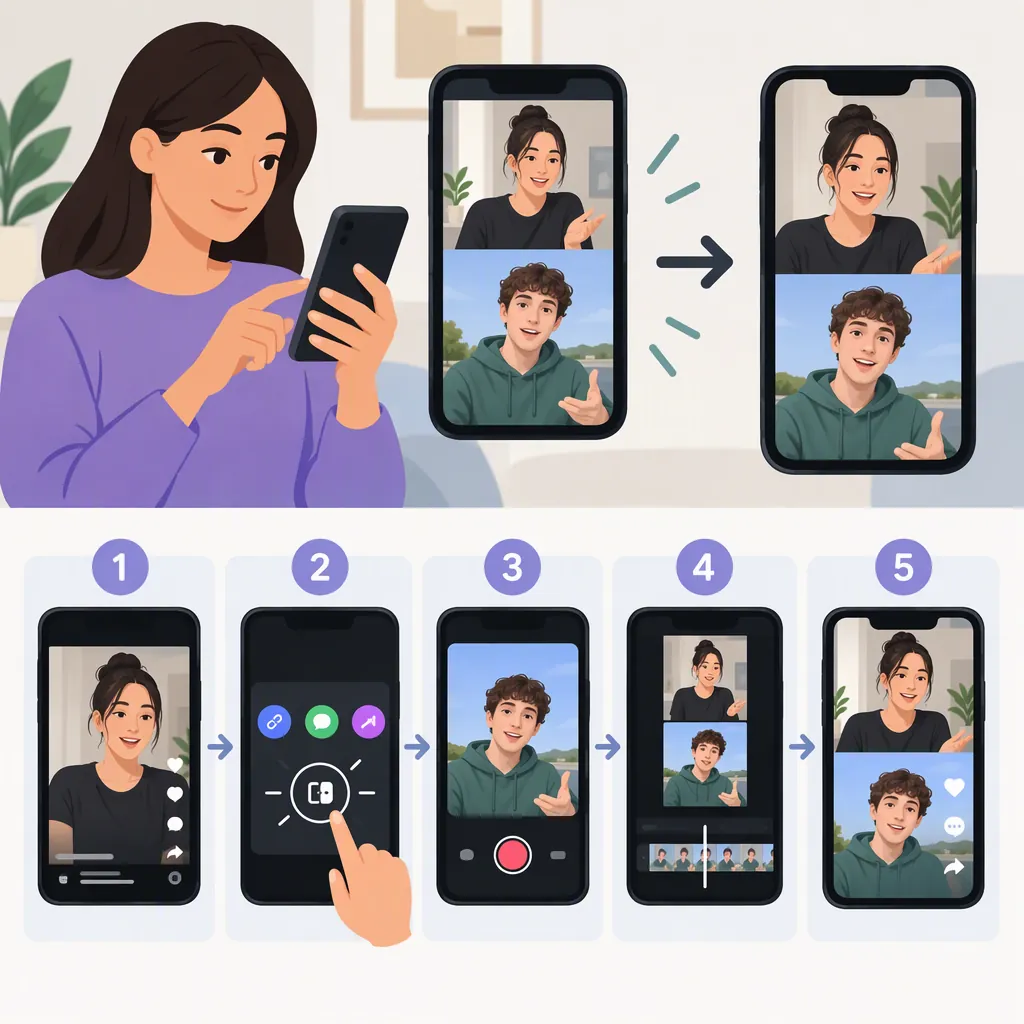
How to Stitch Someone Else’s Video on TikTok
Open the TikTok video you want to respond to, tap Share, and select Stitch. Choose up to five seconds of the original video, tap Next, and record your response. Review your edits and posting settings before tapping Post. The original video must have Stitch enabled. These steps follow published guides; the exact interface may differ from their descriptions. [c1] [c2]
What Stitch Does
Stitch puts a short excerpt from someone else’s TikTok at the beginning of your own video, followed by your recorded contribution. It is useful for answering a question, commenting on a statement, or continuing an idea. Business Insider’s guide describes selecting up to five seconds from the original video—not necessarily its opening five seconds. [c1]
Stitch and Duet are different formats. Stitch presents the selected excerpt before your response; Duet places the videos alongside each other in a split-screen layout. [c1] [c2]
Source limitation: This tutorial draws on a Business Insider guide published in 2021 and a CapCut guide dated June 2025. Neither is current official TikTok documentation, so treat screen labels and menu locations as guidance rather than a verified description of every current app version.
Verify the Source Before Choosing a Response
Look for the original upload rather than a reposted fragment. Check the account's public identity claims, the full video's date and surrounding explanation, and any correction or follow-up. A username or confident delivery is not proof of expertise. If the response depends on a factual claim, compare it with an appropriate primary source and distinguish a factual correction from your own interpretation. Do not identify a person beyond what you can responsibly verify.
Choose a specific point you can add to: a missing condition, a worked example, a useful correction, or a different result under clearly stated circumstances. Write that contribution in one sentence before selecting the excerpt. If the only response is an unrelated reaction or personal attack, choose another source or make a standalone explanation. Preserve qualifiers that change the original point, even when that means the excerpt is unsuitable for a short response.
Reopen the original before production. If it has been deleted or is otherwise unavailable, the native source-dependent workflow may no longer be usable; do not assume a saved link is a reusable video file. Stop and choose another available, appropriately reusable source or publish your own explanation without its footage. This is a dependency precaution, not a verified claim about what happens to every already-published Stitch after deletion. Do not use a downloaded copy to bypass the creator's settings. No specific deletion-propagation behavior is assumed here.
How to Stitch a Video Step by Step
The published guides describe the following in-app workflow. [c1] [c2]
- Open the original video. Find the TikTok you want to respond to.
- Tap Share. Look for the arrow icon, then choose Stitch from the sharing menu. Allow the video to process.
- Select your excerpt. Move through the original video and adjust the selection handles to choose up to five seconds. Select the passage your response actually addresses, then tap Next.
- Record your contribution. On the recording screen, film the part that follows the original excerpt. When finished, tap the checkmark.
- Review and edit. Add text, effects, stickers, or other available edits as needed, then tap Next.
- Check the posting settings. Add a caption and review whether others can Stitch your resulting video. Business Insider’s guide describes an Allow Stitch toggle on this screen.
- Post when ready. Tap Post to publish the completed video.
Before publishing, watch the excerpt and your response together. As an editorial precaution, make sure the cut does not change the original speaker’s meaning and that your response clearly relates to the selected passage.
Pre-Posting Review Checklist
- [ ] The selected excerpt contains the point I am responding to.
- [ ] The cut preserves enough context to avoid misrepresenting the original.
- [ ] My recorded response follows clearly from the excerpt.
- [ ] I have checked the caption and any added text.
- [ ] I have reviewed the available posting and Allow Stitch settings.
- [ ] I have watched the complete video before posting.
What to Do If Stitch Is Unavailable
If Stitch is missing or grayed out, Business Insider’s guide identifies the original creator disabling Stitch as the reason. CapCut’s guide also notes that privacy settings or content restrictions can make stitching unavailable. The supplied sources do not provide an exhaustive, current troubleshooting list. [c1] [c2]
A practical first check is to open another video and look for Stitch in its Share menu. This helps distinguish a problem with one video from a broader issue, but it does not establish the exact cause. CapCut also recommends checking that the app is updated. [c2]
Do not treat downloading and reuploading the original as a way to bypass the creator’s choice. If you instead make a separately edited response using material you have permission to reuse, distinguish that upload from TikTok’s native Stitch workflow.
Saved Tiktoks Versus Camera Roll Videos
A TikTok saved within the app is different from a video file stored on your phone. CapCut’s guide says you can Stitch a saved TikTok if its creator has enabled Stitch. It also says the native Stitch workflow does not let you upload a prerecorded camera roll video as your response. This limitation is reported by that guide and has not been independently verified against the current app. [c2]
Combining files in a separate editor creates a manually edited upload, not the same native Stitch workflow. CapCut’s guide states that such an upload does not automatically link to the original video. Avoid assuming that manual editing reproduces Stitch’s attribution behavior. [c2]
FAQ
How Much of the Original Video Can I Stitch?
Business Insider’s guide describes a maximum of five seconds from the original video. That limit applies to the selected excerpt, not to the length of your recorded response. The supplied sources do not establish current response-duration limits. [c1]
Can I Select a Clip from the Middle of the Video?
Yes, the workflow described by Business Insider lets you scroll through the original video and adjust selection handles to choose the passage you want. You are not limited to the opening five seconds. [c1]
Why Can’t I Stitch Someone Else’s TikTok?
The creator may have disabled Stitch. The supplied guides also identify privacy settings or content restrictions as possible barriers. They do not establish every current eligibility rule, so a missing option alone does not confirm the precise cause. [c1] [c2]
Can I Stitch with a Prerecorded Response?
CapCut’s June 2025 guide says you cannot upload a camera roll video through the native Stitch workflow. Editing clips together separately is a different process and, according to that guide, does not automatically link the upload to the original. Current app behavior has not been independently verified here. [c2]