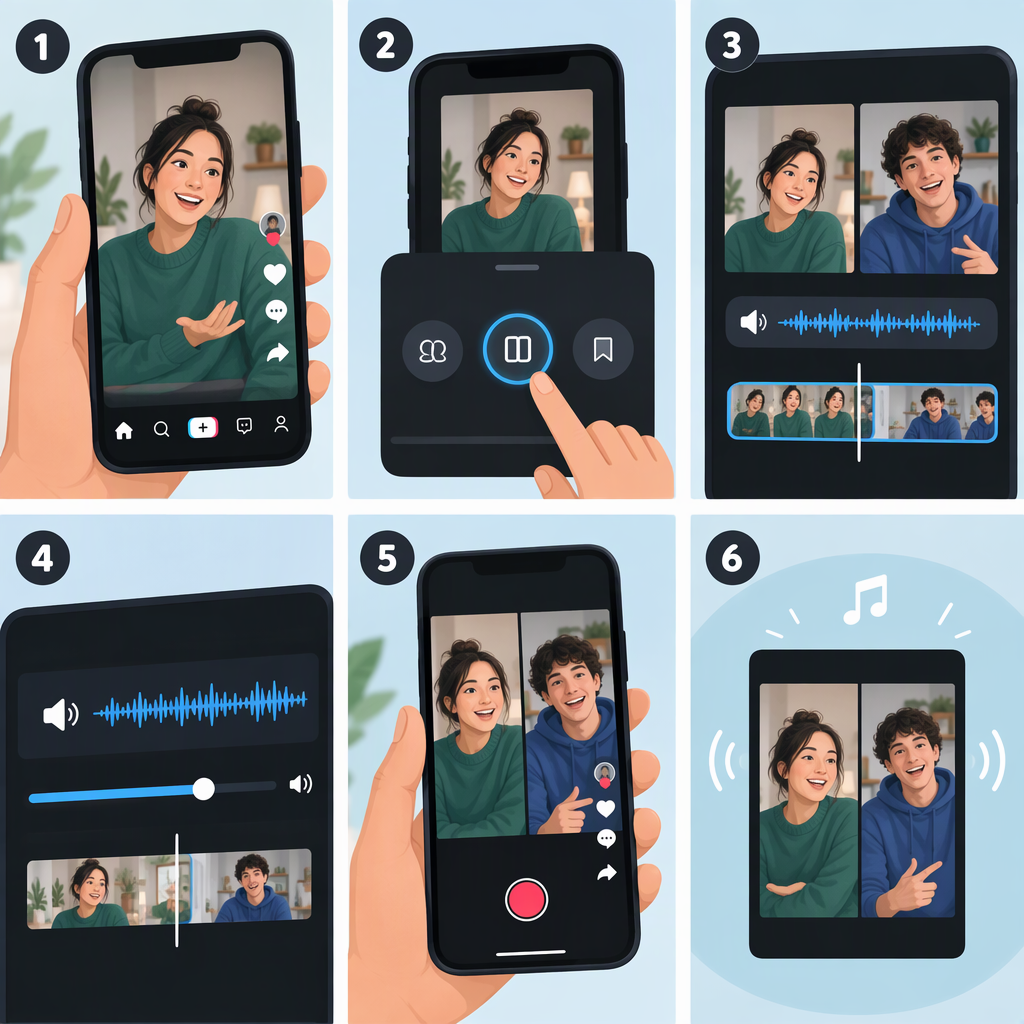
How to Stitch a Video on TikTok with Sound
To Stitch someone else’s TikTok, open their video, tap Share, then Stitch. Choose the part of their video to use, tap Next, select a maximum length for your video, and record your response. Continue to the editing and posting screens to preview and publish, or save a draft. TikTok says not all videos have Stitch turned on. Its instructions mention adding sound and other edits, but don’t specify whether the source video’s audio is automatically kept or exactly how it mixes with added sound—so check the preview before posting. (support.tiktok.com)
How to Stitch Another Person’s TikTok Video
- In the TikTok app, open the video you want to Stitch and tap Share.
- Tap Stitch. Select the segment of the source video you want to include, then tap Next.
- Choose a maximum length for your video.
- Tap Record to create your response, then tap Continue ✓.
- Add edits if you want. TikTok lists filters, voice, text, stickers, effects, and advanced editing tools among the available options.
- Tap Next to make additional edits and reach the post screen. TikTok also lists Your Story as an option for posting to Stories.
- Review your result, then tap Post to publish or Drafts to save it. TikTok says drafts are visible only to you on your profile. (support.tiktok.com)
How Sound Works in a Stitch
“With sound” can mean keeping the source video’s audio, adding a TikTok sound, or making sure your recorded response is audible. TikTok’s Stitch instructions confirm that you can add a voice and other edits, but they don’t explain whether source audio carries over by default or describe a Stitch-specific mix control. Don’t assume what the final audio will be: play the preview before publishing and check that it matches what you intend. (support.tiktok.com)
TikTok’s general sound instructions say you can add a sound to a post from the recording screen or editing screen. When adding one from the recording screen, you can preview and select a sound, then edit the sound clip. That guidance explains how to add a sound, but does not settle how it interacts with source audio in every Stitch. (support.tiktok.com)
If Stitch Isn’t Available
First, check that you opened the video’s Share menu and looked for Stitch. TikTok notes that not every video has Stitch enabled; if the option is missing for a particular video, its creator may not have allowed Stitch for that post. TikTok’s public instructions don’t establish that every video or account will have access, so don’t treat the missing option as proof of a problem with your phone or account. (support.tiktok.com)
TikTok’s settings guidance explains how creators control reuse of their own videos: a creator needs a public account to let others Stitch, and can allow Everyone or Friends (followers they follow back). They can also turn reuse off for an individual post. These settings explain why a source video may not be available to Stitch; they are controls for the creator of that video, not a way for another viewer to override the setting. (support.tiktok.com)
If you’re posting a Stitch that promotes a brand, product, or service, TikTok recommends using music from its Commercial Music Library for commercial content; its licenses for music outside that library don’t cover commercial use. (support.tiktok.com)