How to Stitch a TikTok with a Saved Video
It depends on where the video is saved. If it is saved inside TikTok, open the original post and use Stitch if the creator allows it. If you mean a prerecorded response in your phone’s camera roll, WordStream’s guide says native Stitch cannot import that response: you must record it in TikTok. The alternative is to combine an authorized copy of the source clip and your saved response in a video editor, then upload the result as a regular video—not a native Stitch. These instructions reflect the provided 2024 guides, not a live check of the current app. [c1]
Two Meanings of “Saved Video”
Before choosing a workflow, distinguish between these situations:
- A TikTok saved within the app: You still access the original TikTok post. WordStream says you can Stitch a video from your Saved folder when its creator has enabled Stitch.
- A video file saved on your phone: This could be your prerecorded response or a downloaded source clip. WordStream says camera-roll content cannot be imported as the response in native Stitch. [c1]
Native Stitch incorporates a selected excerpt from another TikTok into your video, followed by your recorded addition. It is different from simply joining two local video files. WordStream also describes automatic creator credit and an attribution link as features of native Stitch. [c1]
How to Stitch a TikTok Saved in the App
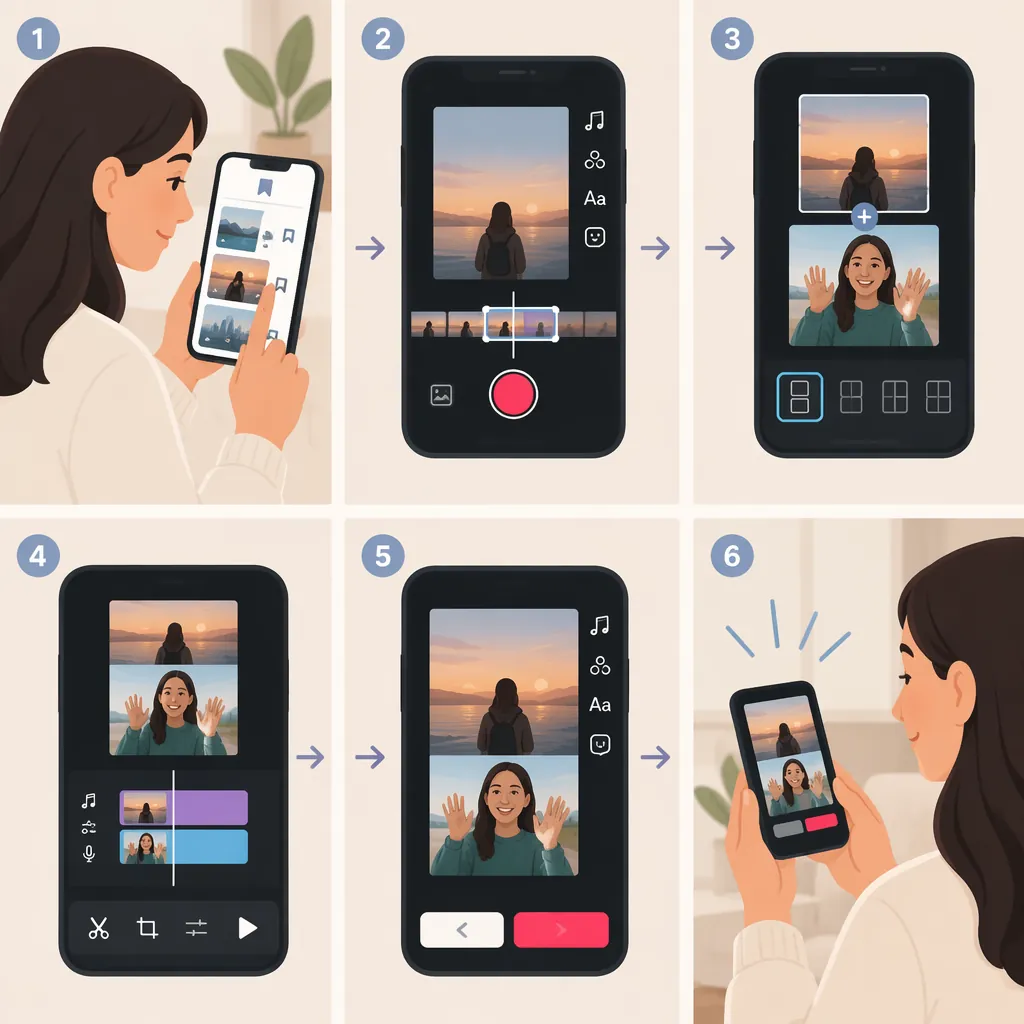
Use this route when you want a native Stitch and can record a new response:
- Open the saved TikTok’s original post.
- Tap Share, also described as Send to in WordStream’s guide.
- Select Stitch, if available.
- Choose the source excerpt. Both provided guides describe a maximum of five seconds.
- Tap Next and record your response in TikTok.
- Finish recording, review the combined video, and continue to the caption and posting screen. [c1] [c2]
These are the steps documented in the provided guides, which were updated or published in 2024. Treat them as a reference workflow rather than a guarantee of today’s button labels or feature availability.
How to Combine a Camera-Roll Video with a Source Clip
If your response is already recorded, WordStream describes editing it together with the source video and uploading the result as a regular TikTok. This is a manual edit, not native Stitch, and it does not receive native Stitch’s automatic link to the original video. [c1]
A practical editing workflow is:
- Check permission first. Use source footage you own or have permission or another valid basis to reuse. Do not treat a missing Stitch option as an invitation to bypass the creator’s preference.
- Prepare the source excerpt. If you are authorized to use a local copy, import it into a video editor and trim it to the context your response needs.
- Add your saved response. Place your camera-roll clip immediately after the source excerpt.
- Review the transition. Check that the excerpt preserves the original meaning and that speech remains understandable across both clips.
- Add clear attribution. Identify the original creator and source in your video or caption. Manual credit is not a substitute for permission.
- Export and upload. Save the combined edit and upload it as a regular TikTok video.
The sequence above is an editing recommendation, not a verified walkthrough for a particular editor. The provided references do not establish current export requirements or music-reuse permissions.
Manual Edit Review Checklist
- Confirm your basis for reusing the source footage.
- Keep enough context to represent the source fairly.
- Place the source excerpt before your saved response.
- Check speech clarity and the transition between clips.
- Identify the original creator and source.
- Treat the upload as a regular video, not a native Stitch.
What to Do When Stitch Is Missing
Check the original post rather than a downloaded copy. Both guides say a creator’s Stitch permissions determine whether their video can be stitched. SocialCoach specifically says the Stitch option will not appear in the sharing menu when the creator has disabled it. [c1] [c2]
If Stitch is unavailable, consider recording a standalone response without reproducing the footage, or asking the creator for permission to use an excerpt. Do not assume that every missing option has the same cause: the provided references are not a current, comprehensive troubleshooting guide.
The references also do not consistently establish recording-duration requirements. This article therefore does not present a minimum response length or a complete list of account restrictions as verified current rules.
FAQ
Can I Upload a Prerecorded Response into TikTok Stitch?
According to WordStream’s guide, no: native Stitch requires you to record the response in the app. You can instead edit your prerecorded response together with authorized source footage and upload a regular video. The guide was updated in 2024; this is not live verification of the current app. [c1]
Can I Stitch a TikTok from My Saved Folder?
Yes, according to WordStream, provided the creator has enabled Stitch. Open the saved original post and look for Stitch in its sharing menu. Saving the post does not override the creator’s permissions. [c1]
Will a Manually Edited Video Link to the Original TikTok Automatically?
WordStream says the regular-video workaround does not automatically link the original video as native Stitch does. Add clear source attribution yourself, and separately check your basis for reusing the footage. [c1]