TikTok Sticker Trends: How to Create and Use Stickers in Videos
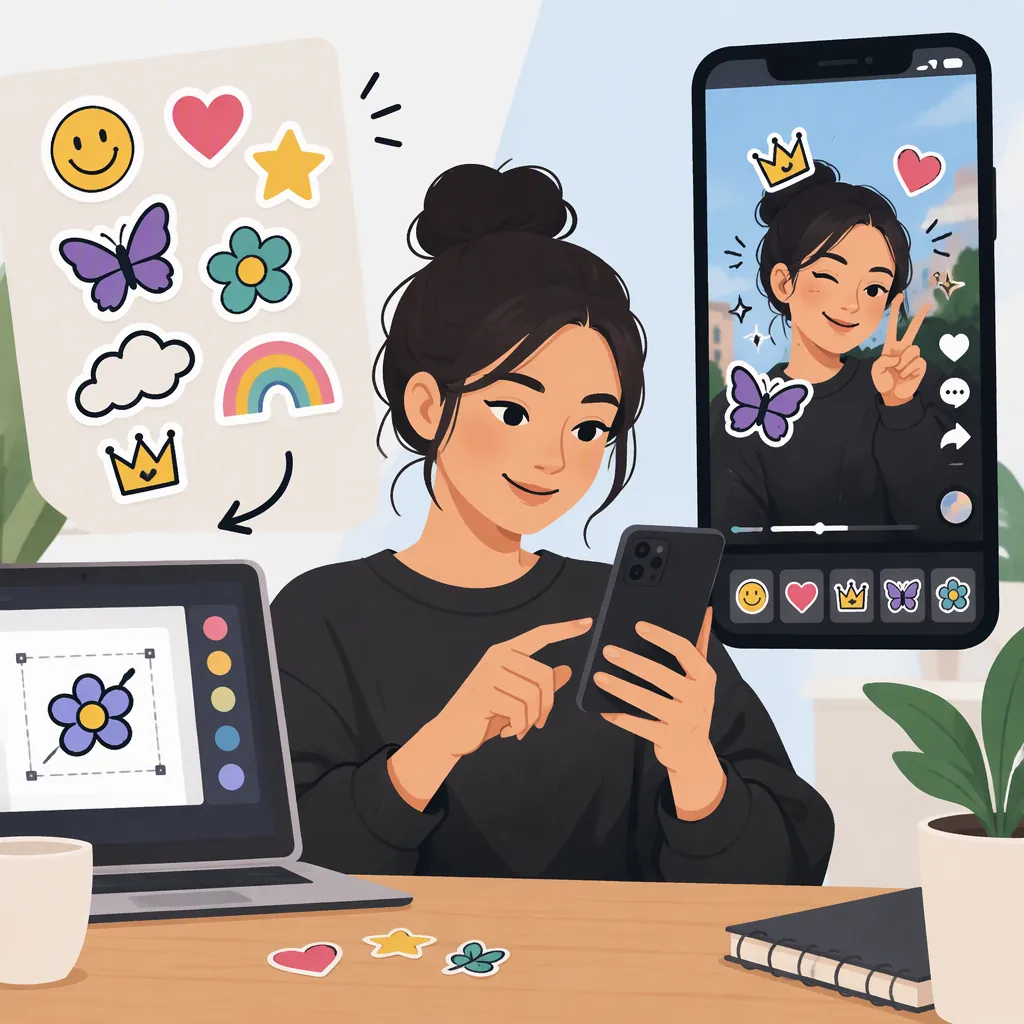
To create a sticker for a TikTok video, give it one clear purpose: a reaction, a label, or a recurring joke. Make or choose artwork you have permission to use, add it in an editor that supports overlays, and adjust its placement and timing.
This guide covers stickers composited into video footage in an external editor, not stickers sent in messages or TikTok’s native sticker controls. The workflow is to finish the edit, export the video, then use that video for a TikTok post and check its appearance in the posting preview.
Separate Sticker Inspiration from Trend Evidence
Pinterest’s “Tiktok Stickers” page collects ideas and inspiration. GIPHY’s “Tik Tok Trend Stickers” page lists related stickers and transparent GIFs. These are discovery resources, not verified rankings of what is currently trending on TikTok. [c1] [c2]
To investigate a possible sticker trend, review several recent TikTok videos and compare:
- Appearance: Is the same shape, expression, or visual treatment repeated?
- Purpose: Does it act as a reaction, punchline, label, or recurring joke?
- Timing: Does it appear at a similar moment in each edit?
- Context: Are the examples relevant to the type of video you are making?
Treat one example as inspiration rather than confirmation. Repeated examples can suggest a pattern, but they do not establish a platform-wide trend.
Sticker Observation Note
Use this short record to separate what you observed from what you inferred:
- Candidate style: Describe the graphic or animation.
- Examples reviewed: Record the video links and dates shown.
- Repeated pattern: Note what is similar across the examples.
- Role in the scene: Explain what the sticker adds.
- Uncertainty: Record anything you could not verify.
- Decision: Adapt the idea, investigate further, or skip it.
The supplied discovery pages do not document TikTok’s current editing controls, upload requirements, or native sticker availability. The steps below therefore avoid specific TikTok buttons and use an external editing workflow.
Plan and Create a Simple Sticker
Give the sticker one job before designing it. A reaction might emphasize surprise; a label might identify an object; a recurring graphic might connect several scenes. Keep the design simple enough to understand alongside the footage.
- Choose the scene and purpose. Identify what the sticker should explain or emphasize.
- Sketch the graphic. Use a distinct shape, expression, or short phrase.
- Check the artwork’s origin. Use your own design or an asset with permission appropriate to your intended use.
- Choose static or animated. Start with a static graphic if movement is not necessary to communicate the idea.
- Export a rough version. Test it in the editor before refining small details.
Choose a Starting File Format
For a static sticker with a transparent background, PNG is a practical starting point if your editor accepts it. Export with transparency enabled, then confirm that the editor preserves the transparent area rather than displaying a surrounding rectangle. PNG is a starting choice, not a guarantee of compatibility with every workflow.
For an animated sticker, first check which animated formats your editor can import and play. Animation support depends more heavily on the editor; do not assume that a file will retain motion simply because it imports successfully.
In either case, use a short test clip to check the asset after import and again after video export.
Worked Example: Create a “Basil” Label
This is a hypothetical editing example, not a claim about a current TikTok trend.
Imagine a cooking clip in which a hand points to a basil plant. The sticker’s only job is to identify the plant.
- Shape: Draw a small rounded label with a simple outline.
- Text: Use “Basil,” rather than a full sentence.
- Artwork: Create the shape and lettering yourself, or use elements with documented permission.
- Background: Keep the label itself solid and the area outside its shape transparent.
- Motion: Begin with a static sticker.
- Test file: Try a transparent PNG if your editor supports it, then import it into a short copy of the scene.
Check whether the outline and text remain distinct against the footage. If they blend into the plant, revise the contrast or placement before adding decorative details.
Place and Time the Sticker in Your Video
In an editor that supports graphic overlays, place the sticker on a layer above the footage. Adjust its size, position, and duration.
Keep it away from faces, essential objects, captions, and other information viewers need. Choose its position based on the actual scene rather than relying on a universal corner or fixed margin.
Time the sticker to the moment it supports:
- A reaction can appear with the relevant expression.
- A label can remain visible while its subject is being discussed.
- A joke graphic can appear at the punchline rather than throughout the setup.
Remove it when its purpose ends. For animation, start with one restrained movement and judge it beside the footage, not only in isolation.
Worked Example: Place the “Basil” Label
Continue with the cooking clip:
- Import the static label as an overlay.
- Position it beside the plant without covering the leaves, pointing hand, or captions.
- Set its entrance to the moment the plant is identified.
- Keep it visible through that explanation, then end it before the next ingredient appears.
- Preview the scene at a phone-sized viewing scale.
If “Basil” is hard to read, enlarge the label or simplify its lettering. If a larger label blocks the plant, move it into an open area of the frame. If it remains visible after the scene moves on, shorten its duration.
The goal is a label that helps explain the scene—not a graphic that competes with the subject.
Export the Video and Use It for a TikTok Post
In this workflow, the sticker becomes part of the exported video image. You are preparing a finished clip for TikTok rather than creating a separately selectable native TikTok sticker.
- Export a short test. Check that the sticker’s background, edges, text, and any animation look as intended.
- Export the finished video. Use an output option appropriate to your editor and the current requirements shown by TikTok; this guide does not establish those requirements.
- Use the exported clip for your TikTok post. Review it in the posting preview before publishing.
- Check the final composition. Look for cropping or overlap with captions and other visible interface elements.
- Revise if necessary. If the sticker needs a different position or duration, return to the external edit and export a corrected version.
Do not assume that a clean editing canvas guarantees a clean posting preview. Review the actual clip in its intended presentation.
Troubleshoot Transparency, Animation, and Export
Identify where a problem begins: in the asset, during import, or in the exported video. Change one setting or asset choice at a time so you can tell what resolved it.
| Problem | Check first | Next step |
|---|---|---|
| An unwanted rectangle surrounds the sticker | Inspect the original asset in a tool that displays transparency. | If the background is part of the artwork, revise it. If transparency disappears only after import, check the editor’s format support and import settings. |
| An animated sticker appears still | Confirm that the original asset plays as an animation outside the editor. | Check animation import support. Use a compatible workflow or a deliberate static version if needed. |
| The editing preview looks correct, but the exported clip does not | Compare the same moment in the preview and the exported test. | Review export settings and the supported workflow, then retest after one change. |
| The sticker is cropped or difficult to read | Inspect its edges, position, size, and text in the exported clip. | Reposition, simplify, or resize it, then review the posting preview. |
An editor accepting a file does not necessarily mean it preserves every property you need. Verify both appearance and playback.
Review Permissions and the Finished Edit
Finding artwork on a discovery page does not establish permission to reuse it. Neither the supplied Pinterest nor GIPHY discovery-page information establishes reuse rights for a particular asset. [c1] [c2]
Check the terms attached to the actual artwork, including attribution requirements and any limits relevant to your intended use. If permission is unclear, choose an original design or an asset with clearly documented terms.
Before publishing, review the finished video with sound and without sound:
- Essential meaning is understandable without relying only on a decorative sticker.
- Important footage and captions remain visible.
- Sticker text is readable at the intended viewing size.
- No unwanted backgrounds or cropped edges remain.
- Animation does not overwhelm the footage.
- The sticker appears and disappears at the appropriate moments.
- The exported clip and TikTok posting preview have been checked.
A trend-inspired sticker does not need to copy another creator’s artwork. Adapt the visual idea to your own scene. The cited discovery pages provide no evidence that using a sticker will improve reach or engagement. [c1] [c2]
FAQ
Where Can I Find TikTok Sticker Ideas?
Pinterest offers TikTok sticker inspiration, while GIPHY lists related stickers and transparent GIFs. Use them to explore designs, then evaluate whether an idea suits your scene. [c1] [c2]
How Can I Tell Whether a Sticker Is Trending on TikTok?
Compare recent TikTok examples and record the repeated design, purpose, and timing. Describe the pattern you observed rather than calling it a verified ranking; the Pinterest and GIPHY collections cannot confirm a current trend on their own. [c1] [c2]
Should I Use a Static or Animated Sticker?
Use a static sticker when a label, symbol, or expression already communicates the idea. Consider animation when movement contributes to the reaction or timing. If motion distracts from the footage—or your editor cannot preserve it—use a static version.
What File Format Should I Try First?
For a static sticker that needs transparency, try PNG if your editor supports it. Confirm transparency after import and in an exported test. For animation, check the editor’s supported animated formats before choosing the asset.
Is This the Same as Adding a Native TikTok Sticker?
No. This guide adds the graphic in an external editor and exports it as part of the video. It does not provide instructions for TikTok’s native sticker controls, whose current operation is not documented by the supplied sources.
Can I Reuse a Sticker I Find on Pinterest or Giphy?
Only if the applicable terms permit your intended use. Appearance on either discovery page is not proof of permission; check the specific artwork’s terms or use an original design. [c1] [c2]