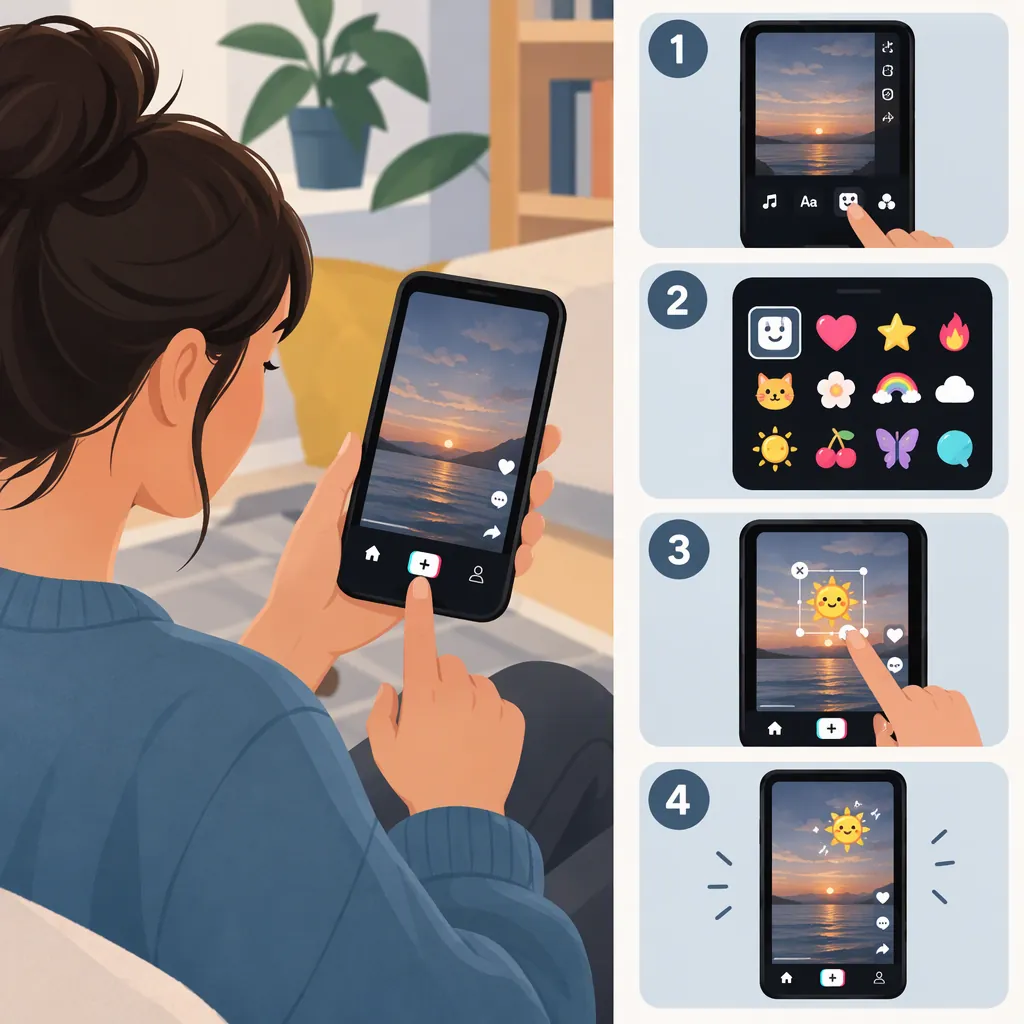
How to Get Stickers on TikTok and Make Your Own
To add stickers to a TikTok video, record or upload a clip, continue to the editing screen, and look for Stickers. Choose a design, then move and resize it. A 2021 guide also describes adding your own image through a photo-library icon inside the sticker tool. These are historical navigation cues, not confirmed current controls. [c1]
If those controls are missing, skip to the external-editor alternative rather than repeatedly trying the same route.
Source and Interface Limits
The TikTok steps below come from Kapwing’s How to Add Stickers on TikTok, published October 11, 2021. They concern stickers placed over videos, not stickers sent in messages. The guide does not confirm today’s button locations or feature availability, whether imported images retain transparency or animation, or whether adding an image creates a reusable sticker pack. [c1]
Add Built-In Stickers to a Video
The 2021 guide describes this workflow: [c1]
- Open TikTok and tap + to start a video.
- Record a clip or choose Upload to select an existing video.
- Tap the checkmark after recording, or Next after uploading.
- Continue through Next to the editing screen, then select Stickers.
- Browse the designs and tap the sticker you want.
- Move it into position. Use a pinch gesture to adjust its size and rotation. [c1]
Use these steps only where your interface matches. If you cannot find Stickers, see what to do when controls are missing.
Choose and Position Your Sticker
The guide shows recommended, decorative, text, mood, lifestyle, and nature categories. These describe its 2021 collection, not a verified inventory of the current app. [c1]
Choose a sticker that supports the video’s meaning without covering a face, demonstration, or important text. The guide recommends keeping stickers away from corners where app icons could obscure them. [c1]
Sticker Placement Checklist
Before finishing your edit:
- Play the full clip, not just the frame where you placed the sticker.
- Check that faces and important actions remain visible as the subject moves.
- Check for overlap with captions or other text.
- Leave space near screen edges for interface elements.
- Adjust the sticker’s size or position if it distracts from the video.
Prepare and Add a Custom Sticker
Here, a custom sticker means an image you prepare separately and place over a video. The guide demonstrates importing an image or GIF into an editor, resizing and editing it, then exporting it to a device. Its example includes background removal and decorative elements. That preparation example does not establish that TikTok preserves an imported GIF’s animation. [c1]
Prepare the Image
Use this preparation checklist:
- Choose an image you have permission to use. Pick a subject that will remain recognizable at a small size.
- Crop or resize around the subject. Remove unnecessary space that would make placement harder.
- Decide whether you want a background. Keep it for a rectangular image overlay, or remove it if you want an isolated-subject sticker and your editor supports background removal.
- Check the export settings. If you want no visible background, look for a format and export option that support transparency. Removing a background in the editor is not enough to confirm the saved file’s appearance.
- Save the asset somewhere accessible on your phone. Open the saved file to check its crop and quality, then verify the background again when you overlay it on the video.
These are preparation checks, not a promise that TikTok’s image-import route will preserve transparency or animation.
Add the Saved Image in TikTok
The 2021 guide describes the following custom-image route: [c1]
- Record or upload a video and continue to the editing screen.
- Open Stickers.
- Select the photo-library icon.
- Choose your saved image and tap OK.
- Resize and reposition the image over the video. [c1]
If that option is available in your app, preview the result before finishing. Check whether the image has the background you intended and whether its edges obscure other content. If the import option is absent or the result is unsuitable, use the external-editor approach below.
If You Cannot Find the Sticker Controls
First, check that you are editing a video rather than looking for stickers in a messaging screen: the documented route concerns video overlays. [c1]
If your editing screen has no matching Stickers control or photo-library option, the 2021 guide cannot establish why. It does not verify current availability or explain missing controls. [c1] Instead of repeating the historical steps, you can prepare a video with the graphic already overlaid.
Add a Sticker in an External Video Editor
This is a suggested editing alternative, not a verified native TikTok sticker feature. Use an editor that supports image overlays and, if needed, transparent image assets.
- Import your video into the editor.
- Add your prepared image as an overlay above the video.
- Set its size and position. Keep important subjects and text visible.
- Set when it appears, if the editor supports overlay timing.
- Preview the full clip. Check the image’s background, edges, placement, and timing.
- Export the finished video and inspect the exported file before uploading it to TikTok.
In this workflow, the graphic becomes part of the exported video. Do not expect it to remain a separately editable TikTok sticker. If you need to change it later, revise the project in the external editor and export again.
FAQ
Where Do I Find Stickers on TikTok?
The 2021 guide places Stickers on the video editing screen after recording or uploading a clip and continuing through the checkmark or Next. Its exact current location is not confirmed. [c1]
Can I Use My Own Picture as a TikTok Sticker?
The 2021 guide describes choosing a saved image through a photo-library icon inside Stickers, then confirming, resizing, and positioning it. Current availability of that route is not confirmed. [c1] If the option is missing, you can instead add the image in an external video editor before uploading.
How Do I Resize or Move a Sticker?
The 2021 guide describes moving the sticker on screen and using a pinch gesture to resize or rotate it. [c1] Preview the entire clip afterward to check that moving subjects do not pass behind it.
Will My Custom Sticker Keep Its Transparent Background or Animation?
The guide demonstrates background editing and image or GIF preparation, but it does not confirm that TikTok’s import route preserves transparency or animation. [c1] Check the exported asset and preview the actual overlay. If needed, complete the overlay in an external editor that supports the asset’s format.
Does Adding a Custom Image Create a Sticker Pack?
The guide describes adding an image to a video. It does not establish that the image becomes a reusable TikTok sticker pack or a sticker available in messages. [c1]