How to Make and Use Custom Stickers on TikTok
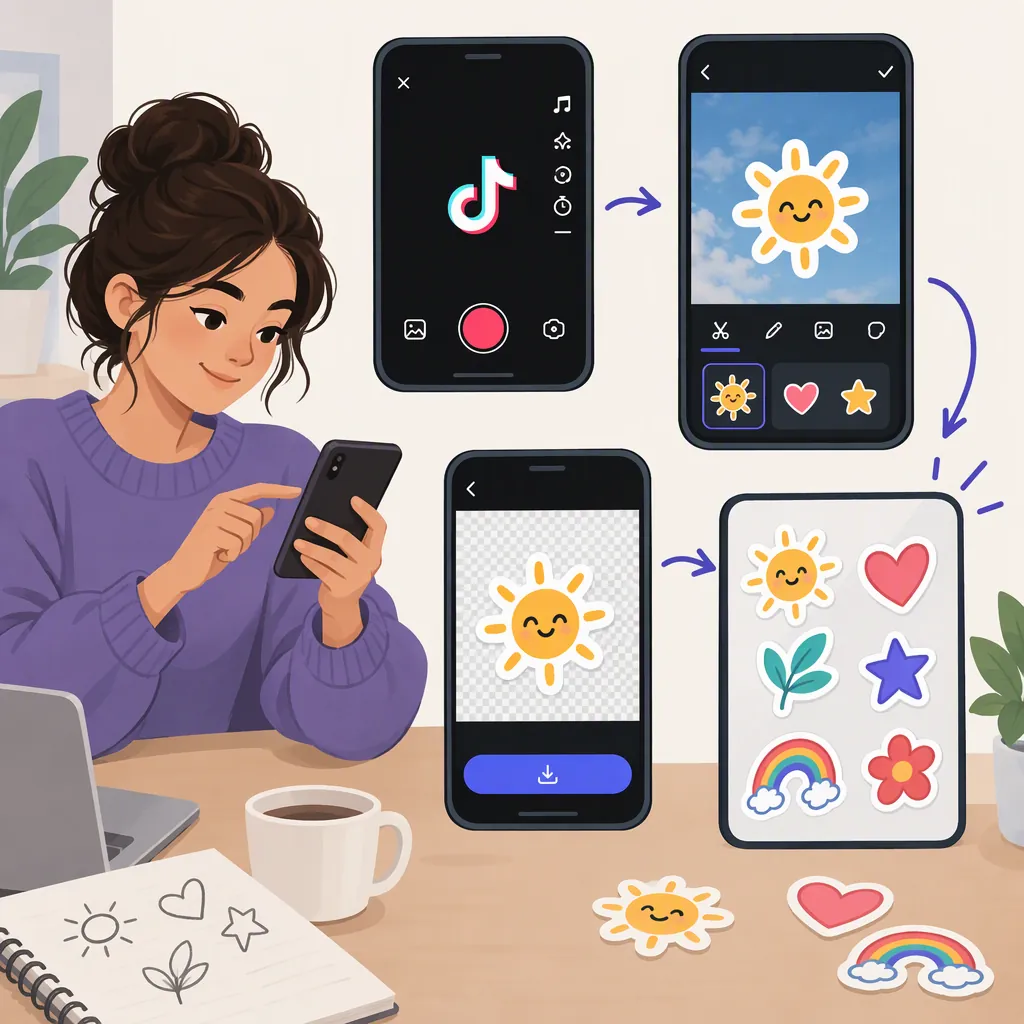
To make a custom image sticker for a TikTok video, open the video editor, choose Stickers, and look for Upload. Select an image from your device, use background removal if offered, then position and resize the sticker. This workflow comes from an April 2021 Android tutorial, so the controls may differ or be unavailable in your current app. [c1]
What This Sticker Guide Covers
This guide covers turning an image from your device into a sticker overlay on a TikTok video. The supplied tutorial documents that process in the Android app, using a saved video draft. It also says stickers can be added after recording a video. [c1]
The source was published on April 30, 2021. Treat its button names and navigation as a documented workflow, not a guarantee of today's interface. It does not establish how to create reusable sticker packs or stickers for direct messages. [c1]
Create a Sticker from an Image
Use these steps if your editor offers the controls described in the source:
- Open TikTok and select the video you want to edit. In the documented draft workflow, open your profile, select Drafts, and choose a video.
- If the draft opens on the posting screen, tap Back to return to the editor.
- Tap Stickers, then look for Upload in the sticker menu.
- Select the image you want to use from your device.
- If you want to isolate the subject and the option appears, tap Upload to Remove Background.
- Inspect the result, then tap OK to add the sticker to the video. [c1]
The tutorial reports that background removal automatically chooses the main subject and does not let you change that selection in the demonstrated workflow. Do not assume it provides manual cutout controls. [c1]
Place, Resize, and Time the Sticker
After adding the sticker, the documented editor lets you drag it to another position and enlarge it by spreading two fingers on it. The tutorial also lists Set duration and pinning as available controls, but does not explain their detailed settings. Use those options only if they appear in your editor. [c1]
As an editing practice, preview the video before finishing. Check whether the sticker obscures faces, captions, or other important details. If a duration control is available, check when the sticker appears and disappears.
In the source workflow, tapping Next returns you to the posting process, where you can save the draft or post the video. [c1]
Sticker Preview Checklist
- Check that the image or cutout looks as intended.
- Confirm the sticker does not cover essential visual details.
- Preview its size and position during playback.
- If timing controls are available, check its start and end points.
- Review the complete video before saving or posting.
If the Sticker Controls Are Missing
If you cannot find Upload or the background-removal option, this reference does not provide enough information to identify the cause or confirm a replacement path. It documents one Android interface from 2021, rather than current availability across devices and accounts. [c1]
Check whether your video editor offers an equivalent image-insertion control. If it does not, stop treating the old button sequence as applicable to your app. The supplied evidence does not verify an iPhone-specific route, current eligibility requirements, or a direct-message sticker workflow.
FAQ
Can I Make a TikTok Video Sticker from My Own Photo?
The supplied Android tutorial shows selecting an image from the device through Stickers → Upload and adding it to a video. It is a 2021 workflow, so check whether those controls exist in your current editor. [c1]
How Do I Remove the Background from a Sticker Image?
In the documented workflow, select the image and tap Upload to Remove Background, then confirm with OK. The tutorial says the tool chooses the main subject automatically and does not allow changing that selection. Current controls are not verified by this source. [c1]
Can I Add a Sticker to a Saved TikTok Draft?
Yes, in the workflow shown by the source: open the draft, tap Back from the posting screen to reach the editor, and select Stickers. The demonstration uses Android in April 2021, so your navigation may differ. [c1]
Does This Create a Reusable Sticker for TikTok Messages?
That is not established by the supplied reference. It explains adding an image sticker to a video, not creating a reusable messaging sticker or sticker pack. [c1]