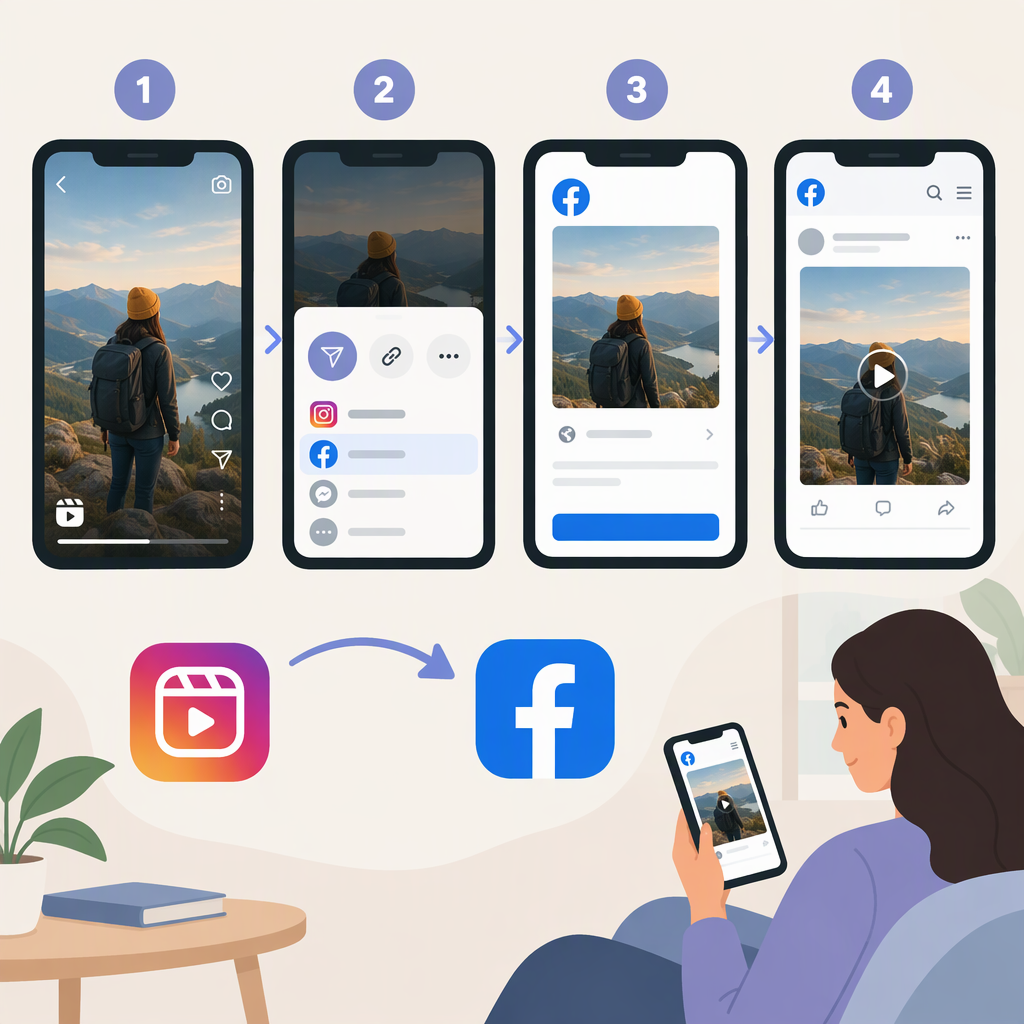
How to Share Instagram Reels to Facebook
The Short Answer
To cross-post an Instagram Reel, put the Instagram and Facebook profiles in the same Meta Accounts Center, then use Connected experiences → Sharing across profiles to choose Instagram as the profile to share from and Facebook as the profile to share to. Turn on Reel sharing if that option is available. Meta confirms that Reels can be shared between Instagram and Facebook profiles, but its public instructions do not establish one exact Reel-composer sequence or confirm that enabling sharing will send a Reel that was already published. (meta.com)
Before sharing, check the selected Facebook profile and its audience setting. Account connection, the destination profile, and who can see the Facebook Reel are separate things to confirm.
Set up Sharing, Then Publish a Reel
- Add both profiles to the same Accounts Center. In Instagram’s settings, open Accounts Center (some accounts may show Meta Account) and check that the Instagram and Facebook profiles you want to use are included. Meta says connected experiences are available across profiles in the same account center; its settings are accessible from Instagram and Facebook settings. (meta.com)
- Choose the sharing direction and destination. Open Connected experiences → Sharing across profiles. Choose the Instagram profile under the share-from option and the Facebook profile under share-to. Enable sharing for Reels if the control appears for your profiles. Meta’s instructions describe selecting the profile to share from and the profile to share to; the exact labels may vary with the settings version shown in your account. (meta.com)
- Publish the Reel on Instagram. Once Reel sharing is enabled for those profiles, publish your Reel in Instagram. Meta’s public guidance supports sharing Reels across Instagram and Facebook profiles, but does not specify a single, universally applicable final-screen toggle or exact button label. If your publishing screen offers a Facebook-sharing control, confirm it is set to the intended Facebook profile before tapping Share.
- Check the Facebook destination. Open the Facebook profile you selected and look for the Reel there. Do not assume that connecting accounts alone confirms a successful cross-post.
Check the Facebook Audience Separately
Meta says Facebook Reel audiences remain controllable, and that some people may be prompted to confirm or choose an audience when posting. Before publishing, review the audience shown for the Facebook Reel—such as who can see it—rather than assuming it matches Instagram’s audience. The available controls can depend on the Facebook account’s settings and interface. (about.fb.com)
Meta’s cited sharing instructions describe sharing between Instagram and Facebook profiles. They do not establish that every account can select a Facebook Page as the destination, so don’t assume a Page is available in your sharing settings. (meta.com)
If the Reel Is Already Published
Meta’s public instructions confirm cross-profile Reel sharing, but the material cited here does not say whether turning on sharing after publication will also send an existing Reel. Treat that as unconfirmed: check the Reel and the sharing settings in your own app rather than assuming it will be backfilled. If you need it on Facebook and no supported share option is shown, you can publish the original video to Facebook separately, provided you have the rights to use the video and its audio there. That is a separate Facebook post, not confirmation that the existing Instagram Reel was cross-posted.
If You Can’t Find the Reel on Facebook
- Confirm the Instagram and Facebook profiles are both in the same Accounts Center or Meta Account. (meta.com)
- Reopen Sharing across profiles and verify the Instagram source, Facebook destination, and Reel-sharing control. (meta.com)
- Check the Facebook profile you selected and review its audience setting. A restricted audience may affect who can see the Reel, even if it was shared. (about.fb.com)
- If those settings look right but the Reel still does not appear, Meta’s cited public instructions do not establish a specific cause or delivery timeframe. Avoid assuming that a particular error, delay, or fix applies.
Bottom line: connect the intended Instagram and Facebook profiles in Accounts Center, enable Reel sharing across those profiles, and verify both the Facebook destination and its audience. For a Reel already published, Meta’s public instructions cited here do not confirm that enabling the setting will share it retroactively.