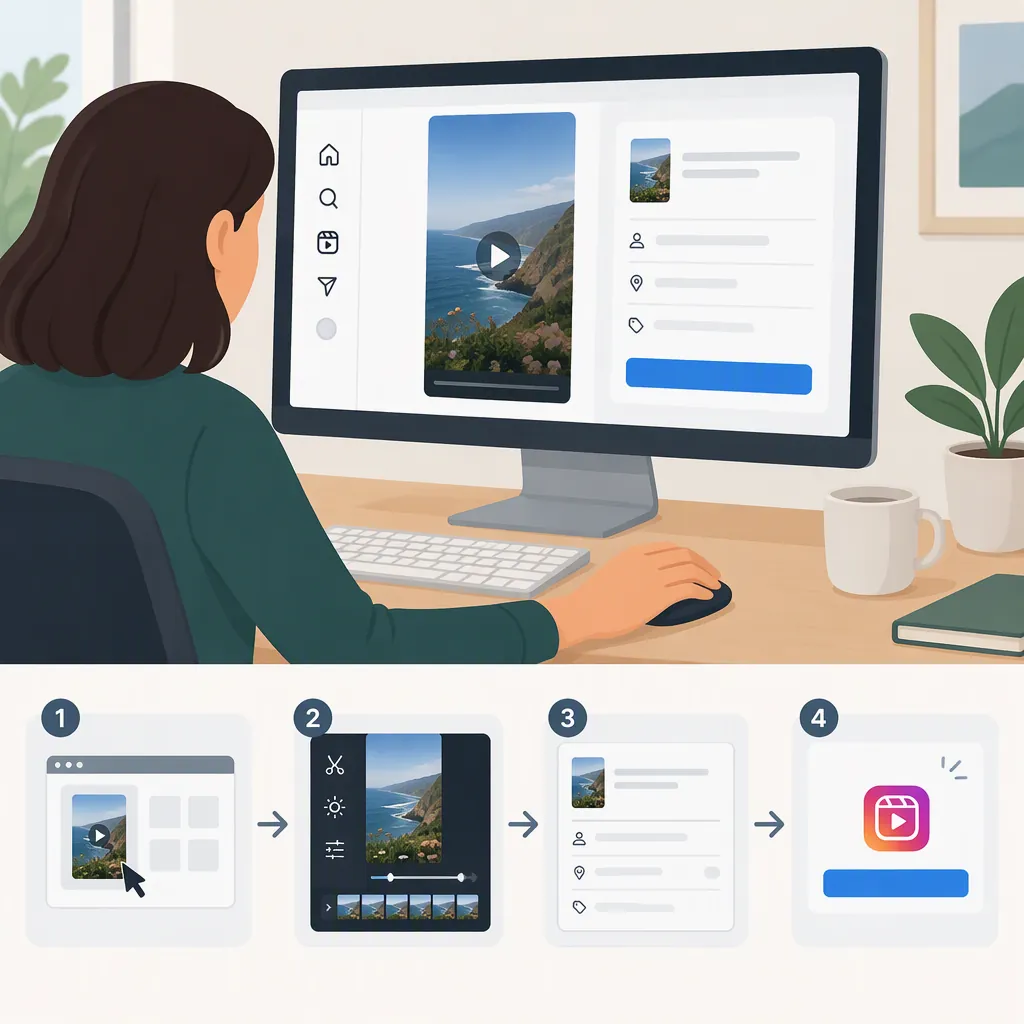
How to Post Instagram Reels from Desktop
You can post Instagram Reels from desktop using Instagram’s browser interface: sign in, select Create, upload your video, review the crop and cover, add a caption, and select Share. For scheduling, the provided guide describes Meta Business Suite as an option for connected Business or Creator accounts. Desktop editing and audio options may differ from the mobile app; check the controls available in your account before publishing. [c1]
Choose a Desktop Publishing Route
For an immediate upload, start with Instagram’s browser interface. For a planned publication time, consider Meta Business Suite if your Instagram account is connected and available there. The supplied walkthrough describes both routes. [c1]
Evidence limitation: The detailed instructions come from a third-party commercial guide, not Instagram’s Help Center. The supplied Instagram page also states that desktop posting is possible, but it does not provide a complete publishing walkthrough. Treat button names and feature availability as things to confirm in your current interface. [c2]
Post a Reel in Your Browser
The supplied desktop walkthrough describes this sequence: [c1]
- Open Instagram in your browser and sign in to the intended account.
- Select Create, then Select from computer, or drag your video into the upload window.
- Review the crop. For a vertical video, choose Original or a suitable vertical option if offered, and check that important content remains visible.
- Select Next and review the cover controls. The guide describes selecting a video frame or uploading a custom cover.
- Continue to the caption screen. Add your caption and review any other settings available to you.
- Check the account, preview, and caption before selecting Share.
Do not assume that every mobile editing feature will appear on desktop. The guide reports limitations around trending audio and interactive stickers in the browser interface. [c1]
Schedule with Meta Business Suite
The supplied guide describes Meta Business Suite scheduling for an Instagram Business or Creator profile linked to a Facebook account. Confirm that the intended Instagram account is available before preparing the post. [c1]
- Open Meta Business Suite and select the relevant business account.
- Find Create Reel and select Instagram as the destination. Review whether Facebook is also selected.
- Use Add Video to upload the file from your computer.
- Review the available editing controls, caption, and thumbnail.
- Choose Schedule, then set the publication date and time. The guide also describes Share Now and Save as Draft options. [c1]
As a final check, verify the destination account and displayed time zone. After scheduling, record the intended publication time and check the published result rather than treating scheduling as confirmation that the Reel is live.
Prepare the Video, Cover, and Audio
A practical starting export is a vertical 9:16 video at 1080 × 1920, saved as MP4. The supplied guide recommends these settings and also lists MOV as an upload format. Use them as preparation guidance, not as an independently verified statement of every current Instagram requirement. [c1]
Before uploading, play the exported file from beginning to end. Check speech clarity, audio synchronization, caption spelling, and whether the cover represents the video accurately. Keep essential text away from edges and inspect the publishing preview for cropping.
For music, the guide distinguishes Meta Business Suite’s Sound Collection from the mobile app’s trending-audio options. If your Reel depends on a specific in-app sound, check its availability before committing to desktop-only publishing. If you embed music in the file, confirm that you have permission to use it; uploading from a computer does not establish music rights. [c1]
The supplied sources do not establish a reliable, current maximum duration or file-size limit. Check the uploader’s displayed requirements instead of relying on a fixed limit in this article.
Pre-Publish Checklist
- [ ] Correct Instagram account selected.
- [ ] Exported video plays correctly from beginning to end.
- [ ] Crop preserves faces, important objects, and text.
- [ ] Cover and caption match the final video.
- [ ] Captions have been checked for spelling and timing.
- [ ] Permission to use embedded music has been confirmed.
- [ ] Publishing destinations have been reviewed.
- [ ] For scheduling, date, time, and displayed time zone have been checked.
- [ ] Published result will be checked before retrying an uncertain upload.
Check Problems Before Uploading Again
Use the symptom to narrow the next check:
- Wrong crop: Compare the original file with the upload preview and revisit the crop selection.
- Missing sound option: Check whether the feature is available in your publishing interface. The supplied guide notes desktop audio limitations. [c1]
- Audio out of sync: First check the local export. If it plays correctly locally but not after publication, the guide suggests trying a constant-frame-rate export at 30 fps. This is a troubleshooting step, not a guaranteed fix. [c1]
- Unclear publishing status: Check the destination profile or scheduled-content view before submitting again. Record the error message and which step failed.
Avoid changing several export settings at once. Keeping the original file and testing one change at a time makes it easier to identify what helped.
FAQ
Can I Post Reels from Desktop Without a Third-Party Tool?
Yes. The supplied guide describes uploading directly through Instagram’s browser interface, and the supplied Instagram page also states that desktop posting is possible. Check the Create controls in your account for the available workflow. [c1] [c2]
Can I Schedule a Reel Through Instagram’s Website?
The supplied guide says the standard Instagram browser upload flow does not support scheduling and describes Meta Business Suite as an alternative for connected Business or Creator accounts. Because this is third-party guidance, confirm the options currently shown in your account. [c1]
Can I Add Music When Posting a Reel from a Computer?
Options depend on the publishing interface. The supplied guide describes Sound Collection access in Meta Business Suite and more limited trending-audio access on desktop than in the mobile app. You can prepare embedded audio in your editor, but you should confirm permission to use the music before publishing. [c1]