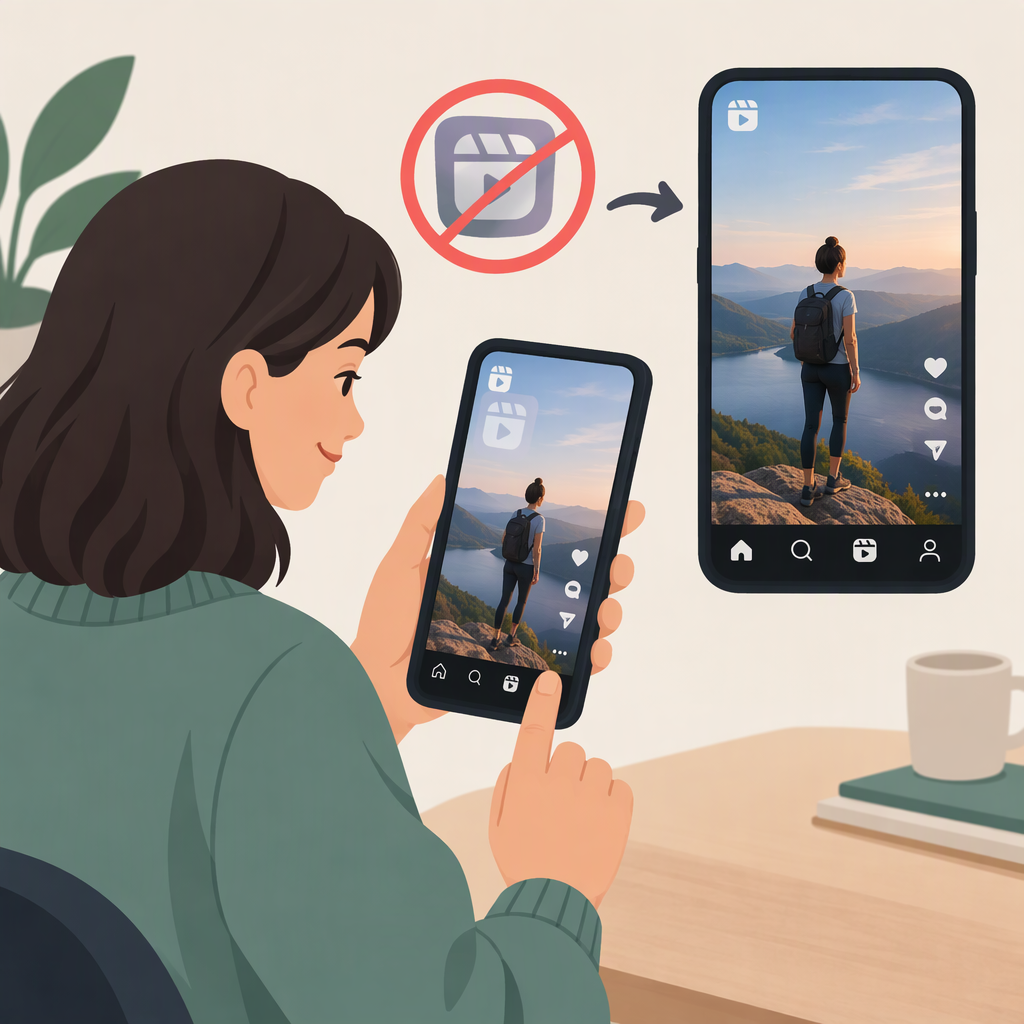
Instagram Reels Without a Watermark: How to Keep a Clean Copy of Your Own Video
The most reliable way to keep a watermark-free copy of your own Reel is to save the finished video from your editing workflow before you post it. Keep that exported file as your master. After posting, don’t assume Instagram’s save or download options will produce the same clean file: check whether a device-download option is available, then inspect the result.
Before Posting: Export and Keep Your Own Copy
- Edit your own footage in Instagram Edits or another editor.
- Export the finished video before publishing. Meta says Edits lets you export and post videos elsewhere “with no added watermarks.” This refers to watermarks added by Edits; it doesn’t mean a video is free of logos, text, or other marks you added yourself. (about.fb.com)
- Save the export somewhere you can find it again, such as your phone’s camera roll or a files folder. If you use a desktop editor, keep the export and, if practical, the project file and source footage too.
- Check the exported video before uploading. Play it from the beginning and confirm it’s the intended version and that no unwanted mark or edit is visible.
- Upload that saved export to Instagram. Keep the local file as your clean master rather than relying on a copy downloaded after posting.
For example, if you finish a Reel in Edits, export it, find the exported video on your device, and play it before you upload it. If it looks right, you have a separate copy to retain even if you later need to replace or re-edit the Instagram post.
After Posting: Check the File, Not Just the Menu
Instagram’s published information cited here confirms Edits can export without adding a watermark, but it doesn’t establish a standard post-publication download option for your own Reels or guarantee what that option’s file would contain. So don’t count on a posted Reel download as your watermark-free master.
If Instagram offers a download or save-to-device choice for your Reel, you can try it and then open the resulting file in your camera roll or files folder. Check the picture and sound before using it elsewhere. Saving a Reel inside Instagram for later viewing is different from saving a video file to your device.
If there’s no device-download option—or the downloaded video isn’t suitable—look for the export you saved before posting, or for the original footage and editing project.
If the Clean Original Is Missing
Check the places where your own files may still exist:
- Your camera roll, files folder, or downloads
- The editor’s project list and export location
- Recently deleted items
- Device or cloud backups you use
If you find the source footage or project, you can make a new export and check it before uploading. If you find only a posted or downloaded copy, you can keep that copy, but don’t assume it can be restored to the original clean quality. Cropping may cut off part of the picture; it also won’t recreate image detail hidden beneath an embedded mark. If no source, project, export, or backup remains, a clean recovery isn’t guaranteed.
Quick Prevention Checklist
- Export your own finished video before publishing.
- Keep the export separate from the Instagram post.
- Retain source footage or the editing project if you may need to revise the video.
- After posting, inspect any device-saved file rather than assuming it matches your clean export.
This guidance is for keeping a clean copy of your own content—not removing attribution from someone else’s Reel.