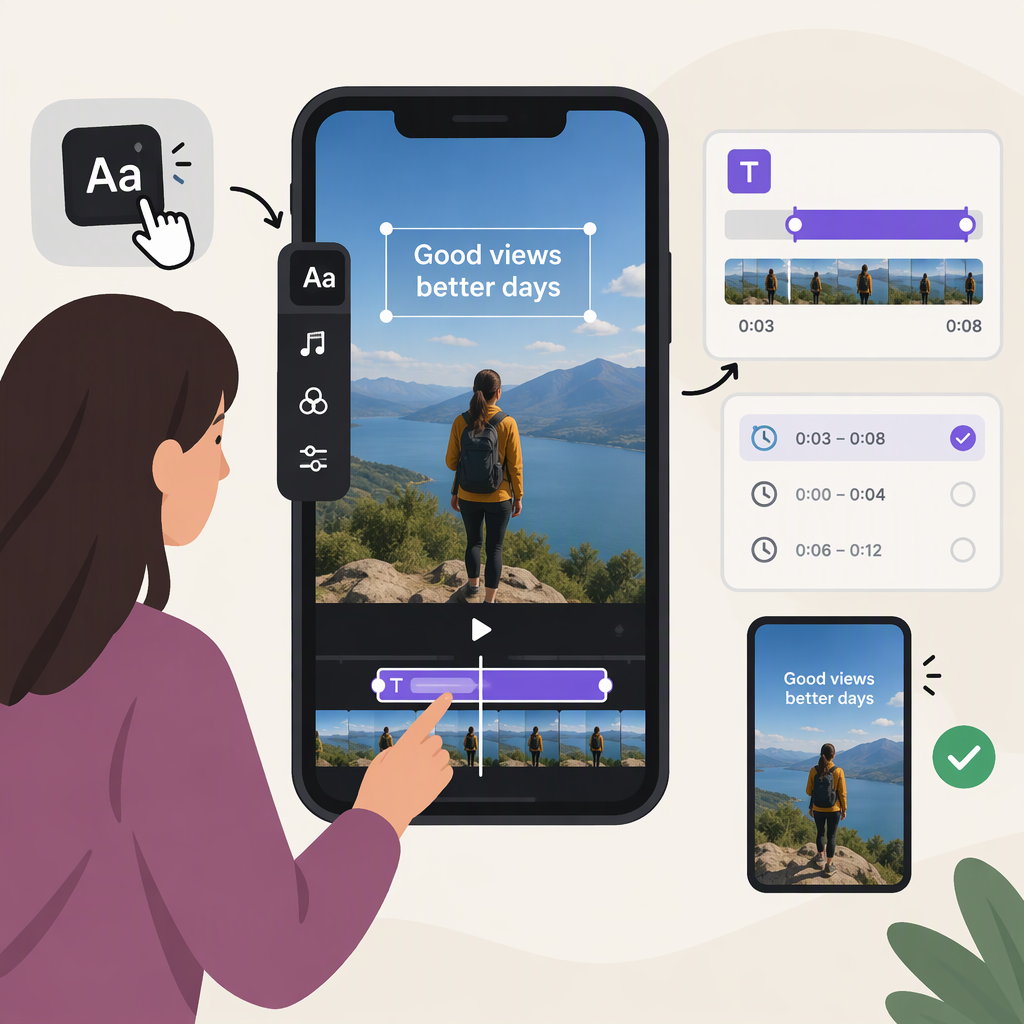
How to Add Text to a TikTok Video and Set Its Timing
How to Add Text to a TikTok Video
To put words over the video itself—rather than in the post caption—open TikTok’s creation screen, record or upload a clip, add text from the editing screen, position it, and save or post the video.
- In the TikTok app, tap Add post (+) and record a video or upload one.
- Continue to the preview or editing screen. Tap Text in the side panel.
- Type your text. Drag it to the spot where you want it to appear; use two fingers to resize it if needed. Choose a font or color if you want, then tap Done to save the edit.
- Preview the video. Tap Next to reach the post screen, where you can save a draft or post when ready.
TikTok’s Help Center documents adding text after recording or uploading, moving and resizing it, and tapping Done to save the edit. The post description is a separate step, so use the editing-screen text tool for an overlay. (support.tiktok.com)
Can You Control When Text Appears?
TikTok’s official text-editing instructions confirm how to add text, but the available official guidance captured here does not explain a timing control. A third-party walkthrough describes a Set duration option: tap the text, choose Set duration, adjust the text’s interval on the timeline, then save. Treat those steps as conditional, not universal: if Set duration is not shown in your editor, that workflow may not be available in your current app experience. (support.tiktok.com)
If the option is available, preview the clip to check that the text appears and disappears at the intended moments. For example, to show a short label only during a particular scene, position its start and end on the timeline around that scene, then play the edited video back before posting.
Quick Check Before Posting
Make sure the text is readable against the footage and does not cover important visual details. If you meant spoken-word subtitles rather than a message or label, TikTok also documents Creator captions, which transcribe speech and let you preview and edit caption lines before saving. (support.tiktok.com)