How to Make a Video Your Profile Picture on TikTok
If your TikTok app shows Change Video, open Profile → Edit Profile → Change Video, select a video from your gallery, adjust the clip and framing, and save. The provided third-party guide documents this workflow, but it does not establish whether the option is available on your account today. [c1]
Check for the Video Avatar Option
Start by opening TikTok and going to Profile → Edit Profile. Look for Change Video near the profile image controls. The supplied insMind guide describes separate Change Photo and Change Video options. [c1]
Availability limitation: This article relies on one third-party guide dated February 20, 2025—not current TikTok documentation. It supports the workflow below, but does not confirm present-day availability, device compatibility, or account eligibility. If Change Video is absent, these steps do not provide a verified way to enable it.
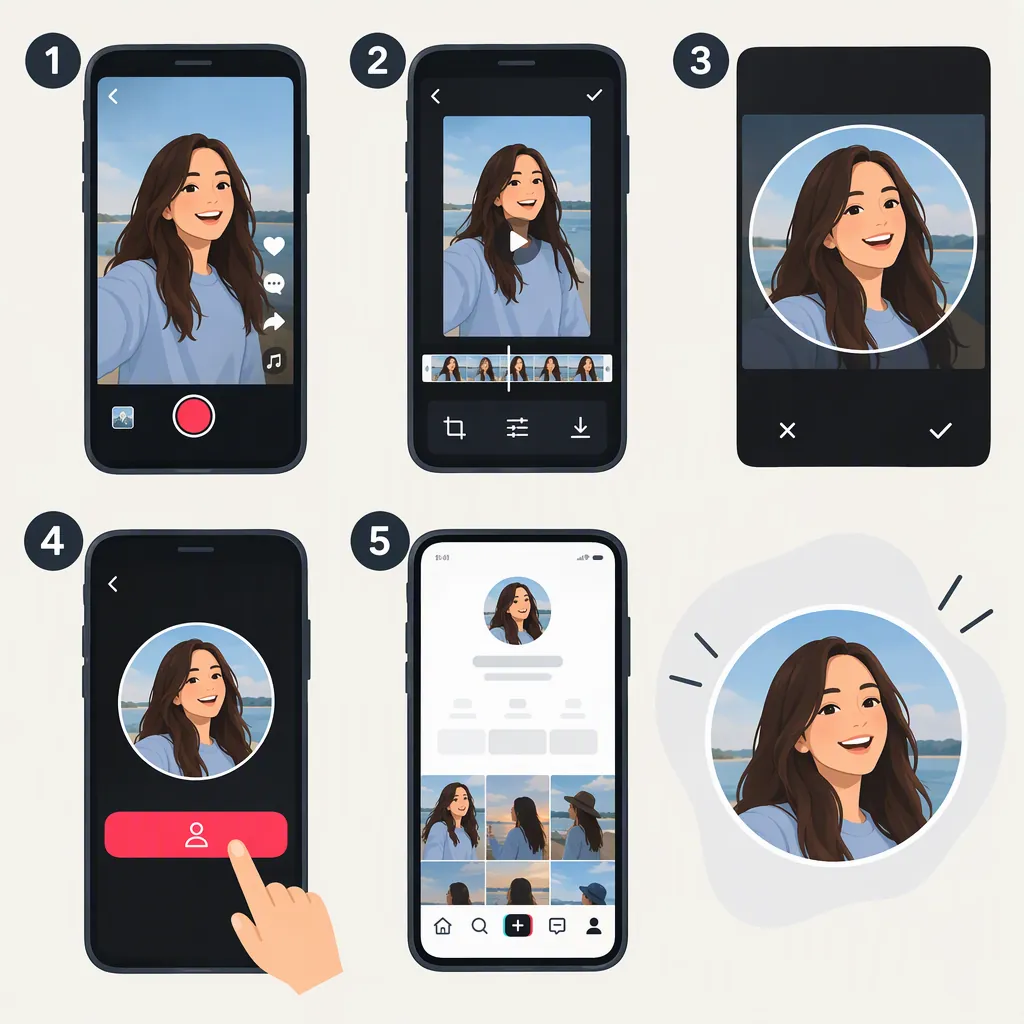
Set a Video as Your Profile Picture
Use this sequence only if Change Video appears in your app:
- Open Profile in TikTok.
- Tap Edit Profile.
- Choose Change Video, rather than Change Photo.
- Select the video you want to use from your device's gallery.
- Use the available controls to trim the clip and adjust its framing.
- Tap Save to apply the change.
These steps follow the video-profile workflow described in the supplied guide, including selecting a gallery video and adjusting it for the circular profile frame. [c1]
As a preparation tip, choose a clip with its main subject near the center and preview the crop before saving. Avoid relying on small text or details at the edges. After saving, return to your profile to check the result; do not assume it will animate everywhere your avatar appears.
Video Avatar Check Sheet
- [ ] Change Video is visible under Edit Profile.
- [ ] The intended clip is selected from the gallery.
- [ ] The subject remains visible in the circular preview.
- [ ] The selected portion shows the intended movement.
- [ ] Changes are saved.
- [ ] The profile is checked after saving.
If Change Video Is Missing
If you see only Change Photo, do not treat that control as a confirmed video-upload route. The supplied guide directs users to the video option for a video avatar and describes a separate photo-upload workflow. [c1]
For a static alternative, follow Profile → Edit Profile → Change Photo, select a photo, crop it, and save. That photo workflow is documented in the same source. [c1]
The provided evidence does not explain why Change Video might be missing or verify a workaround. It also does not establish current video duration limits, file-size limits, accepted formats, or audio behavior. Follow any requirements displayed in your app rather than treating an unverified specification as a rule.
FAQ
Can I Use a Video as My TikTok Profile Picture?
The supplied third-party guide describes a Change Video option for doing so. Check whether it appears under Edit Profile in your app; the source does not confirm current availability for every account. [c1]
How Long Can a TikTok Profile Video Be?
The provided guide mentions trimming the video but gives no duration limit. Use the limits shown by your app's selection or trimming screen; this article cannot verify a specific number of seconds. [c1]
Can I Use a Live Photo Instead of a Video?
The supplied guide describes a Live Photo workflow through Change Video, but it does not establish current Live Photo compatibility or explain conversion requirements. Check what your app's media picker accepts rather than assuming a Live Photo will work directly. [c1]