How to Make a Fast Slideshow on TikTok
The Quick Answer
TikTok’s Speed control is for video clips, not still photos. For a photo-based post, upload your images and check the editing timeline: TikTok documents shortening or lengthening clips by dragging their ends, but its help page does not confirm that this timing control is available for every still-photo workflow. If your photos appear as separate editable timeline items, try adjusting each one there. If they don’t—or you need dependable, precise timing—make a timed slideshow video in a video editor, then upload that video to TikTok. (support.tiktok.com)
Try TikTok’s Editing Timeline
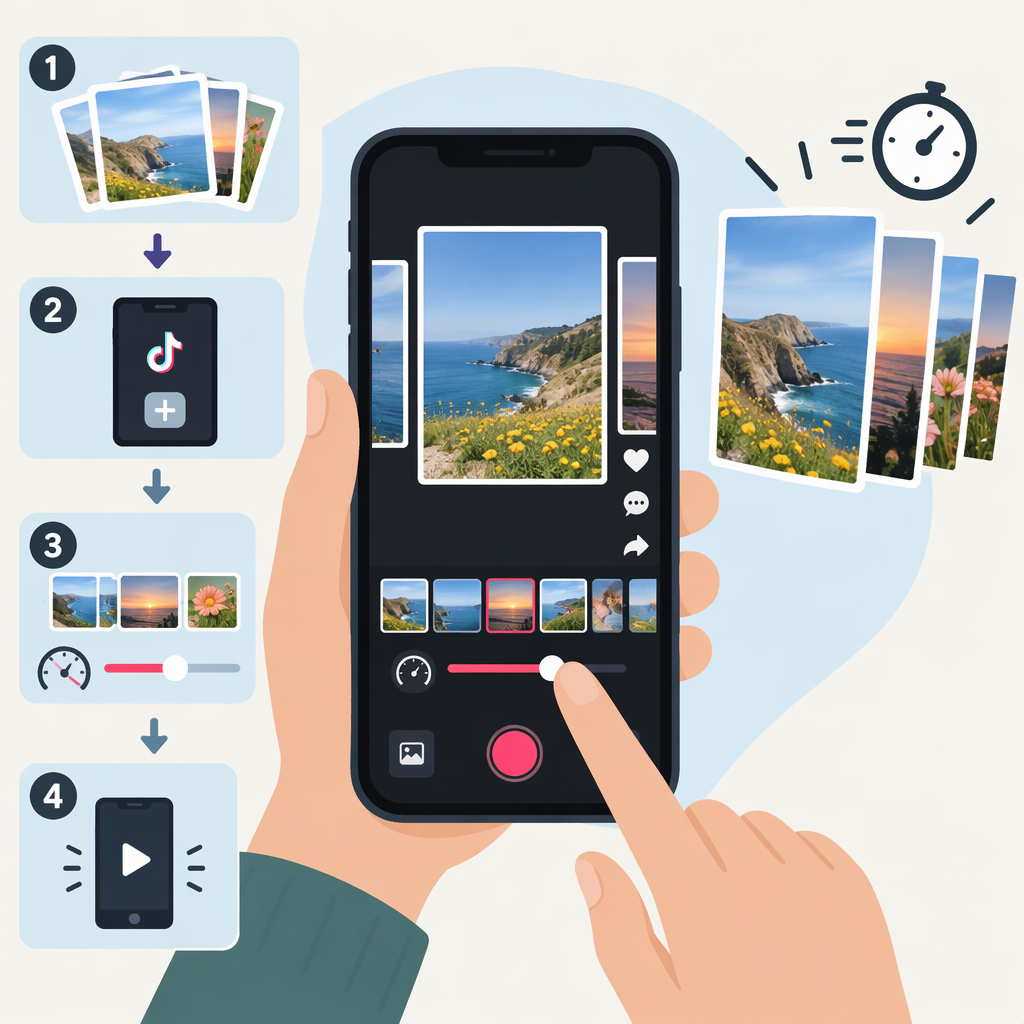
- In the TikTok app, tap Add post +, then Upload and choose your photos.
- Tap Next, then Edit to open the editing tools. TikTok’s help instructions describe this route for uploaded content. (support.tiktok.com)
- Look at the timeline. If each photo is shown as its own editable item, select one and try dragging an end handle inward to shorten how long it appears. TikTok documents dragging a clip’s ends to shorten or lengthen it; it does not explicitly confirm that this works on still photos in every version or workflow. (support.tiktok.com)
- Repeat for the other photos if the controls are available. Shorter photo segments mean quicker changes; adjust individual images rather than assuming one speed setting changes the whole sequence.
- Preview the post. If the photos still cannot be timed individually, or the timeline does not show editable photo items, use the workaround below.
Important: Don’t confuse photo duration with playback speed. TikTok says its Speed tool applies only to video clips. It changes the playback rate of a video clip; it is not a documented control for shortening the display time of a still photo. (support.tiktok.com)
If You Need More Control: Upload a Timed Slideshow Video
As a workaround—not a TikTok-native photo-duration feature—assemble the images into a video using a video editor that lets you set how long each image stays on screen. Make the image segments shorter for faster changes, export the finished slideshow as a video, then upload that video to TikTok. TikTok’s help page describes uploading photos or videos and editing uploaded content in the app. (support.tiktok.com)
This route takes an extra preparation step, but it avoids relying on an undocumented still-photo timing control. It also gives you a video timeline you can review before you post. If you later adjust a video clip’s speed inside TikTok, remember that the speed tool affects the selected video clip, not the duration setting of a still photo. (support.tiktok.com)
Preview Before Publishing
Play through the complete edit and check whether the changes between images feel fast enough. If the pace is uneven, shorten the image segments that linger—either in TikTok, if those photos are editable on your timeline, or in the editor used to make the video. TikTok also provides a Drafts option from the Post page if you want to save the edit rather than publish it immediately. (support.tiktok.com)
Bottom line: Try TikTok’s timeline for per-image timing if your uploaded photos appear as editable clips, but don’t assume the video-only Speed control will speed up still photos. For consistent, precise timing, prepare and preview the slideshow as a video before uploading.