How to Sync a Photo Slideshow with Music for TikTok
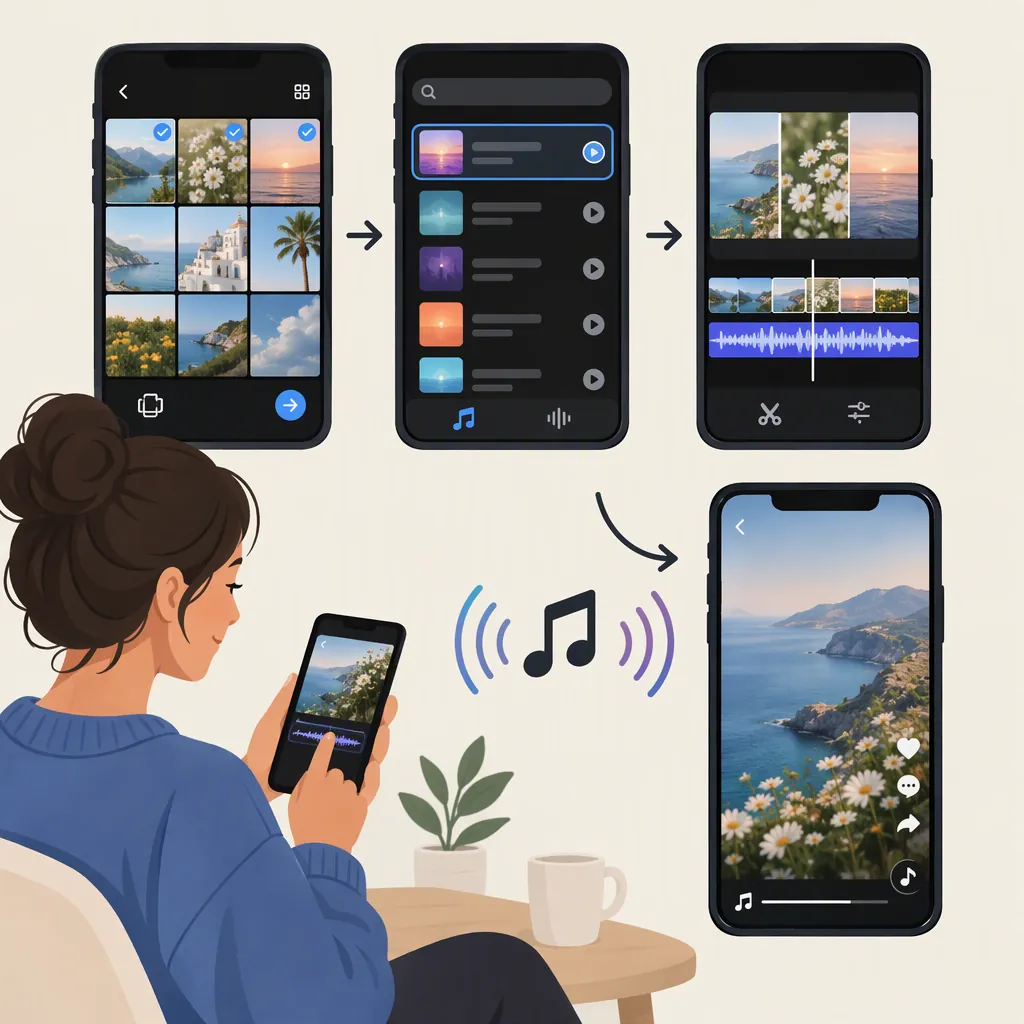
To sync a slideshow with music for TikTok, make a video in which each photo changes at a planned musical cue. Choose the music segment first, mark the change points, and set each photo’s duration in an editor with timeline controls. Then check the final video-and-audio combination in TikTok before posting.
This guide covers manually timed photo videos, not a verified walkthrough of TikTok’s built-in sync controls. If viewers control when they swipe between photos, you cannot use this timing plan to choreograph their swipes.
Choose a Format You Can Time
Use a video sequence in which each photo has a defined start time and duration. This gives you a timeline to align with the music, whether you want changes on strong beats, musical phrases, or a few key moments.
Evidence boundary: The available Mixcord listing names a TikTok photo-slideshow tutorial, templates, and music and sound topics, but the supplied text does not provide specific control steps or verify a current automatic-sync workflow. [source_1] The steps below are a general editing method rather than instructions for particular TikTok buttons.
Plan Photo Changes Around the Music
- Choose a specific song version and segment. Note the version you use and where the selected segment begins within the full track. Use that same segment throughout editing and final checks.
- Listen for clear change points. Try strong beats, the beginning of a musical phrase, or a noticeable change in the arrangement.
- Write down the timestamps. Measure them from the start of your chosen segment. Begin with a few deliberate photo changes rather than trying to match every beat.
- Assign one photo to each interval. The time between consecutive change points becomes that photo’s target duration.
- Allow enough viewing time. Give photos with text or important detail longer intervals instead of forcing rapid changes.
Example Photo Timing Worksheet
These timestamps are illustrative, not measurements of a particular song. Time zero is the start of your selected music segment, not necessarily the start of the full song.
| Photo | Start | End | Target duration |
|---|---|---|---|
| 1 | 0.0 seconds | 2.0 seconds | 2.0 seconds |
| 2 | 2.0 seconds | 4.0 seconds | 2.0 seconds |
| 3 | 4.0 seconds | 7.0 seconds | 3.0 seconds |
| 4 | 7.0 seconds | 10.0 seconds | 3.0 seconds |
Replace the example values with your chosen musical cues. Calculate each duration as end time minus start time. In this example, the first photo change happens at 2.0 seconds.
Build and Preview the Timed Slideshow
Use an editor that lets you place photos on a timeline and adjust their durations.
- Place your chosen music segment at the start of the sequence.
- Put the photos in order.
- Set each photo’s duration using your worksheet.
- Preview the sequence with the music, checking each change against its intended cue.
- Adjust individual durations where necessary.
Begin with simple cuts so you can judge the timing clearly. If you add transitions afterward, decide whether the start, midpoint, or end of each transition should match the musical cue, then preview again.
Check the whole sequence—not just the opening:
- Opening: Does the first planned photo change match the intended beat?
- Middle: Do later changes still match their cues?
- Ending: Does the final photo remain visible long enough, and does the ending feel deliberate?
Keep the Music Aligned When Posting to TikTok
Before exporting, decide whether the audio in your editor is a timing reference or the final audio you intend to retain. Check applicable audio permissions separately; this guide does not establish music-use rights.
If the Editing Audio Is Only a Reference
Use it to time the photos, then export without that reference track if your editor allows it. When adding music during posting, match the song version and segment starting point you recorded.
Do not assume that choosing the same song is enough: compare the actual musical cues with your photo changes.
If the Exported Video Already Contains the Intended Audio
Check whether the final TikTok combination also includes separately added music. Listen for two tracks playing together, an echo, or competing song segments. If audio is duplicated, adjust the combination so only the intended music track is audible, using whatever controls are available.
Preview the Final Combination
Before posting, check:
- Song version: Is it the version used in your timing plan?
- Segment start: Does the music begin at the same point?
- Audio tracks: Is there any unintended duplicate music?
- Opening, middle, and ending: Do the photo changes still match the planned cues?
Make timing decisions from this final preview rather than assuming the exported edit and separately selected music will align.
Troubleshoot Photos That Feel Out of Sync
Every Photo Change Feels Early or Late
Check the music’s starting point first. If the whole sequence has the same offset, try correcting the audio alignment before changing every photo duration.
The Opening Matches, but Later Photos Do Not
Confirm that you are using the same song version and segment. Then compare each change with your timestamp list and adjust individual intervals rather than assigning every photo an identical duration.
A Transition Feels Late Despite a Correctly Placed Cut
Compare it with a simple cut. Then reposition or shorten the transition so its visual emphasis matches the intended musical cue.
The Music Sounds Doubled or Has an Echo
Check whether the exported video contains music and whether another track was added during posting. Remove or silence the unintended track where the available controls permit, then preview again.
You Cannot Find an Automatic-Sync Option
Use the manual timeline method instead: mark musical cues, set photo durations, and check the final audio combination. This workflow does not depend on an automatic-sync button.
FAQ
Does TikTok Automatically Sync Slideshow Photos to Music?
The available listing does not establish whether a current automatic-sync feature is available or how to use it. [source_1] For a manually controlled workflow, turn the photos into a timed video and preview their changes against your chosen music segment.
Should Every Photo Have the Same Duration?
Not necessarily. Match changes to the musical moments you want to emphasize. Use longer intervals for photos that need more viewing time and shorter intervals where a quicker change suits the sequence.
Why Does My Slideshow Timing Feel Wrong After I Choose Music in TikTok?
First, check that you selected the same song version and segment starting point used while editing. Next, listen for unintended duplicate audio. Finally, compare the opening, middle, and ending with your marked cues and adjust any remaining timing differences.
Should I Export the Slideshow with or Without Music?
It depends on your audio plan and applicable permissions. If the editing track is only a reference and you will add music separately during posting, export without the reference track where possible. If you intend to retain the exported audio, check that separately added music does not create an unintended second track.
Can I Precisely Sync Viewer-Controlled Photo Swipes to a Beat?
Do not rely on viewer-controlled swipes for this timing method. Use a timed photo video when you want photo changes to occur at planned points in the music.