How to Make a TikTok Video with Pictures and Video Clips
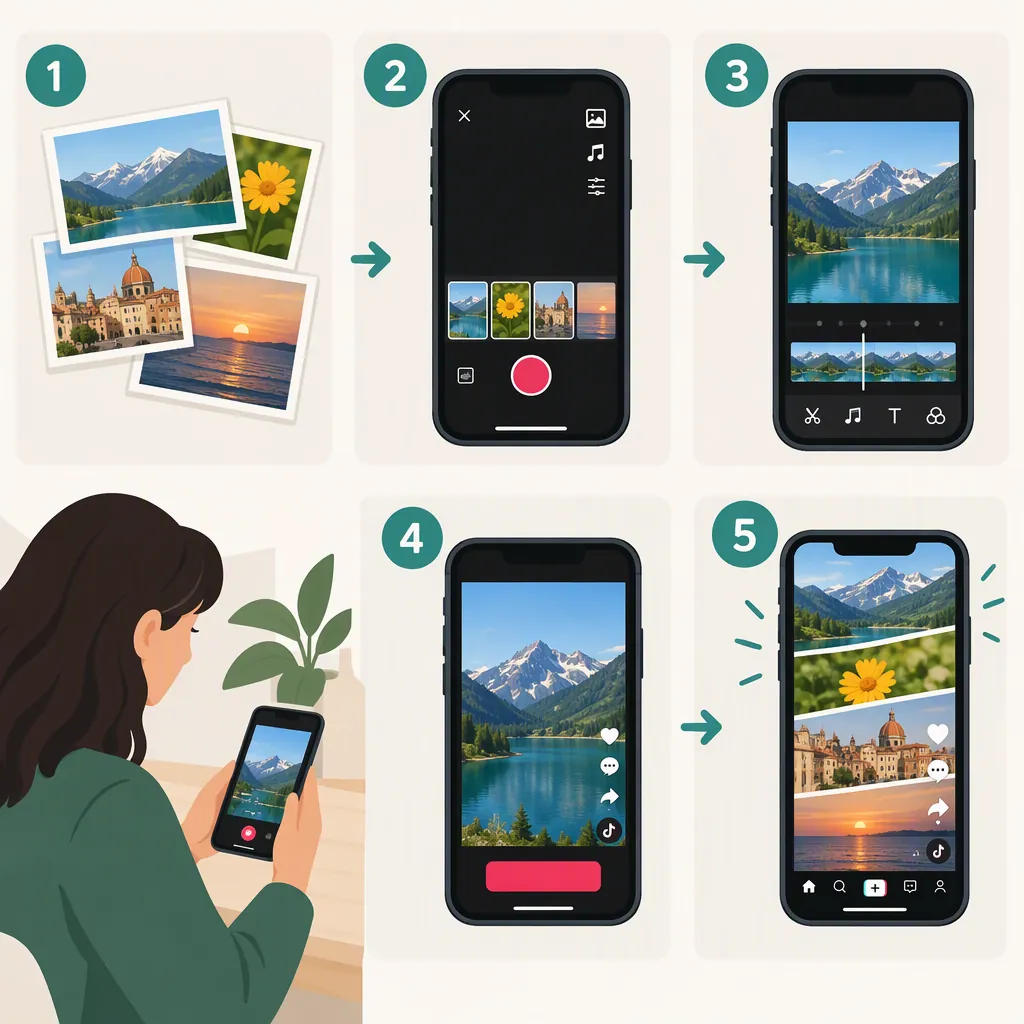
To make a TikTok video with pictures and video clips, open the creation screen with the + button, choose Upload, and select your media from the camera roll. If your app lets you select both photos and videos, tap Next and review the combined preview before continuing. If mixed selection is unavailable, assemble the pictures and clips in a timeline editor, export one video, and upload that file instead. The supplied third-party guide describes these workflows, but it does not establish that every current TikTok interface supports mixed uploads. [c1]
Choose Your Editing Workflow
Start by deciding whether you want to use existing media or record new footage around your pictures.
- Existing pictures and clips: Try TikTok’s Upload workflow first. The supplied guide describes selecting videos and images from the camera roll and continuing to a combined preview. [c1]
- New recordings with pictures between them: The guide also describes using an image effect while recording, then removing the effect to resume ordinary footage. [c1]
- A sequence with deliberate timing: Assemble your media in a timeline editor and export a single video. The guide describes adding pictures and clips as scenes in a vertical project. [c1]
These are third-party instructions, not a guarantee of the controls available in your current app. The source itself notes reports of mixed selection being unavailable. [c1]
Upload Pictures and Video Clips Together
Use this route when your pictures and video clips are already saved on your phone:
- Open TikTok and tap + to begin creating.
- Choose Upload to access your camera roll.
- Select your video clips, then use the image or photo tab to select pictures if that option is available.
- Return to the video tab if you need additional clips and the app permits mixed selection.
- Tap Next to open the preview and editing stage. [c1]
Before continuing, check whether the preview plays the sequence you intended. Review the order, photo cropping, clip cuts, and any text you add. Treat these as editing checks rather than assumptions about which controls your app provides.
If your goal is a timed video made only from pictures, check the preview rather than assuming that selecting photos produced a video. If the result is not the playback format you want, use the timeline workflow below.
Add Pictures While Recording
The supplied guide describes another approach for combining newly recorded footage with pictures:
- Start recording a clip from the creation screen.
- Stop recording where you want a picture segment.
- Open Effects and look for an effect that lets you select a gallery image. The source describes an icon resembling an image with an arrow.
- Choose a picture and record a segment with that effect active.
- Change the picture for another image segment, or remove the effect before recording ordinary footage again.
- Continue to the editing preview when the sequence is complete. [c1]
The source warns that the described effect can place the camera’s subject in front of the selected image. Check the preview if you want the picture alone. [c1]
Use this as an alternative workflow, not a promise that the same effect name or icon will appear in your app.
Build a Timed Video in a Timeline Editor
If TikTok will not let you combine media, prepare the sequence outside the app. The supplied guide demonstrates a timeline workflow using a 9:16 vertical project, with pictures and videos added as scenes before export. [c1]
Use the same basic editing plan in an editor that supports those operations:
- Create a vertical project.
- Import your chosen pictures and clips.
- Place each item on the timeline in the intended order.
- Set each picture’s duration and trim each video clip to the part you want.
- Preview the complete sequence, checking image framing and readable text.
- Export a single video file, then upload that video to TikTok.
This approach lets you decide the sequence before the TikTok upload step. It is not a guarantee that every editor has the same controls or export options.
Mixed-Media Editing Checklist
- [ ] Choose the opening picture or clip.
- [ ] Arrange the remaining media in story order.
- [ ] Set picture durations and trim clips.
- [ ] Check that cropping preserves important details.
- [ ] Preview text and audio, if included.
- [ ] Export and inspect the finished video before uploading.
If Mixed Uploads Are Unavailable
The source notes reports that TikTok sometimes permits selecting photos or videos, but not both, and that some uploads remain on a loading screen. Those reports do not establish the cause or a reliable technical fix. [c1]
If you cannot select both media types, use the single-video export workflow rather than repeatedly trying a control that is unavailable. If the preview does not load, the supplied evidence is insufficient to diagnose whether the issue involves the app, the selected files, or another factor.
Evidence limitation: This article relies on one third-party guide marked as updated May 9, 2025. It does not independently verify TikTok’s current interface or feature availability. [c1]
FAQ
Can I Put Pictures and Videos in the Same TikTok?
The supplied guide describes selecting pictures and videos together through Upload, but also notes that mixed selection is not available to some users. If your app does not allow it, combine the media in a timeline editor and export one video first. [c1]
How Do I Make a Timed Video from Pictures Only?
Use the described timeline approach with pictures as the scenes: arrange them, choose their durations, preview the sequence, and export a video. The source demonstrates timeline scenes containing photos and video clips; using only photos is an adaptation of that workflow. [c1]
What Project Shape Should I Use?
For a vertical composition, the supplied guide recommends a 9:16 project. Check each picture’s framing in that canvas so important details are not cropped out. This is the guide’s editing recommendation, not a claim that TikTok accepts only that shape. [c1]