How to Make a Slideshow on TikTok: Add and Post Multiple Photos
How to Make a Slideshow on TikTok
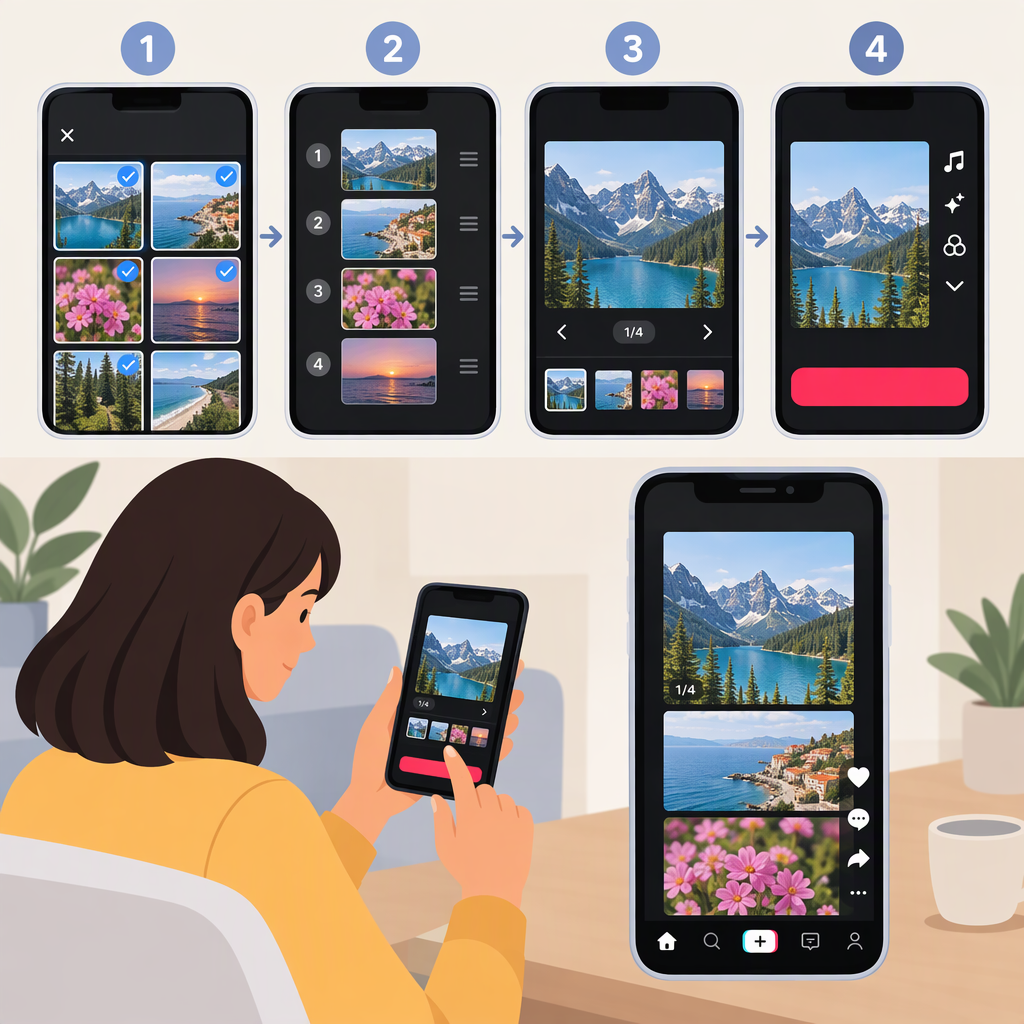
For a set of photos viewers can swipe through, make a photo post in the TikTok app: tap Add post (+), choose Photo, tap Upload, select your images, then tap Next to edit and post. TikTok’s public instructions say a photo post can contain up to 35 photos. (tiktok.com)
TikTok has also called its swipeable, still-image carousel format Photo Mode. Viewers can move through the images at their own pace. If by “slideshow” you mean a video that plays automatically, that is a different result; this walkthrough covers the swipeable photo post. (newsroom.tiktok.com)
Step-By-Step: Create and Publish a Multi-Photo Post
- Open TikTok and tap Add post (+) at the bottom of the screen.
- Tap Photo, then tap Upload to choose photos from your device. Select up to 35 images.
- Tap Next. Swipe through the images in the editor to review them and switch between photos. Add any edits you want, such as a filter, sound, text, stickers, or cropping.
- Choose what happens next: tap Your Story to share to your Story, or tap Next to continue setting up a post.
- On the post screen, review the cover, description, hashtags, tags, location, link, and privacy settings as needed. These are optional details; add only what suits your post.
- Tap Post to publish, or Drafts to save it for later. TikTok says drafts are visible only to you on your profile. (tiktok.com)
Before You Post
- Check the order: Swipe through the images in the editor and make sure they tell the story in the order you intend.
- Review the crop and edits: TikTok lists cropping, filters, text, stickers, and sound among the available photo-post edits. Use only the edits that help your images read clearly. (tiktok.com)
- Check who can see it: TikTok says a new post retains the privacy setting from your previous post. Review the post’s privacy settings before publishing, especially if your last post was set to Only you. (tiktok.com)
If You Can’t Find the Photo-Post Option
TikTok’s public instructions describe the flow through Add post (+) → Photo → Upload. If those controls aren’t visible in your app, consult TikTok’s Making a post help page for the current instructions. The public guidance referenced here does not establish a specific cause or fix for a missing option, so don’t assume it is due to your device, account, or region.