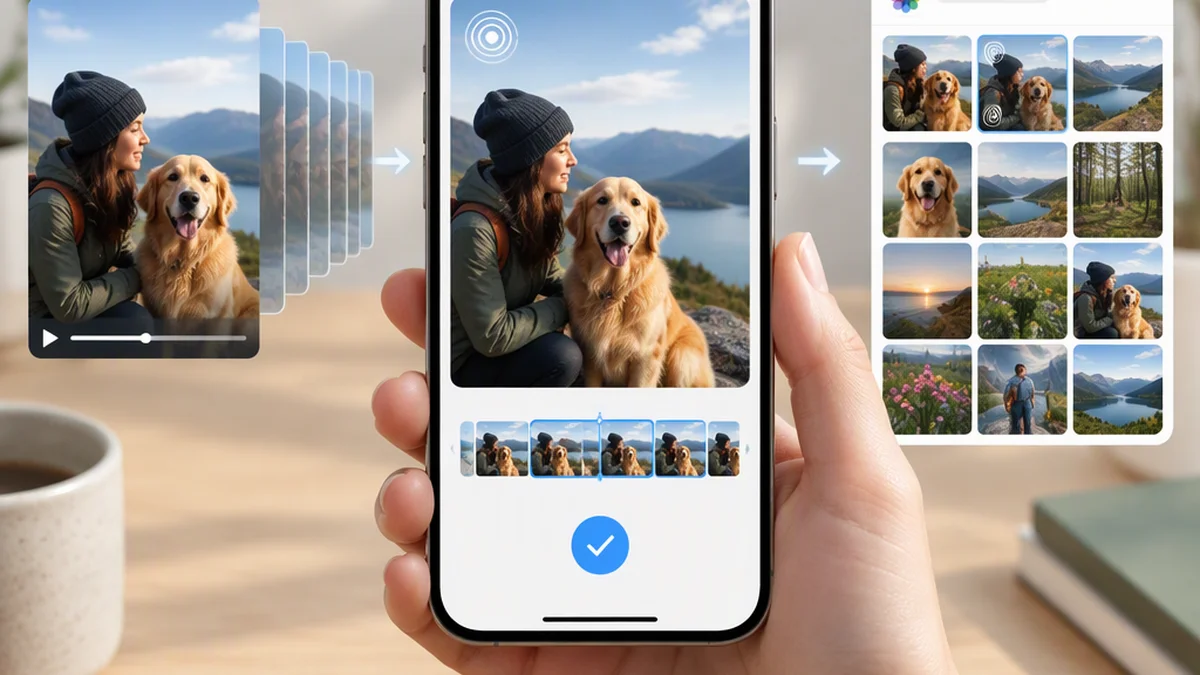
How to Make a Video a Live Photo on TikTok
To make an eligible TikTok video a Live Photo on an iPhone, open the video, tap Share, and choose Live Photo if the option appears. Wait for it to save, then open Photos and press and hold the saved item to check that it moves.
This method applies to a video you are viewing in TikTok—not any video already stored in your camera roll. If TikTok does not offer Live Photo for the post, this in-app route is not available for that item.
Save a TikTok Video as a Live Photo
The steps below follow the Wondershare Filmora guide, published by a commercial editing-tool provider. They describe a conditional workflow, not a test of the current TikTok version; menu labels and availability may differ. [cit-1]
- Open TikTok and play the video you want to save.
- Tap Share or the actions control beside the video.
- Find Live Photo among the available actions. Scroll through the menu if necessary.
- Tap Live Photo if TikTok offers it.
- Keep TikTok open until the save process finishes.
- Open Photos on your iPhone and look for the newly saved item among recent photos.
- Press and hold the item, or use the Live Photo preview, to confirm that it contains motion.
The result should be a moving photo in your library. It is not necessarily a standard video file, and TikTok’s share-menu action is not a general converter for local videos.
Troubleshoot a Missing Option or Failed Save
Choose the checks that match what happened.
The Live Photo Option Is Missing
- Reopen the video’s Share menu and scroll through the available actions.
- Confirm that you are using an iPhone for this workflow. Filmora describes the native Live Photo method as iOS-focused; its Android alternatives, such as short looping videos, are not the same result. [cit-1]
- If your menu looks different, check whether a TikTok update is available. An update may change labels or placement, but it does not guarantee that the option will appear.
- If TikTok shows no Live Photo action, use only the save options available for that post. There is no source-supported workaround that guarantees this conversion.
You Tapped Live Photo, but Nothing Saved
- Check the most recent items in Photos.
- Look for any save error or permission prompt in TikTok.
- In your iPhone settings, review TikTok’s photo-library access and any permission requested during saving.
- Check available device storage.
- If TikTok still offers Live Photo, try again with a stable connection and leave the app open until saving finishes.
These are checks, not confirmed explanations for every failed save.
The Saved Item Does Not Move
- Open the item in Photos and use its Live Photo preview rather than judging it from the thumbnail.
- Confirm that you are viewing the newly saved item, not a still image saved earlier.
- If it still has no motion, the export may not have completed as intended. Retry only if TikTok continues to offer the Live Photo action.
Check the Result Before Using It
After saving, review three things:
- Motion: Confirm that the item plays as a moving photo.
- Framing: Check for cropped faces, captions, subtitles, or other important details.
- Watermark: Inspect the result for a TikTok watermark or other source identification. Filmora says TikTok videos saved as Live Photos can include a watermark; this method does not promise an unmarked copy. [cit-1]
Saving another creator’s video does not give you permission to repost, edit, advertise with, or distribute it. For reuse beyond personal storage, seek appropriate permission and follow the applicable platform rules.
Related: Posting Your Own Live Photo to TikTok
Uploading a Live Photo is the reverse task. Filmora describes starting a new TikTok post with the plus button and selecting a Live Photo from the media picker. [cit-1]
However, being able to select a Live Photo does not mean TikTok will preserve its motion. Check the post preview before publishing. If the preview shows only a still image, that flow has not achieved a moving Live Photo upload.
FAQ
Can I Turn a Video in My Camera Roll into a Live Photo Using TikTok?
The share-menu method described here applies to a TikTok post you are viewing. Converting a regular video already stored on your phone is a separate task.
Can Android Save a TikTok Video as a Live Photo?
Filmora describes Android as lacking the same native Live Photo workflow available on iOS. Alternatives such as short looping videos are not equivalent to an iPhone Live Photo. [cit-1]
Will the Saved Live Photo Have a Watermark?
It may. Filmora says TikTok-to-Live-Photo saves can include a watermark, so inspect the saved result rather than assuming it will be unmarked. [cit-1]