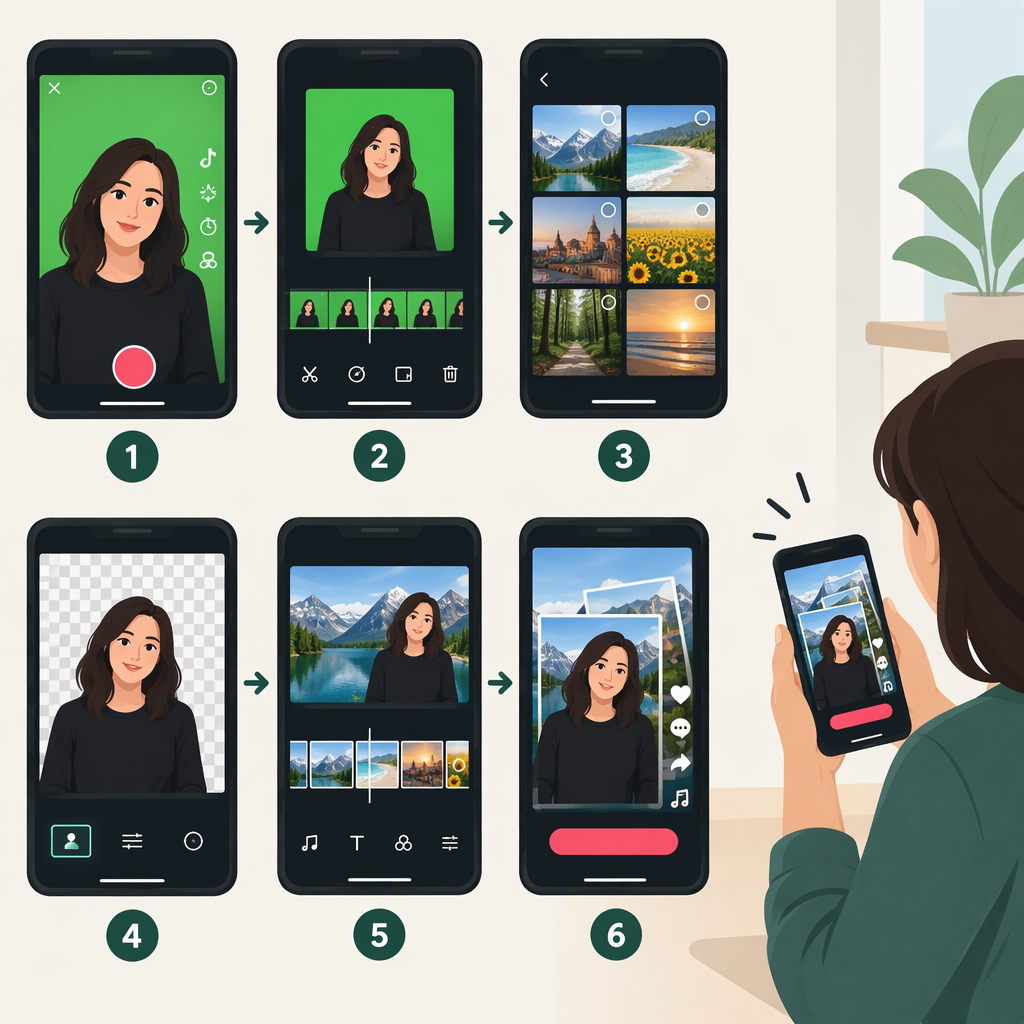
How to Make a Green Screen Slideshow on TikTok
TikTok’s Green Screen effect puts you in front of a photo background. If by “slideshow” you mean several backgrounds behind you in one video, plan on recording a short segment for each photo. TikTok’s official instructions explain how to choose a photo and record, but don’t confirm that every app version lets you switch photos in the middle of a recording. The controls may vary, so check whether your version offers a photo selector between segments. (newsroom.tiktok.com)
Choose the Format First
A Green Screen video shows you speaking or acting in front of a background image. A photo post is a different format for sharing still images; choose that if you want viewers to see the photos themselves rather than watch you in front of them. TikTok’s help center documents photo posts separately from creating videos. (support.tiktok.com)
Make a Video with Changing Photo Backgrounds
- Prepare your photos. Save the images you want to use on your phone, put them in the order you want, and use images you own or have permission to use.
- Open TikTok’s camera. Tap Add post (+), then tap Effects. TikTok’s current help instructions say to select an effect to preview it, then return to the camera to record. Its older Green Screen instructions describe finding the effect under Trending; if that label or location is different in your app, look through the effects rather than assuming it is unavailable. (support.tiktok.com)
- Choose the Green Screen effect and a background photo. Select the photo-picker version of Green Screen, then choose your first image from your phone’s photo library. TikTok’s published instructions describe choosing a library photo as the background before recording. (newsroom.tiktok.com)
- Record a short segment. Frame yourself so your face and any gestures are clear, then record the part that belongs with that image.
- Check for a way to change photos. If the photo selector remains available, choose the next image and record another segment. Repeat for each background. Creator tutorials demonstrate using multiple Green Screen effects in one video, but TikTok’s general help page doesn’t document this exact sequence as a universal feature. If you don’t see a way to change images, don’t assume the current take will turn into a slideshow automatically. (tiktok.com)
- Preview before posting. Check that each background appears with the intended segment, your outline stays visible, and your speech or sound isn’t cut off at a change. If your version doesn’t let you add another Green Screen segment, use one background for the video or assemble separately recorded clips in a video editor, then upload the finished video to TikTok.
Example: For a three-photo explanation, record one short point in front of photo one, change the background if the selector is available, and record the next point. Repeat with photo three. Preview the transitions and timing before publishing; the background changes should match the points you’re making.
If Green Screen or Your Photos Aren’t Available
- Can’t find the effect? Open Add post (+) → Effects and browse or search the effect panel. TikTok notes that effects can be applied before or after recording, though some are available only at one stage. If the effect still doesn’t appear, TikTok’s help center provides an in-app option to report a problem; its documentation doesn’t establish that one particular fix will restore a missing effect. (support.tiktok.com)
- The photo picker is empty or blocked? Check whether TikTok has permission to access photos in your phone’s settings. The permission controls and wording depend on the device. Reopen TikTok and try the picker again; if the problem continues, report it through TikTok’s support flow rather than assuming the effect itself is broken. (support.tiktok.com)
- Want still images, not a video with you over them? Start a photo post instead. TikTok documents photo-post options separately from video effects. (support.tiktok.com)
Bottom line: Green Screen is the right effect for placing yourself over a photo. For a sequence of backgrounds, use separate short segments if your app allows you to change the image between them. Because TikTok’s general help instructions don’t specify that multi-photo sequence for every version, preview the result before posting.