How to Put a Picture on Top of a TikTok Video
To put a picture on top of a TikTok video, open your video in TikTok’s editing screen, open Stickers, and look for the photo icon to select an image. The supplied guide identifies this as the method for adding photos over video clips. This is different from uploading photos alongside videos, which adds them as separate parts of the sequence. The source does not establish whether the photo-sticker option is available in every current app version. [c1]
Choose an Overlay, Not a Photo Slide
If you want viewers to see the video and your picture at the same time, use a photo overlay. For example, the picture could be a reference image shown while the main video continues underneath.
The supplied guide describes three different approaches:
- Photo over a video: Use the Stickers tool and select the photo icon.
- Photos between video clips: Upload photos and videos together, then edit their sequence.
- A photo carousel: Upload photos to create a Photo Mode post rather than placing a picture over a moving video.
For the goal of putting a picture on top of footage, start with the first approach. [c1]
Add a Picture with the Stickers Tool
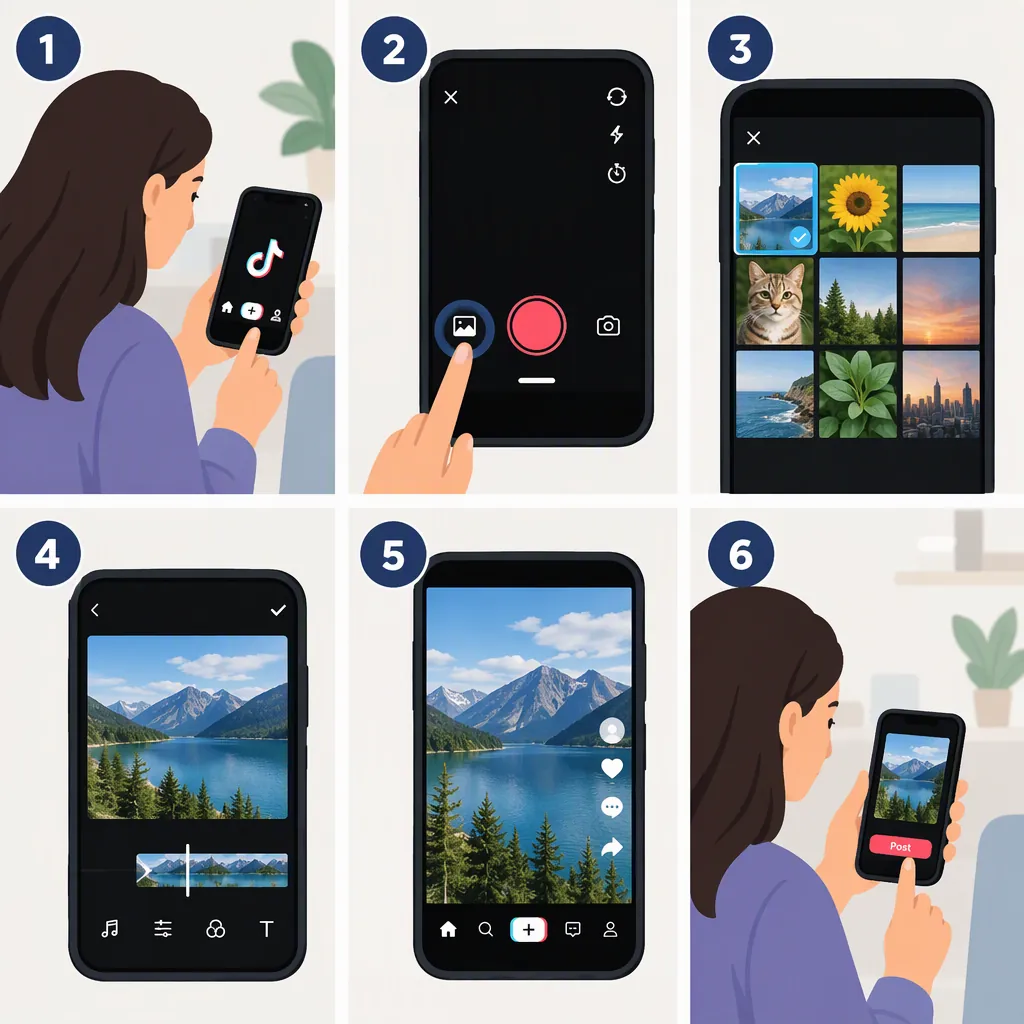
- Start with your video. Tap + to create a post. Record your footage, or use Upload to select an existing video, then continue to the editing screen.
- Open Stickers. Look for the stickers control in the editor.
- Find the photo icon. The supplied guide specifically identifies this option as the way to add a photo on top of a video clip. [c1]
- Choose your picture. Select the image you want to display over the footage.
- Check the available controls. If the editor offers position or size adjustments, use them to keep the picture clear of the main subject and important text.
- Preview the whole video. Check when the picture appears and disappears. If timing controls are available, adjust them to match the relevant moment.
Limitation: The source supports the Stickers → photo icon route, but it does not document exact photo-sticker resizing gestures, timing controls, or availability across app versions. Treat those adjustments as conditional rather than guaranteed features.
Photo Overlay Preview Checklist
- Confirm the picture appears over the video, not as a separate slide.
- Check that the image is readable at phone-screen size.
- Keep the main subject and essential captions visible.
- Watch the beginning and end of the picture’s appearance.
- Preview the complete edit before publishing.
What to Do If the Photo Icon Is Missing
If you cannot find the photo icon, do not assume that selecting photos in Upload will produce the same result. The guide describes mixed uploads as a sequence of photo and video clips, with editing options for order, picture duration, and transitions—not as the photo-overlay route. [c1]
For an overlay, an alternative workflow is to prepare the finished video in an editor that explicitly supports image layers over video. Place the video underneath the image, set the image’s position and duration, then export and upload the finished video to TikTok. This is general editing guidance, not a verified claim about a particular editor.
The supplied reference does not explain why the photo icon might be absent or provide a confirmed troubleshooting fix. It also does not verify that reinstalling the app or changing account settings will make the option appear.
When Photo Effects Are a Different Choice
The guide also describes adding photos through TikTok’s Effects menu, including effects that transition or zoom between pictures. That is a different workflow from selecting a photo through Stickers to place it over a video clip. [c1]
Choose an effect when its visual treatment is part of your intended result. For a straightforward reference picture over existing footage, the photo-sticker route is the more directly relevant method described by the source.
FAQ
Can I Add a Picture Without Replacing the Video?
Yes—the supplied guide describes using Stickers and the photo icon to add a picture on top of a video clip. That is the relevant method when you want both visible together, although the source does not verify availability in every app version. [c1]
Why Did My Picture Become a Separate Slide?
If you selected photos and videos together through Upload, you used the mixed-media sequence method described in the guide. To place a picture over footage instead, look for the photo icon inside Stickers. [c1]
Can I Show the Picture for Only Part of the Video?
Check whether your editor offers timing controls for the photo sticker. The supplied guide does not document that capability, so it cannot be confirmed here. It does describe picture-duration editing for separate photo clips, which is not the same as overlay timing. [c1]