How to Put a Video of Yourself over a Photo on TikTok
The Quick Answer
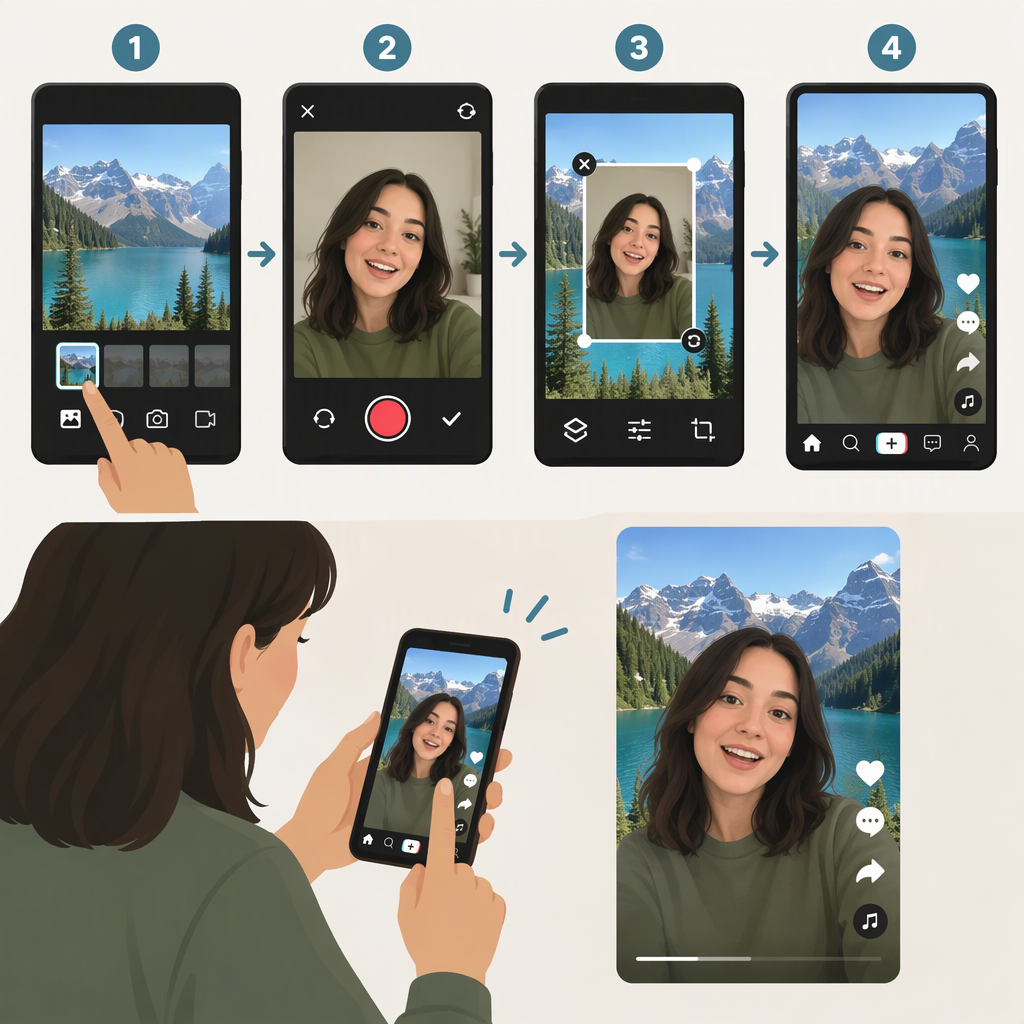
To record yourself in front of a still photo, use TikTok’s Green Screen effect: tap Add post (+), open Effects, choose the photo-background Green Screen effect, select an image from your phone, and record. Preview the result, then tap Next to reach TikTok’s posting options. TikTok’s published Green Screen instructions describe choosing a photo from your phone library as the background; its Help Center explains the general process for selecting an effect and recording with it. (newsroom.tiktok.com)
This records you live against the photo. It is not the same as importing a prerecorded video and placing that clip over a still image. TikTok also documents a Green Screen Sticker effect for placing a photo within a video, but that is a different composition. (newsroom.tiktok.com)
Record Yourself over a Photo
- Open the recording screen. In the TikTok app, tap Add post (+).
- Open Effects. Tap Effects on the camera screen. TikTok’s general instructions say to select an effect to preview; it then applies on the camera screen. (support.tiktok.com)
- Choose the photo-background Green Screen effect. TikTok’s published instructions say to look for the Green Screen icon in Trending. Effect-panel organization can differ, so if you don’t see it there, look through the available effects for Green Screen rather than assuming every version uses the same layout. (newsroom.tiktok.com)
- Select your background photo. Choose an image from your phone’s photo library when prompted. TikTok’s instructions describe using that image as the background. (newsroom.tiktok.com)
- Frame and record. Position yourself in the camera view, then tap the record button. A simple practical tip: check that you can be seen clearly against the image before recording.
- Review and continue. When you finish, use TikTok’s checkmark/continue control to move to the editing or preview stage. TikTok’s posting instructions say you can add edits there, tap Next for more posting options, and then choose Post to publish or Drafts to save. (tiktok.com)
Before posting, check that the background is the image you intended and that your face and any important details are visible. On the posting screen, review the description and privacy settings; TikTok says new posts retain the privacy setting from your previous post unless you change it. (tiktok.com)
If You Mean an Existing Video Clip over a Photo
The steps above create a new recording with you in front of a photo. They do not explain how to place an already-recorded clip over a full-screen still background.
TikTok’s newsroom describes Green Screen Stickers as a way to add a photo sticker inside a video. That may suit a picture-in-picture-style reference, but it is not the same as using a photo as the full background behind an imported clip. (newsroom.tiktok.com) TikTok’s public instructions cited here do not establish a step-by-step native workflow for that prerecorded-clip composition, so don’t treat the live-recording Green Screen steps as if they do.
If You Can’t Find the Effect
TikTok’s Help Center says effects are accessed from Add post (+) → Effects, but its Green Screen-specific directions place the icon under Trending. If the panel looks different, browse the available effects and check the effect’s preview before recording. TikTok’s published Green Screen walkthrough is older, so its exact menu placement may not match every app layout. (support.tiktok.com)