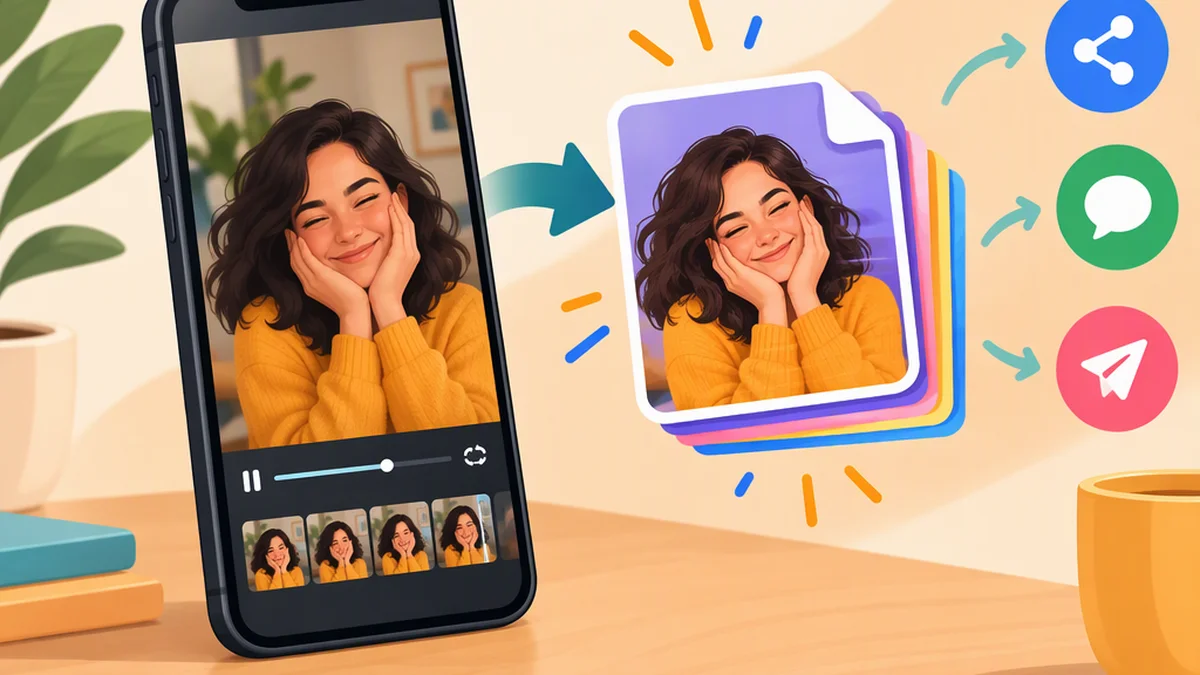
How to Make a GIF on TikTok
To make a GIF from a TikTok video, open the video, tap the Share arrow, scroll through the sharing options, and select Share as GIF if it appears. You can then choose a messaging destination or Save Image to save the GIF to your phone’s photo library.
This is the in-app method documented by Mashable. [1] TikTok’s interface and available options can change, so use your actual Share menu as the guide. If the GIF option is missing, you can use the video-to-GIF alternative below.
These steps cover turning a TikTok video into a GIF, not adding an animated sticker to a new TikTok post.
Make a GIF from a TikTok Video
- Open the video you want to convert. Choose a clip whose action or reaction makes sense without sound.
- Tap the Share arrow on the right side of the video.
- Scroll through the actions at the bottom of the sharing panel. You may need to swipe horizontally to find Share as GIF.
- Tap Share as GIF. In Mashable’s walkthrough, TikTok converts the video automatically. [1]
- Choose where to send or save it. The documented options include SMS, WhatsApp, Other for another destination, and Save Image for your phone’s photo library. [1]
- Check the result. Open the saved GIF or view it in the receiving app to confirm that it animates and shows the moment you intended.
Example: Sharing a Short Reaction
Suppose the original TikTok is a short clip showing a surprised reaction. If Share as GIF is available, you can convert it and send it in a message instead of sending the video link.
The documented workflow does not explain how to select a specific two-second segment from a longer video. If you need to isolate a moment, use a converter with trimming controls, as described below.
If You Do Not See “Share as GIF”
First, check that you are looking in the right place:
- Open the video in TikTok itself, rather than in another app’s browser or a link preview.
- Tap TikTok’s Share arrow and swipe through the bottom-row actions.
- Try another video to see whether the option appears there.
If it is still missing, use a separate video-to-GIF tool or share the original video link. Sharing a link is not GIF conversion, but it preserves access to the original clip.
Alternative: Save the Video and Convert It Outside TikTok
If TikTok allows you to save the video and you have the right to reuse it, you can use this general workflow:
- Save the video to your device using TikTok’s available download option.
- Open a tool that supports video-to-GIF conversion. A local app can avoid uploading the clip to a separate website.
- Import the saved video.
- Trim it to the moment you want. Crop or resize it if needed to keep the subject readable.
- Export it as a GIF, rather than as a video or still image.
- Open the exported file and test it in the destination app.
This is a separate conversion method, not TikTok’s Share as GIF feature. The exact controls depend on the tool you choose. Avoid services that request your TikTok login, and do not upload private or sensitive footage without permission.
How to Save or Send Your TikTok GIF
In the in-app workflow, choose Save Image after conversion if that option appears. Mashable identifies this as the way to save the GIF to your phone’s photo library. [1]
Once saved, check that:
- It moves when opened, even if the thumbnail is still.
- The subject and any essential text are readable.
- The action makes sense without sound.
For a conversation, choosing a messaging destination directly may be simpler than saving first. Saving is useful when you want to keep a copy or send it through another app later.
The receiving app may show a still preview or process animated files differently. If animation matters, test the GIF in the app where it will be used.
Tips for a Clear, Useful GIF
- Choose one obvious action. A nod, laugh, reveal, or pet’s expression is easier to understand than a long sequence.
- Keep essential text brief and large. Small captions may become unreadable in a chat window.
- Do not rely on audio. GIFs have no sound.
- Preserve context. A reaction taken from a longer video can change its meaning.
- Respect the original creator. Before reposting someone else’s clip publicly, consider permission, credit, and whether to include the original link.
FAQ
Can I Make a GIF from Any TikTok Video?
Not necessarily. Use Share as GIF when it appears in the video’s Share menu. If it is unavailable, the separate conversion method requires a video you can legitimately save and reuse.
Can I Choose Just Part of the Video?
Mashable’s in-app walkthrough describes automatic conversion but does not explain segment selection. To isolate a specific moment, use a video-to-GIF converter with trimming controls.
Can I Send a TikTok GIF in a Text Message?
Mashable’s walkthrough lists SMS and WhatsApp as sharing options. [1] Check the result in the receiving app, because its handling of animated files may differ.
Why Does My GIF Not Move?
Open the file rather than judging it by its thumbnail. If it animates in your photo library but not in the receiving app, that app may be displaying a preview or processing the file differently. If you used a separate converter, also confirm that you exported an animated GIF rather than a still image.
Sources
- Mashable — “How to create a GIF from a TikTok video”
https://mashable.com/article/how-to-make-gifs-tiktok
Documents the Share → Share as GIF workflow, messaging destinations, and Save Image option. This reference does not establish current availability across all devices, accounts, or videos.