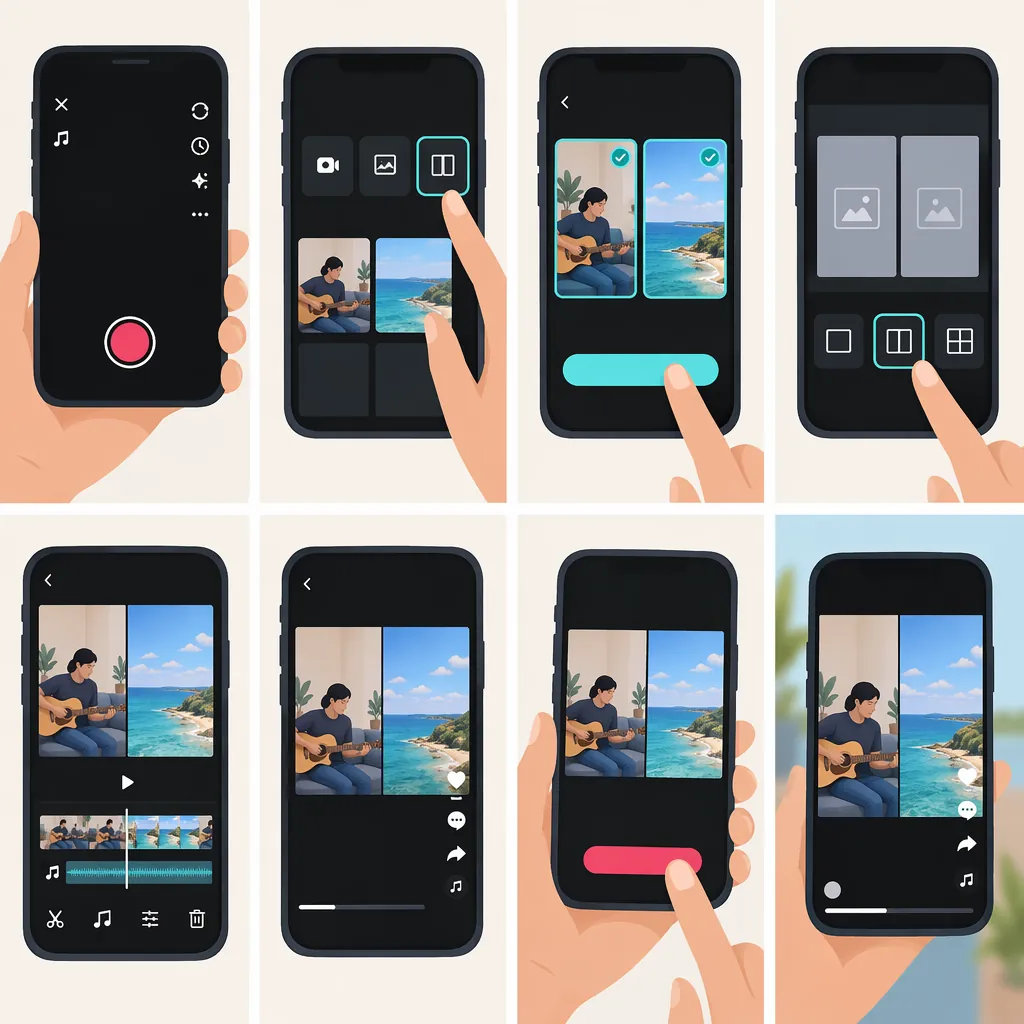
How to Make Two Videos Side by Side on TikTok
Use Duet to record yourself beside an existing TikTok: open the post, tap Share, choose Duet, select an available side-by-side layout, and record. To combine two videos already saved on your device, use a video editor to arrange them beside each other, export one finished video, and upload it to TikTok. Available layouts and controls can vary. [src-1]
Choose the Method That Matches Your Footage
The key distinction is whether you want to respond to an existing TikTok or combine two clips you already have. The supplied guide describes three different approaches; they are not interchangeable. [src-1]
| Your Goal | Method to Use | Main Limitation |
|---|---|---|
| Record a response beside an existing TikTok | Duet | The original post must allow Duet. |
| Place two separately recorded clips beside each other | A video editor with layers or overlays | You arrange the layout before uploading the finished video. |
| Create a repeated-frame or multi-screen look | An available TikTok effect | An effect may not combine two independent clips. |
For two videos from your camera roll, the editor workflow is the more appropriate starting point. For a reaction to a posted TikTok, start with Duet. [src-1]
Use Duet with an Existing TikTok
The supplied guide describes this general Duet workflow. Button placement and available layouts may differ in your app. [src-1]
- Open the TikTok video you want to appear alongside.
- Tap Share and check for Duet.
- If Duet is available, open it and choose a layout that places the two videos next to each other.
- Record your contribution.
- Preview the combined result and make any available caption, sound, or editing adjustments before posting. [src-1]
If Duet is missing, the original creator may have disabled it or restricted reuse. The option is not available on every post. Choose another eligible video rather than assuming that every TikTok supports this workflow. [src-1]
Combine Two Saved Videos in an Editor
For two existing clips, use an editor that supports an additional video layer or overlay. The supplied guide describes this approach as offering control over positioning, cropping, and timing without relying on a fixed TikTok effect. Exact tool names depend on the editor. [src-1]
- Create a project and import both clips.
- Put the first clip on the timeline or canvas.
- Add the second clip as another video layer or overlay.
- Resize and move the clips so one occupies the left side and the other occupies the right side.
- Adjust each clip's crop and timing until the intended moments appear together.
- Export the composition as one video, then upload that file to TikTok as a regular post. [src-1]
As an editing recommendation, check the finished export—not just the project preview—for framing, timing, and audio balance. Decide whether both clips need audible sound or whether one should carry the main audio.
Side-By-Side Review Checklist
- Both clips are visible at the same time.
- Neither subject is unintentionally cropped out.
- The moments you want to compare line up.
- Any difference in clip length has been handled intentionally.
- Audio is understandable when both clips play together.
- The exported file preserves the intended layout.
Check Effects for a Multi-Screen Look
TikTok's Effects may offer split-screen or multi-screen looks. The supplied guide suggests starting from the creation screen, recording or uploading footage, and browsing Effects for an appropriate layout. It also notes that effects can differ by account, region, device, and app version. [src-1]
Preview the effect before treating it as a solution for two separate videos. A repeated image or grid is not necessarily a composition containing two independent clips. If the available effect does not give you the arrangement you need, use the layered-editor workflow instead. [src-1]
Feature and Source Limitations
These steps are based on one supplied third-party guide, not official TikTok documentation or a test of your account. They describe general workflows rather than guarantee particular buttons or layouts. The guide itself notes differences across accounts, devices, regions, and app versions. [src-1]
TikTok LIVE multi-guest layouts are a separate workflow for displaying live participants together. They are not the same as combining two saved videos into a regular post. [src-1]
FAQ
Can I Put Two Camera-Roll Videos Side by Side?
Yes. The supplied guide describes importing both clips into a video editor, adding one as an additional layer, arranging them beside each other, and exporting one video for TikTok. [src-1]
Can I Use a Saved Clip as My Part of a Duet?
The supplied guide describes Duet as pairing an existing TikTok with a new recording, not as a method for combining two camera-roll clips. For already-recorded footage, use the editor workflow rather than relying on an upload option within Duet. [src-1]
Why Is Duet Missing from the Share Menu?
The original creator may have disabled Duet or restricted reuse of the video. Not every TikTok post offers Duet, so check another eligible post. [src-1]
Why Can't I Find the Same Split-Screen Effect?
Effect availability can differ by account, region, device, and app version. The supplied guide suggests checking for an app update and looking in Effects again; it does not guarantee that a particular effect will become available. [src-1]