How to Put Videos Together on TikTok
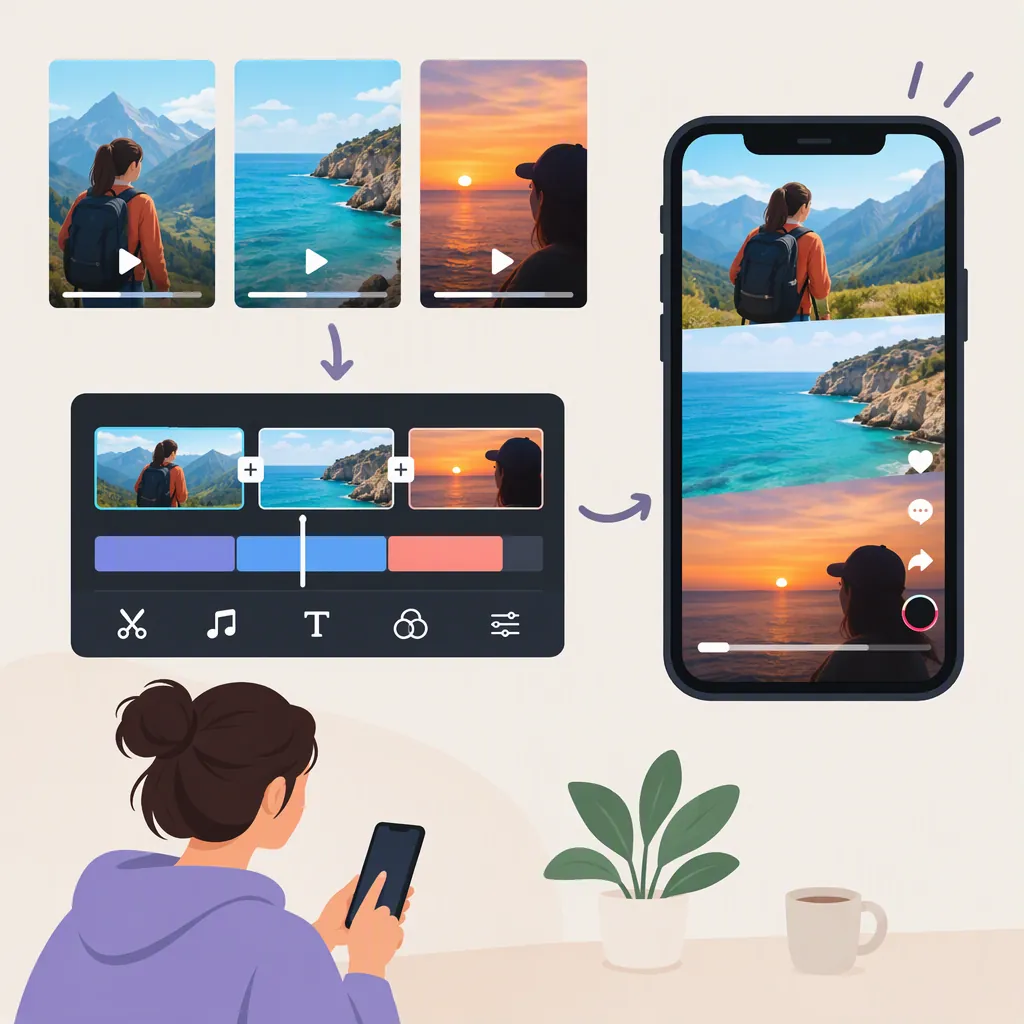
To put saved videos together on TikTok, tap +, choose Upload, enable Select Multiple if shown, select your clips, and tap Next. Preview the sequence and trim unwanted footage using the available editing controls. If you have not filmed yet, you can instead record several segments within one TikTok recording session. [c1]
Interface note: These workflows are described in a Wondershare DemoCreator guide dated March 11, 2025, not official TikTok documentation. Current button labels and feature availability are not verified here; use the names below as navigation clues. [c1]
Choose a Method for Combining Clips
Here, combining videos means making one video in which clips play one after another—not placing videos side by side.
Choose the route that matches your footage:
- Videos already saved on your phone: Use the multiple-upload workflow.
- Footage you still need to film: Record several segments in the same TikTok session. [c1]
Before you start, decide which clip should come first and what each following clip adds. For two clips, this may be as simple as showing an action followed by its result.
Combine Videos Already Saved on Your Phone
The guide describes using Upload, Select Multiple, and Next to assemble saved videos into one sequence. [c1]
- Open TikTok and tap + to open the creation screen.
- Choose Upload to browse the media saved on your phone.
- Enable Select Multiple, if that option appears.
- Select the videos you want to combine in your intended playback order.
- Tap Next to continue to editing.
- Preview the sequence. For each clip you want to shorten, identify where the useful footage begins and ends, then use the available trimming controls to keep that range.
- Confirm your edits and play the sequence again, paying attention to the joins between clips.
- Review any music or other edits, then continue to the final review screen. [c1]
The guide describes trimming after upload but does not establish a specific button path for opening those controls. The editing goals in steps 6–7 do not depend on a particular gesture or interface layout.
Do not assume the selected clips appear in the intended order: watch the result from start to finish. If you cannot find a reordering control, try returning to media selection and selecting the clips again in the desired sequence, then check the preview.
Clip Planning Worksheet
Use one row per clip, adding or removing rows as needed. The “keep” range can be approximate timestamps or a description such as “from the first spoken sentence to the completed action.”
| Clip order | Content | Portion to keep |
|---|---|---|
| 1 | ______ | ______ |
| 2 | ______ | ______ |
| 3, if needed | ______ | ______ |
Record Several Clips in One Session
The guide also describes recording several segments in TikTok, confirming the recording, and adjusting the clips afterward. [c1]
- Tap + to open the recording screen.
- Record your first segment, then stop recording.
- Repeat within the same session to capture the remaining segments.
- When you have finished, tap the confirmation checkmark and preview the sequence.
- Open the clip-editing controls, called Adjust clip in the guide.
- For each segment that needs trimming, identify the beginning and end of the footage you want to keep. Use the available controls to remove unnecessary footage without cutting essential words or actions.
- Confirm the adjustments—the guide calls this button Done—then play the sequence again to check the cuts. [c1]
Plan each segment’s purpose before recording. For example, the first might introduce the subject, while the second shows the result. This keeps the sequence focused without relying on a particular timer setting.
Review the Combined Video
Trimming and reviewing music are part of the upload workflow described by the guide. [c1] Beyond those steps, use the following checklist as an editorial review aid, not as a list of guaranteed TikTok features.
Combined Video Review Checklist
- The clips appear in the intended order.
- Unwanted pauses at the beginning and end of clips are removed.
- Cuts do not interrupt essential words or actions.
- Each clip connects clearly to the next.
- Speech is understandable, and music does not distract from it.
- Any added text remains readable long enough.
- The final clip ends deliberately.
- The complete sequence has been previewed before posting.
Check difficult joins more than once. If speech or movement continues across a cut, make sure the viewer can still follow it.
Handle Separate Drafts with Caution
The guide includes instructions about combining drafts, but they mix draft editing, privacy changes, posting, and uploading. Those instructions do not clearly establish a direct way to merge two separate TikTok drafts. [c1]
If you still have the original videos saved on your phone, use the multiple-upload route above. Do not post a draft merely to test whether it can be merged; first establish which original files you have and which editing controls are available.
If the in-app workflow does not meet your needs, another route described by the guide is to combine footage in a separate editor, export one finished video, and upload that video to TikTok. This is an alternative workflow, not a recommendation for a particular product. [c1]
FAQ
How Do I Combine Two Saved Videos on TikTok?
Tap +, choose Upload, enable Select Multiple if shown, select both videos, and tap Next. Preview their order and trim unwanted footage before completing your review. This third-party workflow may use different labels from your current app. [c1]
Can I Combine Clips Without Uploading Saved Files?
Yes—the guide describes recording several segments within one TikTok session, confirming the recording, and then using Adjust clip to edit them. Current control names and availability are not verified here. [c1]
Can I Merge Two Separate TikTok Drafts?
A direct draft-merging feature is not established by the available evidence. The guide’s draft instructions are unclear; if you have the original saved clips, the multiple-upload workflow is the better-supported route. [c1]
How Long Can the Combined Video Be?
This guide does not verify a current TikTok duration limit. The third-party source mentions specific lengths, but those are not treated here as current platform rules. Check the limit displayed in your creation or upload flow. [c1]