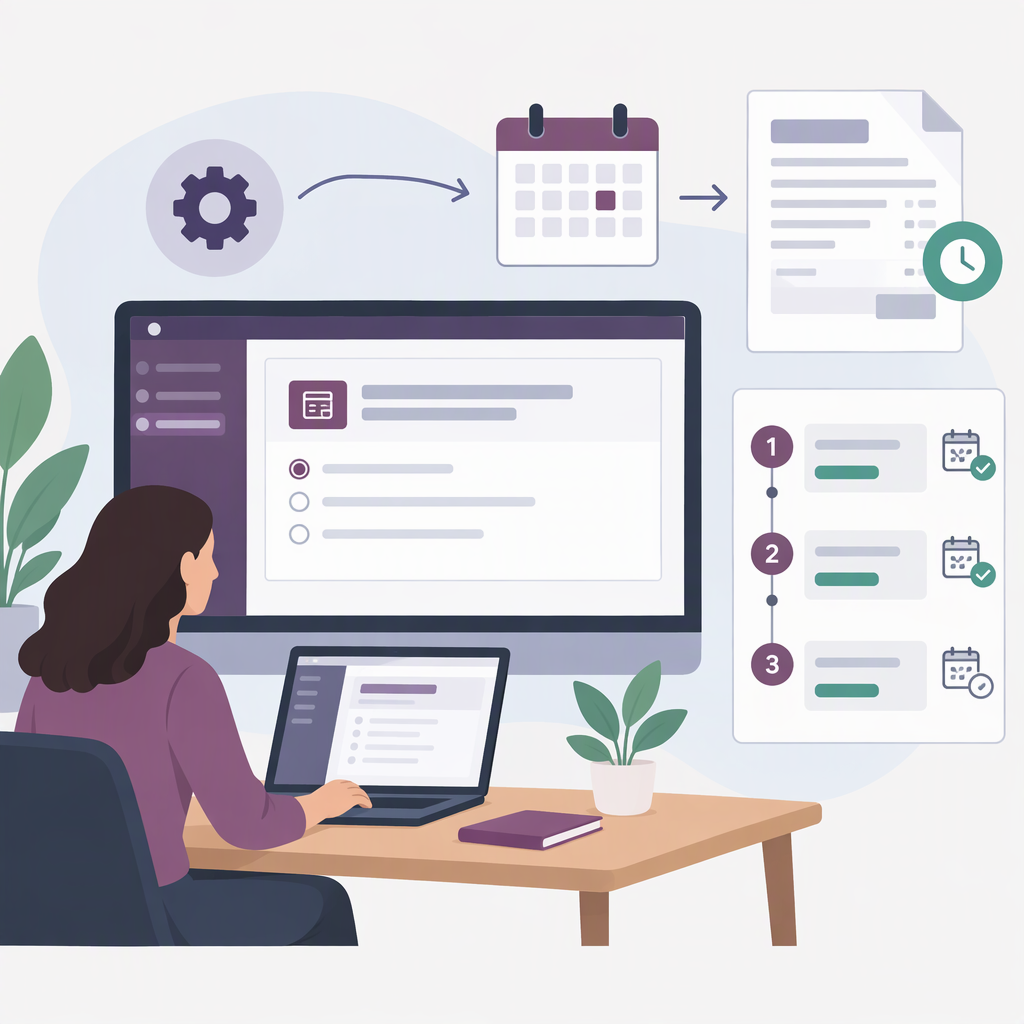
Odoo Payment Terms: Setup, Invoice Dates, and Installments
In Odoo, payment terms define when invoice amounts are due and, if needed, divide an invoice into scheduled payments. They can also include early-payment discounts and other payment conditions. A payment term sets an expected schedule; it does not by itself record that money has been received. This guide follows Odoo 19’s official documentation. (odoo.com)
What Payment Terms Control in Odoo
A term can specify one due date for the full amount—such as Net 15, where the full payment is due 15 days after the invoice date—or several due dates for installments. Odoo’s documentation also gives an example of 30% due on the invoice date and the remaining balance due at the end of the following month. Some terms may offer a discount for early payment. (odoo.com)
This is different from two nearby concepts:
- Payment method: how a payment is made or handled, such as by check or manual payment.
- Registering a payment: recording a payment against an invoice, which reduces or settles the amount due.
Odoo documents payment methods and payment registration separately from payment terms. A payment schedule on an invoice is not proof that a customer has paid. (odoo.com)
Payment terms are also not the same as issuing multiple invoices for one order, or creating a down-payment invoice. Odoo describes those as distinct from payment terms and installment plans. (odoo.com)
Create a Payment Term in Odoo 19
- Open Accounting → Configuration → Payment Terms, then select New.
- Enter a name for the term.
- In Due Terms, add rules that define the amount or share due and when it is due. Odoo calculates the due dates from those rules.
- If you are setting up an early-payment discount, enable Early Discount and enter the requested discount details.
- If you want the invoice report to show each installment and its due date, enable Show installment dates.
Odoo 19’s documentation describes the fields and steps above. For end-of-month rules, it also documents a Days end of the month on option; a negative value in the After field can specify a number of days before month-end. Review the resulting dates before using a term on live invoices, especially when setting up month-end rules. (odoo.com)
Apply the Term to a Customer Invoice
When you select a customer on an invoice, Odoo can pull information—including the customer’s preferred payment terms—from that customer’s record. The documentation says you can edit those values directly on the invoice for that specific invoice. (odoo.com)
For a practical check:
- Open or create the intended customer invoice and select the customer.
- Inspect the payment-term or due-date information populated on the invoice.
- If the invoice should use a different term, choose or set the appropriate term on that invoice.
- Review the calculated due date or installment breakdown. If Show installment dates is enabled, the invoice report can display the installment dates.
The customer’s preferred term is a default, not a reason to skip checking the individual invoice. The documented Odoo 19 workflow supports reviewing and editing invoice values; it does not establish here whether changing a term will update every already-created or posted invoice. (odoo.com)
Check the Due Dates and Amounts
Start with the invoice date and the rules in the selected payment term. For example, assume an invoice is dated May 10 and uses Net 15. Odoo’s documented rule is that the full payment is due 15 days after the invoice date, so the example due date is May 25. If the invoice total is $1,000, the example assumes the full $1,000 is due on that date. This is an illustrative calculation based on the documented Net 15 rule, not a test in an Odoo database. (odoo.com)
For an installment term, compare each displayed amount and date with the corresponding rules in Due Terms. Odoo’s documentation confirms that multiple rules can calculate multiple due dates and that installment dates can be shown on the invoice report. It does not, in the cited instructions, spell out every rounding or edge-case rule; use the schedule generated for your invoice to confirm the actual amounts and dates. (odoo.com)
If a result looks wrong, first confirm the invoice’s selected term and invoice date, then compare the displayed schedule with the configured rules. If those do not explain the result, check the exact Odoo version and configuration rather than assuming the term has the same effect across every setup.
In Short
Use an Odoo payment term to define when invoice amounts are due, including installment dates or early-payment conditions where configured. Create the term under Accounting → Configuration → Payment Terms, apply or review it on the customer invoice, and check the resulting due date or schedule before sending the invoice. Treat that schedule separately from recording a payment.