How to Make a YouTube Ad: From Creative Brief to Final Video
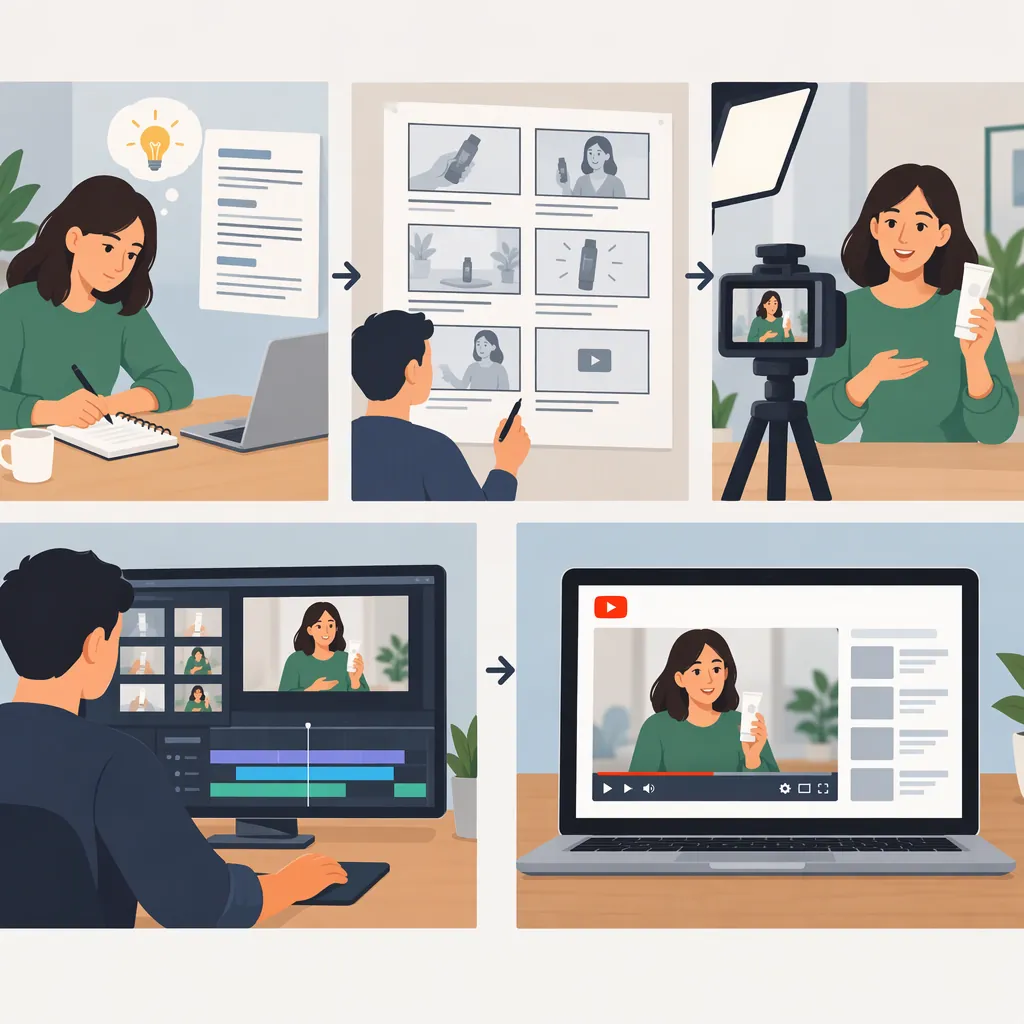
To make a YouTube ad, define one audience and one message, choose the intended ad format, write a short visual script, record your footage, and edit a version for that placement. Use the ABCD framework—Attract, Brand, Connect, Direct—as a creative checklist. Then review the finished video and prepare it for campaign setup in Google Ads. The workflow below offers production suggestions, not universal format specifications or a guarantee of results. [c1] [c2]
1. Define the Audience and Message
Start with a creative brief rather than a camera. Describe who the video is for, what they need to understand, and which single idea the ad should communicate.
Google’s campaign setup overview begins with a goal and later asks for assets, audience, and budget. For creative production, use that goal to decide what belongs in the video—not to cram every business detail into it. [c3]
As a planning exercise, complete this sentence: “For someone who needs ___, this video explains ___ by showing ___.” Choose a demonstration or explanation you can substantiate. Avoid adding testimonials, results, or numerical claims unless you have evidence and permission to use them.
Reusable Creative Brief
Audience: [Specific viewer and relevant need]
Communication goal: [What the viewer should understand]
Single message: [One clear sentence]
Visual evidence: [Demonstration, footage, or documented information]
Brand identifier: [Name, logo, product, or service]
Intended placement: [Chosen YouTube ad format]
Intended next step: [A relevant action, if appropriate]
Claim support: [Evidence for each factual assertion]
Production constraints: [Available footage, people, time, and budget]
2. Choose the Format Before Editing
YouTube’s business overview describes Shorts, in-stream, and in-feed placements. In-stream ads can appear before, during, or after content; in-feed ads appear in discovery contexts such as the YouTube Home feed and Search. [c1]
Use the intended placement as an editing constraint. For an in-stream concept, consider whether the opening makes sense without an introduction. For a Shorts concept, plan framing and text around the viewing layout. For an in-feed concept, consider how the opening fulfills the expectation created by the surrounding presentation.
Do not assume that one export fits every placement. Confirm the selected format’s current duration, aspect ratio, and asset requirements before the final edit. The supplied overview is not a complete technical specification sheet, and the independent tutorial’s format guidance explicitly references 2021. [c1] [c2]
Placement Planning Card
Chosen format: [Format]
Requirements to confirm: [Duration, aspect ratio, and additional assets]
Opening visual: [What appears first]
Opening message: [What the viewer immediately understands]
Text placement review: [Check against the available placement preview]
Separate versions needed: [List planned variations]
3. Write a Visual Script with Abcd
The independent tutorial describes ABCD as Attract, Brand, Connect, and Direct: capture attention, identify the brand, build a relevant story, and make the intended next step clear. [c2]
Treat those elements as a review framework, not a mandatory sequence. A product demonstration, for example, can introduce the brand and explain the message in the same shot.
Write in two columns: what viewers see and what they hear or read. Open with the subject rather than a long greeting. Show the central idea, remove unrelated details, and end with a clear resolution. If the ad includes a next step, make it consistent with the destination and avoid manufactured urgency.
The storyboard below is a suggested structure, not a platform requirement. Assign timings only after checking your chosen format.
Four-Beat Storyboard
| Beat | Visual | Audio or On-Screen Text |
| --- | --- | --- |
| Attract | Show the relevant situation or demonstration immediately. | State the viewer’s question or the central idea. |
| Brand | Show the actual product, service, or brand identifier. | Identify what is being presented. |
| Connect | Demonstrate one relevant use or explain one useful detail. | Describe only what the footage and evidence support. |
| Direct | Resolve the story with a clear closing frame. | State the intended next step, if appropriate. |
4. Record and Edit for Clarity
Use your storyboard as a shot list. As practical production suggestions, record the main demonstration, supporting close-ups, and a clean closing frame. Capture a short audio sample before recording the full narration so you can catch distracting noise early.
Build the edit around the single message from your brief. Remove pauses and repeated explanations that do not help the viewer understand it. Keep essential text readable, check captions against the spoken words, and avoid letting music obscure narration.
Review the video both with sound and without it. This is a clarity check, not a claim about how all viewers watch ads. Ask whether the visuals communicate the subject and whether audio adds useful context.
YouTube’s overview presents repurposing existing social assets as an option. Treat existing footage as source material to review and adapt, rather than assuming it is ready for every YouTube placement. [c1]
Production and Editing Checklist
- Record each planned shot and a usable alternative.
- Check focus, lighting, and audio before the full take.
- Confirm permission to use footage, music, logos, and identifiable people.
- Remove unsupported claims and unrelated material.
- Check text readability and caption accuracy.
- Review the edit with sound and without sound.
- Export only after confirming the intended format’s requirements.
5. Review the Creative and Prepare the Handoff
Before campaign setup, compare the final video against the brief. Can a reviewer identify the subject, the main message, and the brand? Does each factual claim have support? Does any stated next step match the destination?
Keep a clearly labeled master file and separate placement versions. If you plan to compare edits, change one element at a time—such as the opening visual—so the creative difference is easy to describe. This is an organizational suggestion, not a guarantee that a test will produce a clear winner.
Making the video and launching the campaign are separate tasks. Google’s setup overview includes asset previews, audience and budget selection, and payment confirmation. It also says to set up conversion tracking before launch when optimizing for online conversions. [c3]
Creative Handoff Sheet
Video version: [Filename and version label]
Intended format: [Placement]
Message: [One-sentence summary]
Claim support: [Supporting records]
Rights review: [Permissions checked]
Destination: [Relevant destination, if used]
Difference from other versions: [Exact creative change]
Open issues: [Items to resolve before launch]
FAQ
How Long Should a YouTube Ad Be?
Choose the intended format first, then confirm its current requirements. There is no single duration to apply across every format in this article. The independent tutorial’s duration advice references 2021, so it should not be treated as a current universal specification. [c2]
Can I Use an Existing Video?
Yes. YouTube’s business overview describes repurposing existing social assets. Review the video for message clarity, usage permissions, and the selected placement’s requirements before using it as ad creative. [c1]
Is Making the Video the Same as Launching the Ad?
No. The video is a creative asset. Campaign setup also involves goals, audience, budget, asset previews, and payment details. Google’s setup overview describes these as separate parts of preparing a campaign. [c3]