How to End a Brand’s Ad Access When a Creator Campaign Expires
When a brand sponsorship ends, your work is finished. But if you do not turn off their ad permissions, that brand can keep running paid ads using your profile and handle—without paying you extra.
The good news? Shutting down ad access is straightforward once you know where to look.
To end a brand's ad access when a campaign expires, you must manually revoke platform permissions and deactivate active ad codes.
Here is how to revoke access across the main platforms:
- TikTok: Toggle off "Allow advertisers to promote" on the specific video or let the Spark Ad code expire.
- Instagram: Remove the brand partner from "Partnership Ads" inside your Professional Dashboard.
- YouTube: Revoke brand permissions in your YouTube Creator Partnerships and account settings.
- Contract: Send a written notice to the brand confirming that their paid usage window has closed.
Quick Comparison
| Platform | Feature Name | How to Revoke Access |
|---|---|---|
| TikTok | Spark Ads | Toggle off "Allow advertisers to promote" or let codes expire |
| Partnership Ads | Delete brand partner under Professional Dashboard > Partnership Ads | |
| YouTube | Creator Partnerships | Remove brand access in YouTube account permissions |
Here is the exact step-by-step workflow to protect your account and enforce your campaign end dates.
The Risks of Unchecked Ad Access
When a brand campaign ends, many creators assume the job is finished. But if you leave advertising permissions open, brands can keep running paid ads through your profile long after your contract expires.
For example, imagine an illustrative scenario where creator Maya completes a 30-day sponsored post for $1,200 with illustrative skincare brand "AuraSkincare". The agreed paid usage window runs from June 1st to July 1st. If Maya forgets to revoke permissions on July 2nd, AuraSkincare could theoretically spend thousands in ad budget through her handle for months—without paying Maya a single extra dollar.
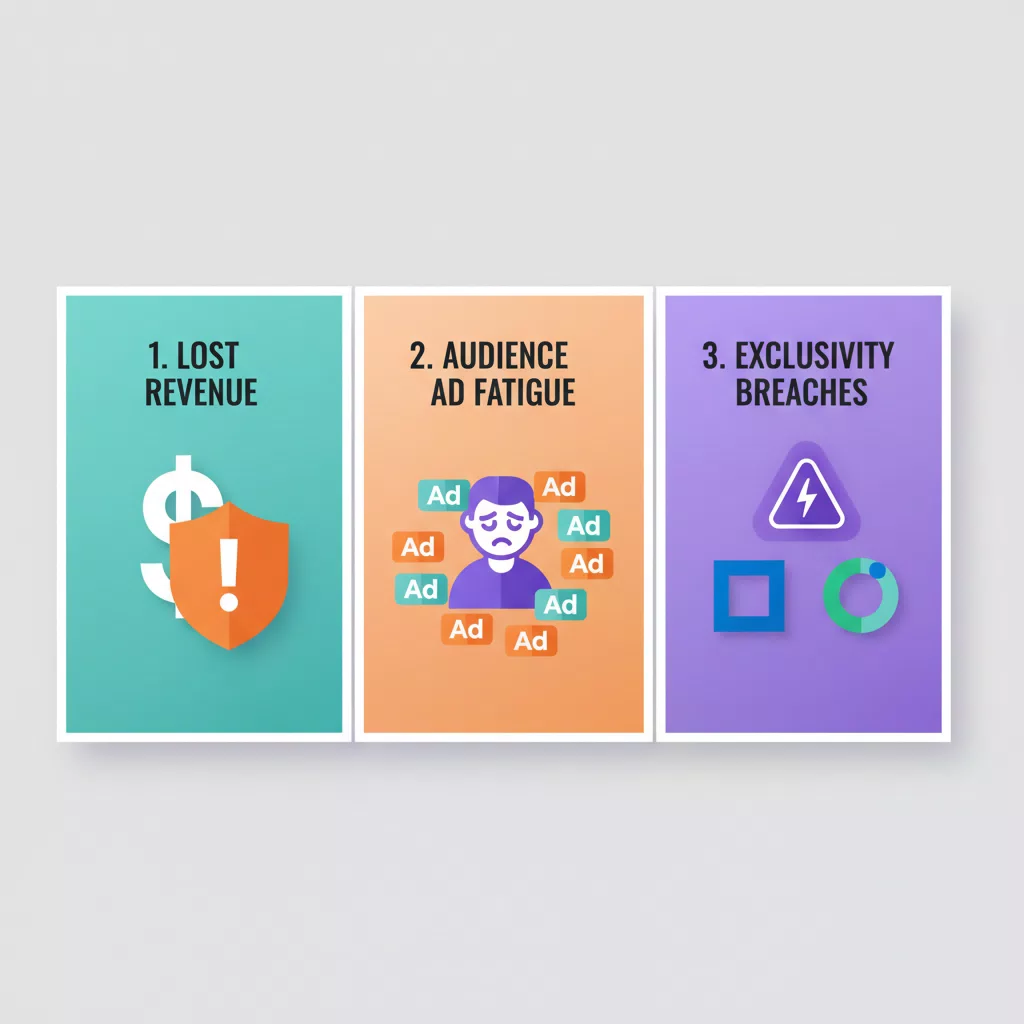
Leaving ad access unchecked creates three major problems:
- Lost Revenue: You provide ongoing advertising value without receiving compensation for extended usage.
- Audience Fatigue: Your followers get bombarded with repetitive ads, which hurts your organic engagement.
- Exclusivity Conflicts: Future brand deals might fall through if a competing company sees active ads still running on your handle.
In influencer marketing, granting a brand direct access to run paid ads through your personal handle is known as whitelisting. Protecting your account requires actively managing these permissions the day your campaign ends.
Illustrative Contract Excerpt: "Paid usage rights expire 30 days after initial ad publication. The advertiser agrees to cease all paid amplification and revoke handle access immediately upon expiration unless a formal extension is signed."
Revoking TikTok Spark Ad Access
TikTok makes creator-brand ad collaboration seamless through native permissions. However, you must actively manage these authorizations to keep brands from extending campaigns without permission.
Disabling Video Authorizations and Managing Code Validity
When you authorize a TikTok post for Spark Ads, the platform generates a unique code. You choose a code validity duration—such as 30, 60, or 90 days.
While letting the code expire acts as a natural deadline, relying solely on code duration isn't always foolproof. If a brand attaches your code to an active campaign before it expires, the campaign may continue running until the ad group itself is turned off.
To completely cut off access manually, follow these steps inside the TikTok app:
- Open the sponsored post on your TikTok profile.
- Tap the three dots (...) in the bottom right corner to open options.
- Scroll right on the action menu and select Ad settings.
- Toggle off Allow advertisers to promote.
Once toggled off, TikTok immediately prevents the advertiser from using that video post in any active or future ad campaigns.
Terminating Instagram Partnership Ad Permissions
Instagram allows brands to turn your feed posts, Reels, or Stories into targeted ads using partnership tools. Once your paid term ends, you need to disconnect the partner directly from your profile dashboard.
Removing Brand Partners in Instagram Settings
To stop a brand from creating or running ads from your Instagram account, remove them from your active partners list:
- Open Instagram and navigate to your profile.
- Tap Professional Dashboard.
- Scroll down and select Partnership Ads (or Ad Tools depending on your app version).
- Tap Active Brand Partners.
- Locate the brand name (for example, "AuraSkincare") and tap Remove.
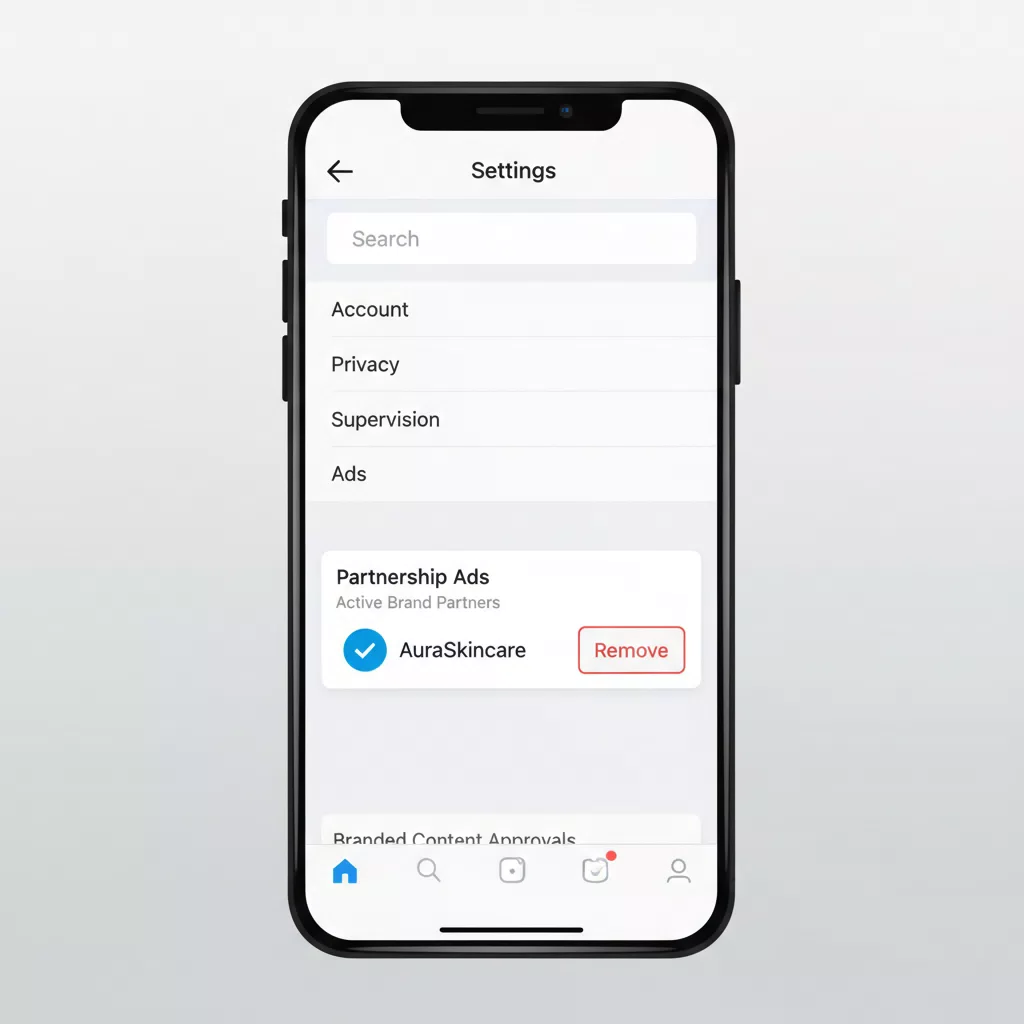
Removing the brand partner immediately revokes their permission to draft new partnership ads or run ongoing campaigns with your handle. If you also gave the brand access via Meta Business Suite, log into Meta Business Manager to ensure your account is removed from their linked asset permissions.
Ending YouTube Creator Partnerships and Rights Access
YouTube handles content monetization and partner connections differently than short-form video platforms. Managing brand access requires clear separation between organic content, paid media rights, and raw media assets.
Revoking Brand Access and Managing Content Rights
When working with brands on YouTube—including newer features like YouTube Creator Partnerships—you must manage both account settings and content rights.
- Organic Content: Your public YouTube video remains live on your channel for subscribers to watch.
- Paid Advertising Rights: The brand's license to run your video as pre-roll ads, skippable ads, or external promo assets ends.
- Raw Files: If you delivered raw video clips, your contract specifies how long the brand can edit or repurpose that footage.
To unlink brand access in YouTube Studio:
- Log into YouTube Studio on desktop.
- Go to Settings in the left menu, then click Permissions.
- Review connected brand or agency manager profiles and select Remove Access.
Understanding your overall usage rights ensures you know exactly which rights expire and which content stays public.
Post-Campaign Offboarding Checklist and Key Takeaways
To ensure no brand retains unauthorized access to your account, run through an offboarding checklist on the final day of every campaign.
| Platform / Asset | Offboarding Location | Action Required | Verification Check |
|---|---|---|---|
| TikTok | Post > Ad Settings | Toggle off "Allow advertisers to promote" | Confirm toggle displays gray (disabled) |
| Professional Dashboard > Partnership Ads | Tap brand partner name and select "Remove" | Verify brand no longer appears in Active Partners | |
| YouTube | YouTube Studio > Settings > Permissions | Revoke third-party handle or partner access | Ensure no active third-party manager links remain |
| Written Notice | Creator Email / Messaging | Send written campaign completion notice | Obtain written confirmation from the brand contact |
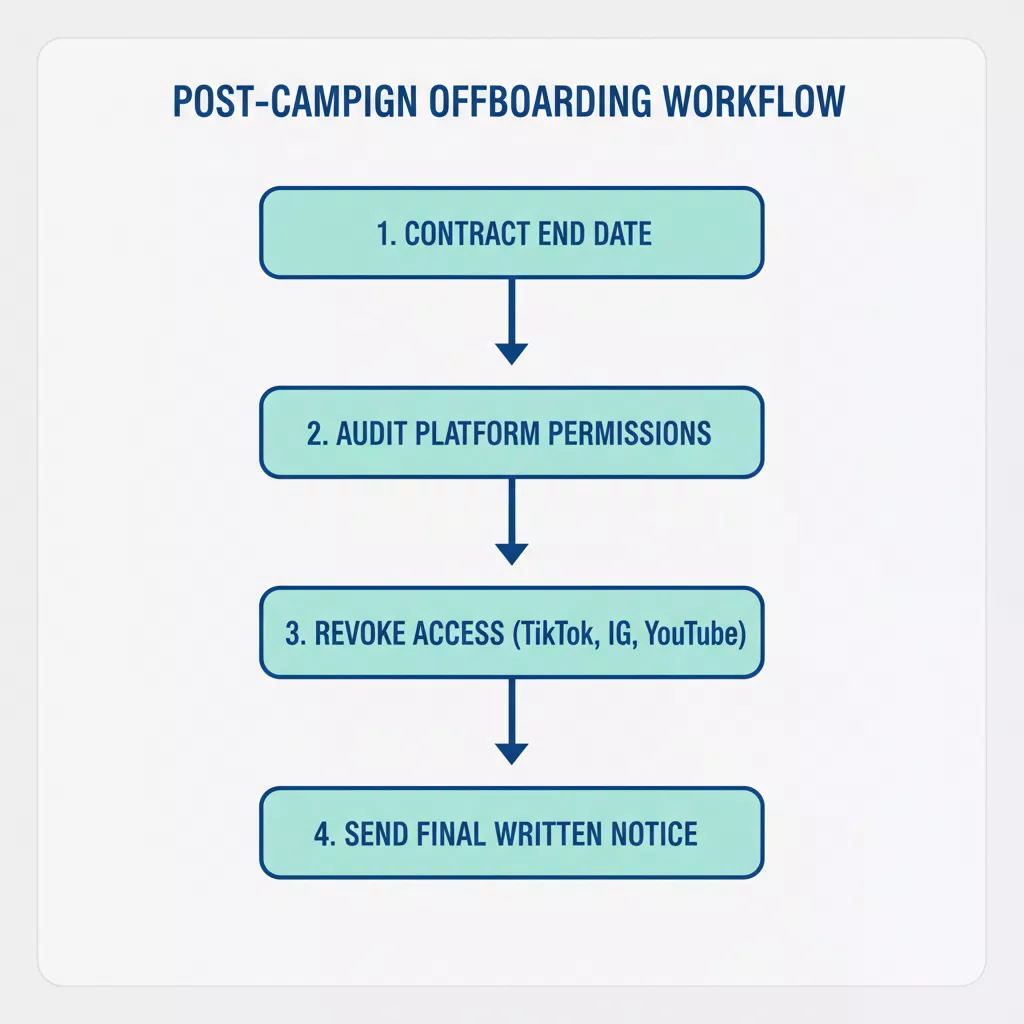
By taking five minutes to audit your permissions at the end of each deal, you protect your creator handle, keep control over your content, and ensure you are fairly compensated for every day of ad usage.
FAQ
What Happens If a Brand Keeps Running Ads After the Agreed Campaign End Date?
Send a formal written notice citing your contract end date and manually revoke platform permissions immediately. You may also request additional usage fee compensation for unauthorized ad run time.
Does Revoking Brand Ad Permissions Delete My Organic Post?
No, revoking ad access only prevents the brand from spending paid budget to amplify your post; your organic post remains visible on your profile.