TikTok Live Studio on iPhone: What Works and How to Go Live
TikTok Live Studio on iPhone: The Short Answer
TikTok LIVE Studio is not an iPhone app. TikTok’s LIVE Studio help center lists macOS and Windows versions, while its iOS instructions describe connecting an iPhone to LIVE Studio as a screen-casting source. In other words, you can use TikTok’s iPhone app to go LIVE directly, or use an eligible computer running LIVE Studio and cast your iPhone screen into it. (tiktok.com)
This distinction matters: casting shares your phone screen with viewers; TikTok’s instructions do not describe it as turning the iPhone into a camera source for LIVE Studio. The casting guide says viewers can see the entire phone screen. (tiktok.com)
TikTok’s public guidance checked November 13, 2026. App menus and access can vary by account or region.
Go Live Directly from the TikTok App on iPhone
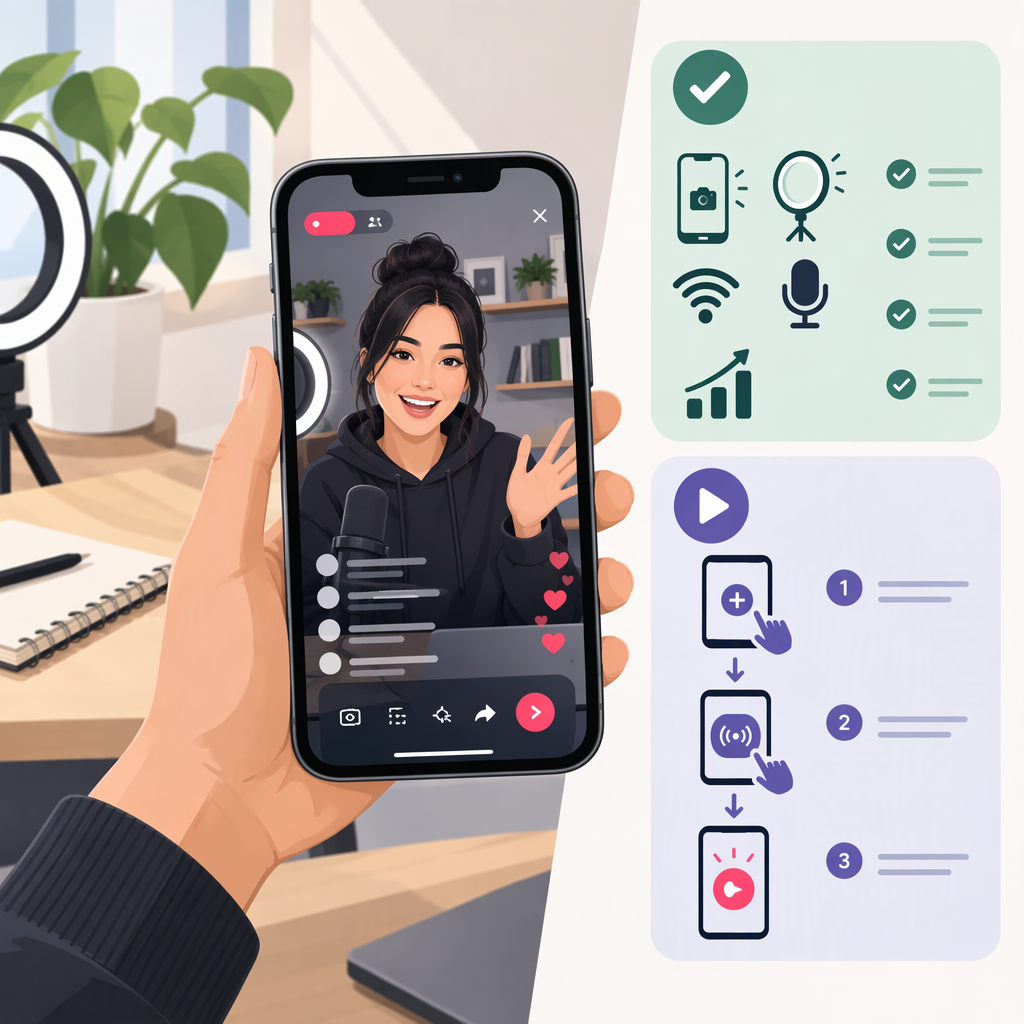
If you want to broadcast using the TikTok app, TikTok’s documented steps are:
- Open TikTok and tap Add post (+) at the bottom.
- Tap LIVE at the bottom of the screen. You may need to scroll across the options to find it.
- Add a title, choose any available LIVE tools, and adjust settings.
- Tap Go LIVE. (support.tiktok.com)
TikTok says creators must be at least 18 and have 1,000 followers to go LIVE, though the follower threshold may vary by region. LIVE features are not available everywhere. TikTok may also ask you to confirm your age. (support.tiktok.com)
If LIVE isn’t visible: first consider whether the account meets TikTok’s eligibility rules and whether LIVE is available in your location. If you meet the requirements but still cannot access it, TikTok directs creators to report the issue in the app. (support.tiktok.com)
Cast an iPhone Screen to TikTok Live Studio
To show iPhone gameplay, an app, or other phone-screen content through LIVE Studio, TikTok documents this route:
- On a Mac or Windows computer, open TikTok LIVE Studio and select the scene you want to use.
- Choose Add source > Cast (iOS).
- Select a cable or wireless connection and follow LIVE Studio’s on-screen instructions. TikTok says iOS users can connect through the iPhone’s built-in Screen Mirroring feature. (tiktok.com)
Before starting, note that the cast source shares the whole phone screen, so notifications or other visible content may appear to viewers. TikTok recommends using a stable Wi-Fi connection or a wired connection, turning on Do Not Disturb, locking screen orientation, and keeping the phone charged. (tiktok.com)
This is a computer-based LIVE Studio broadcast with an iPhone screen as an input—not LIVE Studio running on the iPhone. If you simply want to show yourself on camera and do not need to share your phone screen, starting LIVE in the TikTok app is the more direct documented route.
What About Live Studio on Mac?
TikTok’s LIVE Studio FAQ lists macOS and Windows versions. It does not list iOS as a version of LIVE Studio. Its FAQ also provides separate minimum, intermediate, and advanced computer requirements, so check the current requirements for your computer before installing; the cited FAQ does not give an iPhone or iOS minimum requirement. (tiktok.com)