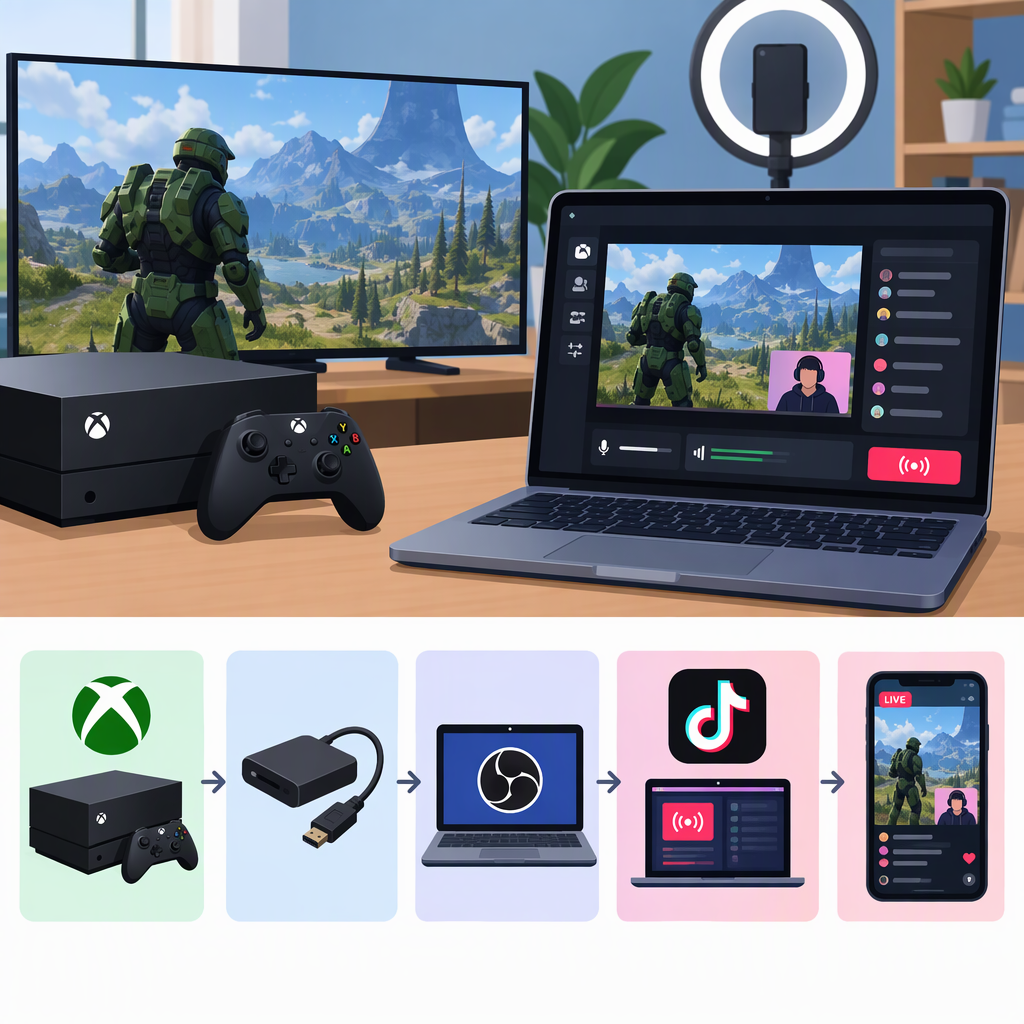
How to Stream Xbox Gameplay to TikTok Live Studio
Short Answer
TikTok’s documented route for streaming console gameplay through LIVE Studio is to send the console’s HDMI video and audio through a compatible capture card to a computer, then add that card as a source in LIVE Studio. TikTok’s guide is for console games generally, rather than Xbox by name, so it supports this type of setup for an HDMI-output Xbox but does not specifically certify every Xbox model or capture card. (tiktok.com)
The official Xbox streaming instructions describe choosing a streaming provider on the console, but do not name TikTok or describe sending gameplay to LIVE Studio. So, based on these instructions, the capture-card-to-PC route is the documented option; a direct Xbox-to-TikTok LIVE Studio route is not established. (support.xbox.com)
What You Need
- An Xbox with HDMI output and an HDMI cable.
- A compatible capture card and the cable needed to connect it to your computer—typically the card’s recommended USB data cable for an external USB card, or a compatible PCIe slot for an internal card.
- A computer running LIVE Studio.
- If you want to play on a separate TV or gaming monitor, a capture card with HDMI passthrough, plus another HDMI cable and the display.
Choose a card that supports the resolution and frame rate you intend to capture. Passthrough and capture are different: a card can pass a higher-resolution signal to your display than it captures for the stream. Check the card’s input, capture, and passthrough specifications rather than relying on a headline resolution alone. (tiktok.com)
Connect Xbox to TikTok Live Studio
- Connect the Xbox’s HDMI output to the capture card’s HDMI input.
- Connect the capture card to the computer using the connection specified for that card. A console plugged straight into a laptop’s HDMI port usually will not show up there, because most laptop HDMI ports are outputs, not inputs. (tiktok.com)
- If using passthrough, connect the card’s HDMI output to your TV or gaming monitor. Otherwise, use the capture card preview in LIVE Studio to view gameplay while playing. These are the two viewing arrangements TikTok’s guide describes. (tiktok.com)
- In LIVE Studio, select the scene you plan to use and choose Add source > Capture card. Select your card as the video device. Set resolution, frame rate, and video format to options the card supports. (tiktok.com)
- In the capture card source’s audio settings, select the card’s audio signal if you want game sound in the LIVE. TikTok lists Capture audio only for viewers to hear the captured sound, and DirectSound or WaveOut to route it both to the LIVE and to your speakers. Choose the mode that matches whether you also need to hear game audio through the computer. (tiktok.com)
- Before going LIVE, check the scene preview for gameplay video and confirm that game audio reaches the intended destination. If using a microphone, check that it is a separate, selected source and that it is audible in the stream mix. TikTok’s guide describes combining gameplay with sources such as a microphone and camera; the specific microphone setup can vary. (tiktok.com)
Choosing the Viewing Setup
| Arrangement | What it means | Practical consideration |
|---|---|---|
| Capture-card preview | View the game in LIVE Studio on the computer. | Avoids requiring a separate passthrough display connection, but you play while viewing the computer preview. |
| HDMI passthrough | Send the card’s HDMI output to a TV or gaming monitor while the card feeds the computer. | Requires a passthrough-capable card and an additional HDMI cable. Confirm the card’s capture capability separately from its passthrough specification. |
TikTok documents both arrangements, but the cited guidance does not give a measured latency comparison. Don’t assume the preview or passthrough has a particular delay; check the card’s specifications and assess whether the arrangement suits your gameplay. (tiktok.com)
Eligibility and Limits to Check
You must meet TikTok’s eligibility requirements to go LIVE. TikTok’s Help Center says only eligible creators can go LIVE, but that statement does not establish that meeting LIVE eligibility automatically grants access to LIVE Studio. Check that LIVE Studio and the LIVE option are available to your account before arranging hardware. (support.tiktok.com)
TikTok’s console guide requires a compatible capture card for bringing a console’s HDMI signal into LIVE Studio on a computer. Xbox’s own guide separately explains streaming from the console through a provider chosen in its Live streaming settings; it does not identify TikTok in the instructions cited here. Those are different routes, so don’t treat the Xbox provider workflow as a confirmed way to send a stream to TikTok. (tiktok.com)
If the Setup Isn’t Working
- No game picture in LIVE Studio: Confirm the console is connected to the card’s HDMI input, the card is connected to the computer, and the card is selected under Add source > Capture card. A laptop HDMI port alone usually cannot receive the console signal. (tiktok.com)
- Picture appears on the display but looks different in the LIVE preview: Check the card’s capture resolution and frame-rate capabilities. Passthrough resolution does not necessarily equal capture resolution. (tiktok.com)
- Game audio is missing or only you can hear it: Recheck the capture card audio signal and output mode in LIVE Studio. The available choices determine whether captured audio goes to viewers, your speakers, or both. (tiktok.com)
- You can’t start a TikTok LIVE: Confirm LIVE eligibility and account access first; TikTok says creators must meet its eligibility requirements. (support.tiktok.com)
Bottom Line
For Xbox gameplay in TikTok LIVE Studio, follow TikTok’s documented console workflow: Xbox HDMI output → compatible capture card → computer running LIVE Studio. Add the card as a source and configure video and audio there. The official Xbox streaming instructions describe a separate console-provider route, but the cited instructions do not confirm TikTok as a direct destination. (tiktok.com)