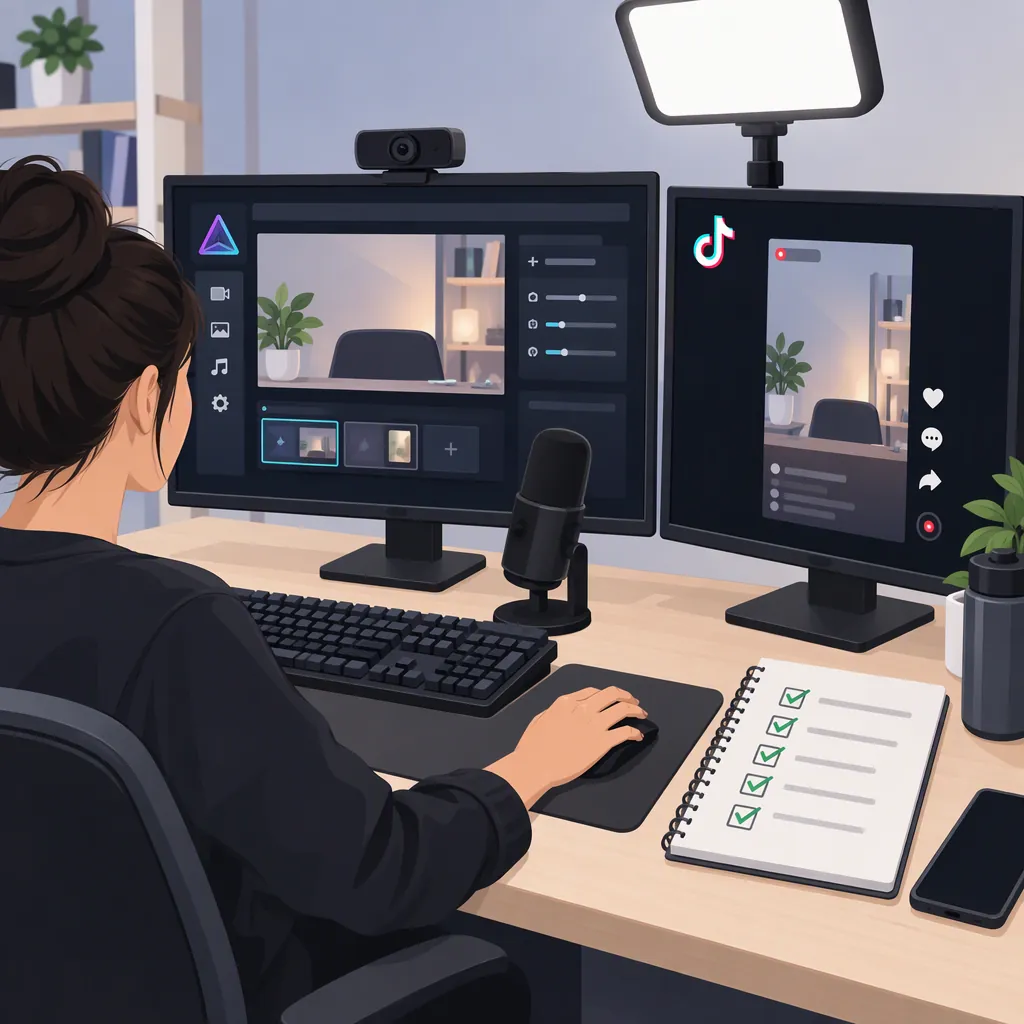
Prism Live Studio to TikTok: Desktop Pre-Stream Setup Checks
To stream from PRISM Live Studio to TikTok, first confirm that your TikTok account offers a broadcasting method that your installed PRISM desktop version supports. Prepare the scene and output settings only after that connection route is confirmed.
Documentation limit: The PRISM homepage and Android app listing available for this guide do not establish a verified desktop-to-TikTok workflow. They do not document TikTok account eligibility, a direct TikTok login, custom-server configuration, or TikTok encoder settings. This guide therefore covers pre-stream verification and conditional setup—not a confirmed click-by-click publishing tutorial. That documentation gap does not prove that a connection is impossible. [prism-home] [prism-android]
1. Check Your Prism Desktop Installation
Use the official PRISM homepage to compare your computer with the listed desktop download requirements:
- Windows: Windows 10 or 11, 64-bit.
- Mac: Apple Silicon with macOS Monterey 12.3 or later. [prism-home]
Before downloading or changing an installation:
- Record your operating system, processor type, and installed PRISM version.
- Identify whether you are considering the standard release or the separate Windows beta.
- Account for the homepage’s warning that installing the Windows beta removes an existing PRISM Live Studio installation. [prism-home]
Do not change editions solely on the assumption that another edition supports TikTok; the available homepage does not establish that compatibility. [prism-home]
2. Verify a Matching TikTok Broadcasting Route
Treat TikTok account access and PRISM destination support as two separate requirements. A working scene in PRISM does not establish that TikTok can receive it.
Check the TikTok Side
In the broadcasting options actually available to your TikTok account, look for documentation or account-provided instructions that answer:
- Is there a publishing method intended for an external encoder?
- What connection method does it require?
- Does it provide connection credentials, such as a server address and stream key?
- What video and audio requirements apply?
- Is there a destination-side preview or nonpublic testing option?
These are questions to verify, not statements that your account has those features. No TikTok help page or verified menu path is available in the references for this guide, so a specific TikTok interface path cannot be given.
If the account’s options are unclear, resolve that uncertainty through TikTok’s own help or account support before configuring PRISM.
Check the Prism Side
Inspect the destination options in your installed PRISM desktop version. Compare them with the connection method documented for your TikTok account.
Confirm:
- Whether PRISM explicitly supports that destination or connection method.
- Whether the instructions apply to your desktop version and edition.
- Which fields correspond to any account-provided connection values.
- Whether PRISM can use the output settings required by that route.
The PRISM homepage is a verified starting point for identifying desktop editions, but it is not a documented TikTok connection guide in the material available here. For an unresolved PRISM compatibility question, use the compatibility question template below. [prism-home]
Decide What to Do Next
| Verification result | Next step |
|---|---|
| TikTok’s external broadcasting route is unconfirmed | Resolve account access and the available publishing method first. Do not try to fix this by changing bitrate or resolution. |
| TikTok’s method is confirmed, but PRISM support is unconfirmed | Ask PRISM whether your exact desktop version supports that method. Use the template below without including credentials. |
| Both sides are confirmed | Follow the documented connection method, then prepare and test the broadcast. |
| The documented methods do not match | Stop configuration until a compatible route is established. |
Connection Verification Worksheet
Record the following without storing passwords or stream keys:
- PRISM desktop version and edition: ______
- Operating system: ______
- Broadcasting method documented for your TikTok account: ______
- Matching destination method documented for PRISM: ______
- Required output settings: ______
- Destination-side testing option, if available: ______
- Route confirmed on both sides: Yes / No
3. Configure Only the Confirmed Connection Method
After both sides are verified, use their applicable instructions rather than guessing menu names or selecting a destination with a similar label.
If the confirmed route uses a server address and stream key:
- Locate the corresponding fields specified by the instructions for your PRISM version.
- Enter the values provided for your TikTok account into those fields.
- Do not substitute your TikTok profile URL for a server address.
- Keep the stream key out of screenshots, recordings, worksheets, and support attachments.
- Apply the output requirements documented for that publishing route.
This is a conditional configuration sequence. It does not establish that TikTok provides those credentials to every account or that PRISM supports custom-server publishing.
If either set of instructions is missing or does not match the interface you see, return to the verification step rather than improvising.
4. Prepare the Scene and Check Delivery
Once the publishing route is confirmed, review the broadcast separately from the connection settings. These are general production checks, not verified TikTok-specific presets.
- Canvas and framing: Use the dimensions and orientation required by the confirmed route. During testing, check whether destination interface overlays obscure essential text or subjects.
- Video: Use the applicable resolution, bitrate, frame rate, and keyframe requirements. Do not copy settings from an unrelated platform or mobile feature.
- Audio: Check microphone levels, intended program audio, duplicated sound, and feedback.
- Privacy: Review screen captures, browser tabs, notifications, and overlays for personal information or credentials.
- Local preview: Confirm that the intended scene and audio are ready before attempting publication.
- Destination check: If the route offers a nonpublic test or preview, use it to check whether TikTok receives the intended picture and sound. A local PRISM preview alone does not verify delivery to TikTok.
The Android listing advertises 1080p at 60 fps subject to device and environment limitations. That mobile feature is not evidence for a TikTok desktop output preset. [prism-android]
Pre-Publication Checklist
- The publishing method is confirmed on both sides.
- Connection values are entered only in their documented fields.
- Output settings match the requirements for that route.
- Framing and text have been checked locally.
- Microphone and intended program audio have been checked.
- Captured content contains no private information or credentials.
- Destination-side reception has been checked, if a suitable test option is available.
5. Resolve Missing Options Without Mixing Mobile and Desktop Features
The Android listing names YouTube, Facebook, Twitch, and BAND for login-based integration. It also describes CONNECT mode, which uses a QR code to make PRISM mobile a video and audio source for the PRISM PC app. Neither feature establishes a desktop publishing route to TikTok. [prism-android]
Keep these questions separate:
- Source input: Can the phone provide video and audio to PRISM on PC?
- Publishing destination: Can that desktop version send the broadcast through the method available to your TikTok account?
For a PRISM-specific compatibility question, the Android listing provides the support contact prismlive@navercorp.com. Include your version, operating system, visible destination option, and any exact error message, with secrets removed. [prism-android]
Compatibility Question Template
I am checking whether my PRISM desktop version supports the broadcasting method available in my TikTok account.
Operating system: ______
PRISM desktop version and edition: ______
Destination method visible in PRISM: ______
Broadcasting method documented for my TikTok account: ______
Exact error message, with secrets removed: ______Does this PRISM version support that connection method? Where can I find the current desktop configuration instructions?
FAQ
Can I Connect Prism to TikTok with a Direct Login?
Direct TikTok login is not verified by the references used here. The Android listing names YouTube, Facebook, Twitch, and BAND, and the homepage does not document a TikTok workflow. Verify the options in your desktop version rather than applying the mobile integration list to it. [prism-home] [prism-android]
Do I Need a TikTok Stream Key?
Only if the confirmed publishing method for your account requires one. These references do not establish stream-key availability or a corresponding PRISM desktop connection method. Confirm both sides before entering credentials. [prism-home] [prism-android]
Can My Phone Be a Source for Prism on PC?
The Android listing documents CONNECT mode, using a QR code to integrate PRISM mobile as a video and audio source for the PC app. This addresses source input, not TikTok publishing compatibility. [prism-android]
What Resolution and Bitrate Should I Use for TikTok?
Use the requirements documented for the broadcasting route available to your account. The references do not provide a verified TikTok desktop preset; the Android listing’s device-dependent 1080p at 60 fps feature should not be treated as one. [prism-android]
Does a Working Prism Preview Mean TikTok Is Receiving the Stream?
No. Treat local scene preparation and destination reception as separate checks. The references do not document a TikTok receiving-status workflow, so use the testing or reception instructions for your confirmed route rather than assuming local preview proves delivery. [prism-home] [prism-android]
Sources
-
[prism-home] Free Live Streaming & Recording Software | PRISM Live Studio
-
[prism-android] PRISM Live Studio: Games & IRL - Apps on Google Play