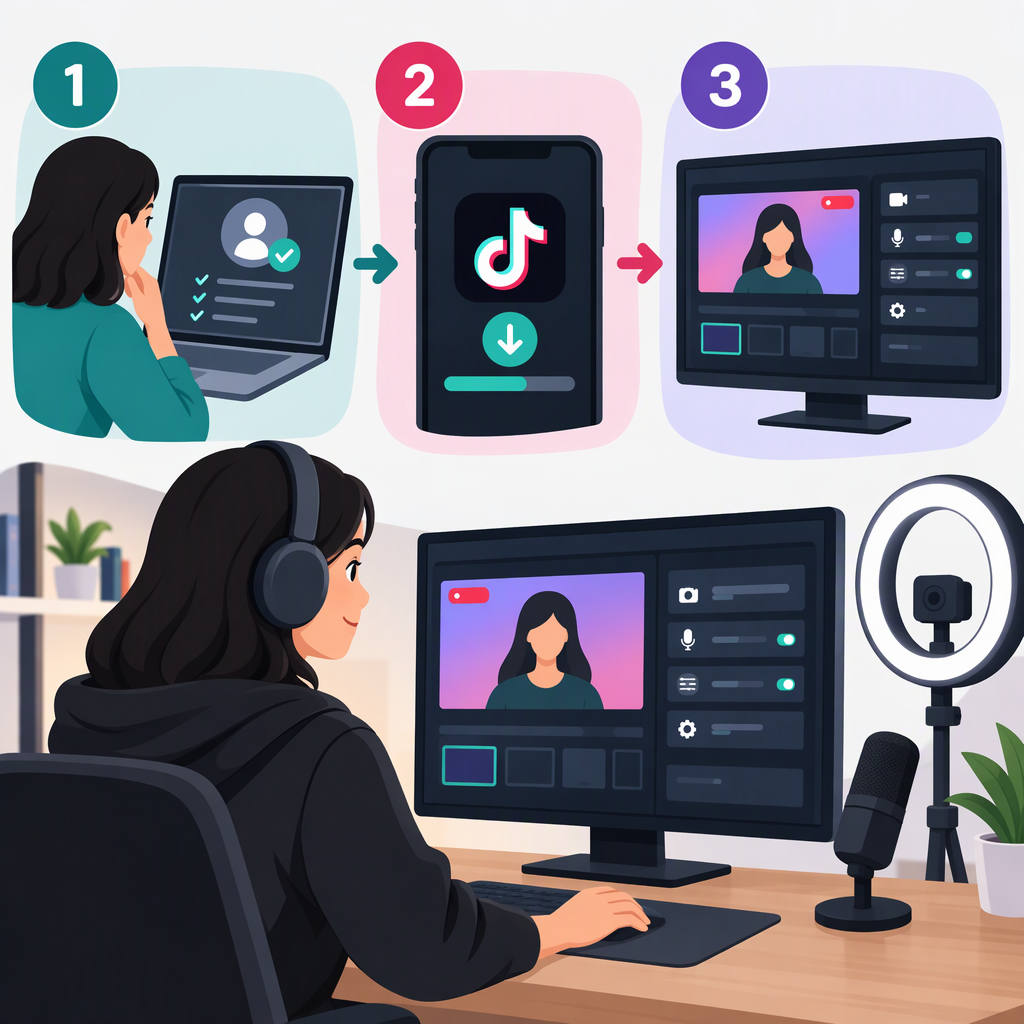
TikTok Live Studio: How to Check Access, Install, and Set Up
Quick Answer
To get started, check whether your device and TikTok account can use LIVE Studio, download the software from TikTok’s official LIVE Studio page, sign in, and follow the setup prompts for your content, camera, microphone, and stream quality. Having the software installed does not necessarily mean your account can start a LIVE: access varies by account and region, and TikTok directs creators to check eligibility in LIVE Studio. (tiktok.com)
There is conflicting information in TikTok’s own documentation about macOS support. TikTok’s FAQ and installation guide say LIVE Studio supports macOS and Windows, while a newer Creator Academy guide says it currently supports 64-bit Windows. If you use a Mac, confirm that TikTok’s official download page currently offers a compatible installer before relying on the older macOS statements. (tiktok.com)
1. Check Your Device and Account First
Device Requirements
TikTok’s FAQ lists these Windows minimums: an Intel Core i3 9th generation or newer, or AMD Ryzen 5 3000 Series or newer; an NVIDIA GeForce GTX 10 Series or AMD Radeon Graphics; and 8 GB of memory. TikTok also lists higher tiers for more demanding setups. Meeting the minimum does not mean every configuration or workload will perform the same. (tiktok.com)
The official information available is inconsistent about Mac support, so treat macOS compatibility as unresolved until you can confirm that a current macOS installer is offered on TikTok’s official download page. Do not use an unofficial installer to work around that uncertainty. (tiktok.com)
Live Access
TikTok says LIVE Studio availability can vary by country or region and by account. To check your account, download the official application, sign in with the TikTok account you intend to use, and select Get access to go LIVE. TikTok says the app will show which requirements are missing if you are not eligible. You can also check in the TikTok app by tapping +, choosing LIVE, then Get access to go LIVE. Local requirements may include account age, recent LIVE activity, follower count, and account standing; TikTok does not give one universal eligibility threshold in the guidance cited here. (tiktok.com)
2. Download and Install from TikTok
- Open TikTok’s official LIVE Studio download page. Avoid third-party download sites.
- Confirm that the offered installer matches your operating system. TikTok’s installation guide says to run the downloaded installation file; its current published OS guidance is inconsistent for Mac users, as noted above.
- Open LIVE Studio after installation and sign in with the TikTok account you plan to use. (tiktok.com)
- If prompted, check Get access to go LIVE. Installing and signing in are separate from qualifying for permission to broadcast. (tiktok.com)
3. Complete a Basic First Setup
If you are new to LIVE Studio, TikTok’s setup guide says to choose Set up now. The documented flow asks you to:
- Choose your LIVE content. LIVE Studio uses this choice to suggest a setup.
- Select your microphone and camera. Connect the devices you intend to use and choose them in setup.
- Set LIVE quality. TikTok says its suggested quality considers your internet speed and computer hardware; you can adjust the settings afterward. (tiktok.com)
TikTok’s Creator Academy also describes selecting camera and microphone, configuring LIVE quality, and choosing portrait or landscape screen mode. Choose the mode that fits what you plan to show; the source does not say that one mode is required for every creator. (tiktok.com)
If you stream using another tool, TikTok’s guide says you can choose Import from another tool to migrate some settings. The guide does not promise that every setting will transfer, so review the resulting setup rather than assuming it is complete. (tiktok.com)
4. Check the Setup Before Broadcasting
TikTok’s setup instructions confirm that you can select a camera and microphone and configure stream quality, but the cited pages do not document a specific test-broadcast feature or readiness indicator. Before starting a public LIVE, use the controls available in your installed version to confirm that the intended camera and microphone are selected and functioning, and that your chosen quality and screen mode are appropriate. Do not assume that completing the setup prompts grants LIVE access or starts a test broadcast. (tiktok.com)
If Get access to go LIVE identifies missing requirements, follow the account-specific information shown there; eligibility can depend on region and account. For an unresolved technical or account issue, TikTok’s FAQ directs users to the TikTok app: Profile → Menu (☰) → Settings and privacy → Report a problem. If the suggested steps do not resolve the issue, TikTok says to choose No when asked whether it is resolved, then select Still have problem to provide more details. (tiktok.com)
In Short
Use TikTok’s official download page, check access with the account you intend to stream from, and follow the in-app setup for content, camera, microphone, and quality. Windows 64-bit is the clearest currently documented platform path; because TikTok’s own pages disagree about macOS support, confirm that a Mac installer is available before proceeding. Account eligibility and regional availability must be checked for your own account. (tiktok.com)