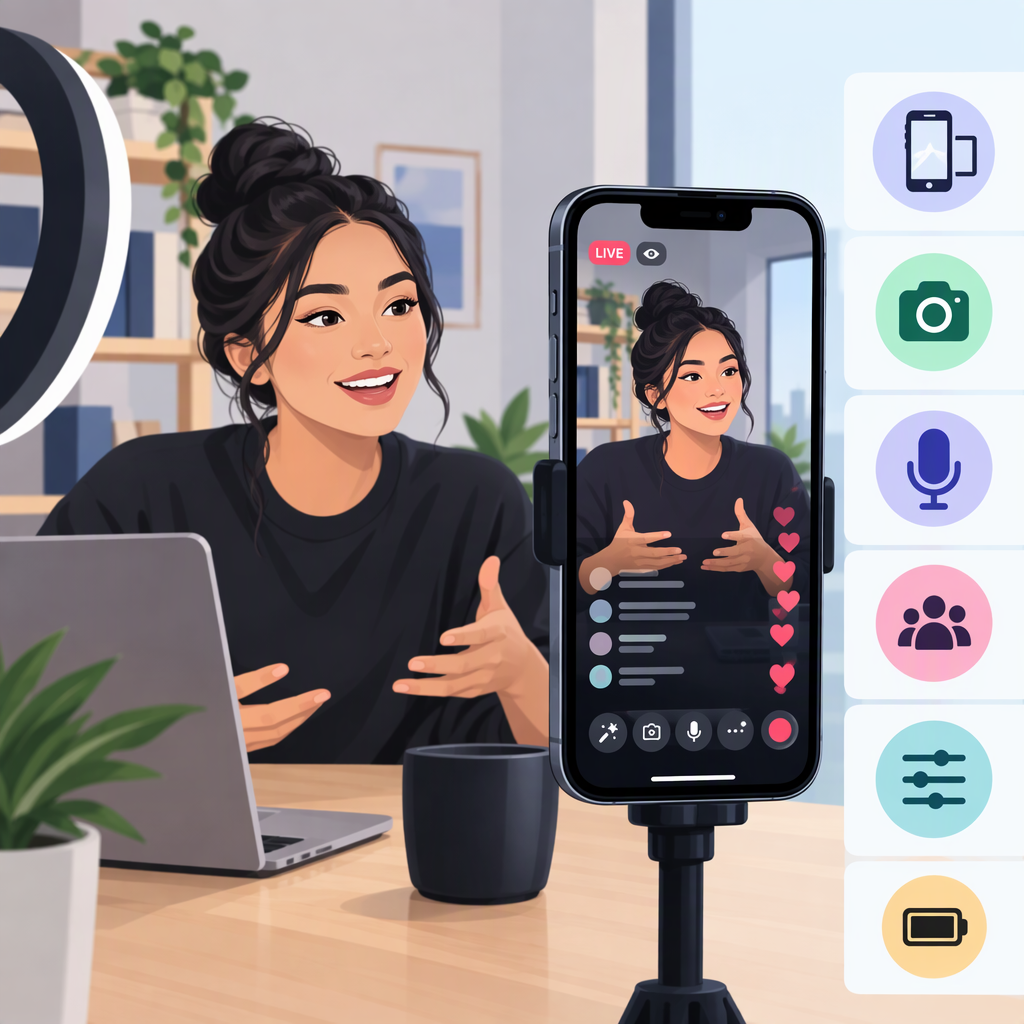
TikTok Live Studio on Ios: What Works on iPhone
Can You Use TikTok Live Studio on Ios?
Not as an iPhone or iPad app. TikTok’s setup guide says LIVE Studio supports macOS and Windows. But an iPhone can be part of a computer-based LIVE Studio setup: TikTok documents an option to mirror an iOS phone’s screen into LIVE Studio. (tiktok.com)
The choice depends on what you want to do:
- Go LIVE directly from your iPhone: use the TikTok app’s mobile LIVE feature.
- Show your iPhone screen while using LIVE Studio: run LIVE Studio on a Mac or Windows computer and add the iPhone as a cast source.
- Run LIVE Studio entirely on an iPhone or iPad: TikTok’s documentation does not list an iOS version. It lists macOS and Windows. (tiktok.com)
Option 1: Go Live from the TikTok App on iPhone
TikTok’s documented mobile steps are: open the app, tap Add post (+), choose LIVE at the bottom (you may need to scroll), set up your title or settings, then tap Go LIVE. (support.tiktok.com)
TikTok says creators must be at least 18 to go LIVE and meet the local minimum-follower threshold. The help page does not give one universal follower number, so don’t assume the same threshold applies everywhere. LIVE and Gift features are also not available everywhere. (support.tiktok.com)
Practical next step: Open the TikTok app’s LIVE setup. If LIVE is available to your account, follow the in-app steps. If it is not available, TikTok’s public guidance points to age and local follower requirements; it does not establish that changing devices will bypass them.
Option 2: Mirror an iPhone Screen into Live Studio
This is a documented phone-plus-computer workflow—not an iOS version of LIVE Studio. TikTok’s instructions say iOS users can use the built-in Screen Mirroring feature to connect to LIVE Studio, by cable or wirelessly. (tiktok.com)
- Install and open LIVE Studio on a Mac or Windows computer, then sign in to TikTok. (tiktok.com)
- In the scene you want to use, select Add source → Cast (iOS).
- Choose a cable or wireless connection and follow the on-screen instructions to connect the iPhone.
- Check the preview before going LIVE. TikTok notes that viewers can see the entire phone screen. It recommends a stable Wi-Fi connection or wired casting, turning on Do Not Disturb, locking screen orientation, and keeping the phone charging. (tiktok.com)
This option may suit someone who wants to show phone gameplay or other phone-screen content while using LIVE Studio’s computer workspace. TikTok describes LIVE Studio as offering additional sources and widgets, such as cameras, text, alerts, and viewer rankings. (tiktok.com)
Important distinction: The documented iPhone connection is for casting the phone’s screen. The cited instructions do not establish that an iPhone can be used as a camera source, or that LIVE Studio itself runs on iOS.
Live Studio Access Is a Separate Consideration
Having a compatible computer does not necessarily mean LIVE Studio LIVE access is already enabled. TikTok’s setup guide says people who are not LIVE creators on the mobile app probably do not yet have LIVE Studio access and may need to apply. TikTok also says access requirements vary by country or region and can change. (tiktok.com)
Bottom line: For a phone-only broadcast, use TikTok LIVE in the iOS app if your account meets TikTok’s requirements. For an iPhone-screen broadcast with LIVE Studio tools, use the documented iOS screen-casting option on a Mac or Windows computer. TikTok’s documentation does not support describing LIVE Studio as an iOS app.