How to Go Live on TikTok: Eligibility, Setup, and Ending
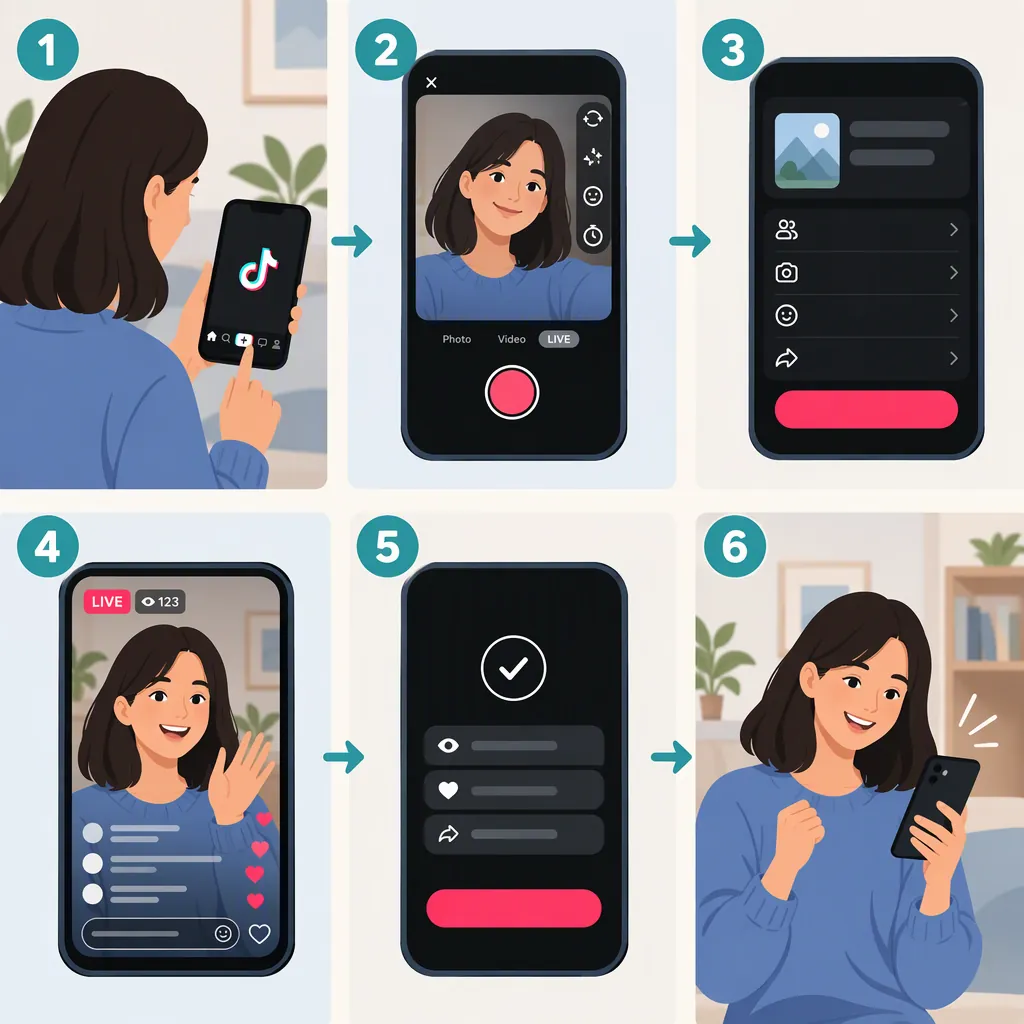
To go LIVE on TikTok, open the app, tap the + button, and select LIVE. Add a title, review your camera and settings, then tap Go LIVE when you are ready to broadcast. You must meet eligibility requirements first. Google Play’s guide describes these as being over 18, meeting a local follower threshold, and satisfying account-safety criteria. [c1]
Check Whether Your Account Can Go Live
Not every TikTok account can start a LIVE broadcast. Google Play’s guide says users must be over 18, meet a local follower threshold, and pass additional safety-related criteria. It also says accounts must be in good standing and follow TikTok’s Community Guidelines, LIVE Monetization Policies, and Creator Code of Conduct. [c1]
Do not treat 1,000 followers as a verified universal requirement. The supplied Digital Trends tutorial, updated February 16, 2024, lists 1,000 followers and a minimum streaming age of 16. That conflicts with Google Play’s age guidance and its description of a local follower threshold. These references do not establish one current follower requirement for every location. Check the eligibility information available to your account before relying on an older tutorial. [c1] [c3]
Start a TikTok Live Step by Step
Google Play describes the following mobile-app workflow for an eligible account. Use the controls available in your app; the supplied guides differ on some interface details. [c1] [c3]
- Open TikTok and tap +. Find the creation button at the center of the bottom of the screen.
- Select LIVE. This opens the setup interface rather than immediately starting the broadcast.
- Prepare the camera view. Review available controls for flipping the camera, filters, and Effects.
- Open Settings. Add a LIVE title and cover, and review available video-quality and Gift settings. A straightforward title could be “Sketching Practice and Questions.”
- Practice if the option is available. Google Play describes Settings → Practice mode as a way to rehearse before broadcasting to an audience.
- Tap Go LIVE. Do this only when you are ready to begin the public broadcast. [c1]
Prepare Your Space and Session Outline
TikTok’s preparation guidance recommends updating the app, checking the internet connection, planning an outline, and using a well-lit, quiet space with clear audio and a stable camera. These are preparation steps, not guarantees of audience size or broadcast quality. [c2]
For a first session, a simple outline can reduce the number of things you need to manage at once. Choose one activity, such as a drawing demonstration or a focused Q&A, and leave room for viewer questions.
Pre-Live Checklist and Session Outline
- Update the TikTok app.
- Check the connection and camera framing.
- Choose a quiet, well-lit space and check your audio.
- Write a clear LIVE title.
- Use Practice mode if available.
- Opening: explain the topic and what you will cover.
- Main activity: demonstrate or discuss one topic.
- Questions: pause to respond to relevant comments.
- Closing: summarize the session before ending.
Interact with Viewers and End the Broadcast
Once you are LIVE, read relevant comments and answer questions without losing track of your main topic. Google Play describes host and guest controls at the bottom left, an Interact button for polls and Q&As, and a More menu with options such as flipping the camera and pausing the LIVE. Use these only if they appear in your interface. [c1]
To finish, Google Play’s guide says to tap the power icon at the top right and then End now. It describes an end screen showing session duration, viewers, comments, new followers, and other statistics. The older Digital Trends guide instead describes an X button, so the supplied references do not establish identical controls across interfaces. [c1] [c3]
FAQ
Why Is the Live Option Missing?
One possible explanation is that your account does not meet LIVE eligibility requirements. Google Play lists age, a local follower threshold, account standing, and safety criteria. The supplied references cannot diagnose an individual account or guarantee when access will appear. [c1]
Can I Go Live with Fewer than 1,000 Followers?
The supplied evidence does not support a universal yes or no. Google Play refers to a local follower threshold without giving a number. The older Digital Trends guide lists 1,000 followers and says it could not verify rumored workarounds. Do not assume a workaround will grant access. [c1] [c3]
Can I Practice Before Broadcasting?
Yes, Google Play describes a pre-LIVE Practice mode under Settings. If that option appears in your app, use it to rehearse before tapping Go LIVE for an audience broadcast. [c1]
How Do I End a TikTok Live?
Google Play’s guide says to tap the power icon at the top right, then End now. The older Digital Trends guide describes an X button instead, so follow the ending control shown in your interface. [c1] [c3]