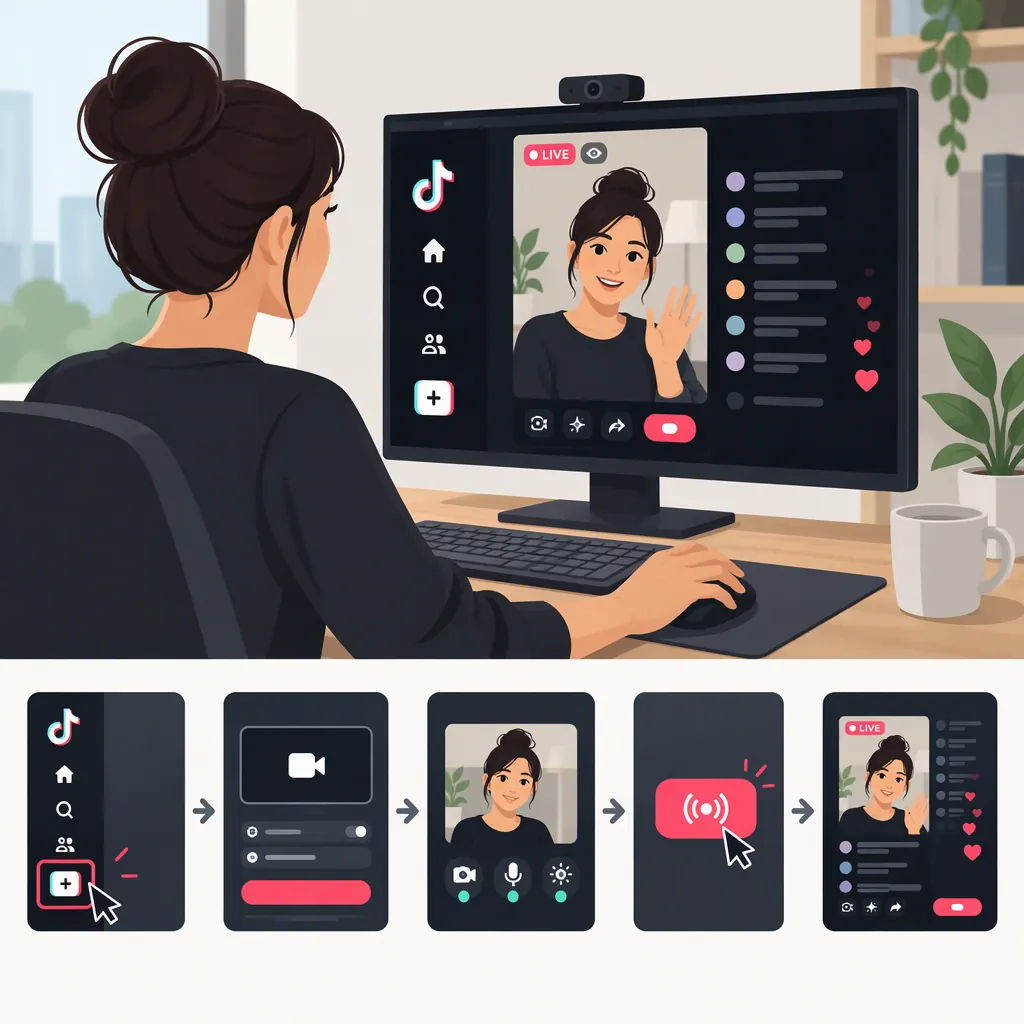
How to Go Live on TikTok from a PC
One documented way to go live on TikTok from a PC is through Streamlabs Desktop: sign in, select TikTok as your platform, connect your account, and apply for streaming access. Streamlabs says TikTok reviews eligibility and sends a notification; once approved, you can set your title and game category and start broadcasting. This route requires approval and has gaming-content restrictions, so it is not a guaranteed option for every account. [c1]
Understand Which Desktop Route This Guide Covers
This guide covers the TikTok connection described on Streamlabs’ own platform page. That page documents a desktop workflow using an account connection and an access application, rather than requiring you to obtain a stream key. [c1]
The supplied reference is a third-party software provider’s page, not TikTok’s general eligibility documentation. It does not establish universal follower requirements, age requirements, regional availability, or access to other desktop tools. Do not assume that being able to go live on your phone also confirms access through this desktop route.
Before preparing a broadcast, check whether the TikTok connection and application are available to your account in the software.
Connect TikTok and Apply for Access
Follow the sequence documented by Streamlabs: [c1]
- Open Streamlabs Desktop and sign in.
- Choose TikTok as the platform. For a first-time setup, select it from the platform list. If you are already signed in, open stream settings, select TikTok, and click Connect.
- Select TikTok as your streaming destination to access the application. Complete the application presented to you.
- Wait for the eligibility notification. Streamlabs says TikTok reviews the account and notifies you about eligibility.
- Proceed only after approval. The documented workflow then lets you set a title and game category and go live.
The reference does not specify a review deadline or guarantee approval. If your interface differs, use the options actually shown rather than assuming a missing control can be bypassed.
Prepare Your Picture and Audio
After access is confirmed, prepare the broadcast before pressing the live control. Streamlabs’ page describes support for customizing scenes and sources in horizontal and vertical formats. [c1]
As a practical preparation routine, choose the layout for your intended broadcast and check the preview carefully. Keep important text and gameplay details readable, confirm that your microphone is selected, and remove anything you do not want viewers to see.
The checklist below is preparation advice, not a TikTok eligibility requirement or a verified performance specification. The supplied source does not provide recommended bitrate, frame rate, or upload-speed settings.
Pre-Broadcast Checklist
- Confirm that desktop streaming access has been approved.
- Choose the scene and layout you intend to broadcast.
- Check that the intended camera, game, or screen source appears in the preview.
- Hide private windows and disable sensitive notifications.
- Check microphone input and listen for unwanted background sound.
- If using both microphone and computer audio, check their balance.
- Review the stream title and game category.
- Locate the control that ends the broadcast before starting.
Start and Monitor the Broadcast
Once approved, use the documented title and game-category step to prepare the session, then start the broadcast. [c1]
For a manageable first session, keep the scene setup simple. After starting, check that the intended picture and sound are reaching the broadcast, and watch for connection warnings. Avoid opening private account pages or displaying credentials while sharing your screen.
Streamlabs also documents integrated TikTok chat: sign in with your TikTok account and select TikTok as the primary chat source to view chat inside Desktop. [c1] If you use this option, include chat monitoring in your routine without letting it distract from audio or connection problems.
When finished, end the broadcast and confirm that the software no longer indicates a live session.
Check Restrictions If Access Is Missing or Revoked
Do not treat an access problem as an audio or scene-setting problem. First distinguish an application awaiting review from access that was previously approved and later revoked.
Streamlabs states that, effective July 7, 2025, streamers using its TikTok LIVE route who stream less than 50% gaming content may have access revoked. Its FAQ says users who lose access can reapply through Streamlabs after fourteen days if 50% of their streams following removal are gaming content. It also says reinstated users must maintain the 50% gaming-content threshold. [c1]
These are restrictions reported for the Streamlabs route, not evidence of a universal rule for every TikTok broadcasting method. The supplied page does not explain how the percentage is measured. Consult the linked source and your account’s current notices before relying on this route, especially for non-gaming broadcasts.
Access Troubleshooting Notes
- Record whether your application is pending, declined, or your previous access was revoked.
- Read the eligibility notification and any account-specific notices.
- If access was revoked, compare your situation with the restrictions described in the source.
- Do not assume that changing your scene, microphone, or stream title restores authorization.
- Keep any stream credentials and private account information out of screenshots you share for troubleshooting.
FAQ
Do I Need a Stream Key to Go Live on TikTok from a PC?
The Streamlabs route described in the supplied source does not require a stream key. It uses a TikTok account connection and an access application. That does not establish the requirements for other desktop broadcasting methods. [c1]
How Long Does Desktop Streaming Approval Take?
The supplied Streamlabs page says TikTok reviews eligibility and sends a notification, but it gives no review deadline. Do not plan around a guaranteed approval time. [c1]
Can I Use This Route for Non-Gaming Broadcasts?
Do not assume this route supports unrestricted non-gaming use. Streamlabs reports that access may be revoked for users streaming less than 50% gaming content. The source does not define how that percentage is measured or establish rules for other TikTok desktop routes. [c1]