TikTok Won’t Let You Go Live? Check Eligibility and Troubleshoot
TikTok Won’t Let You Go Live? Start Here
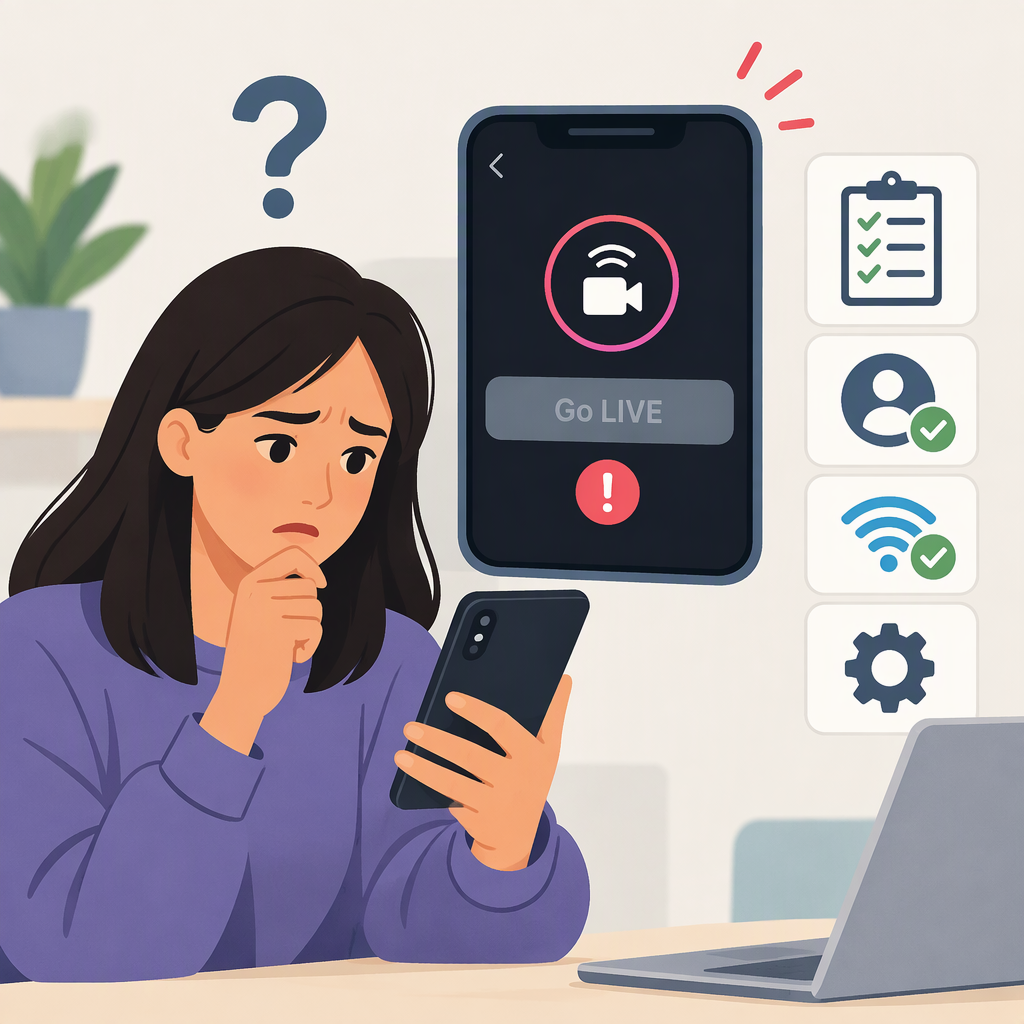
If TikTok won’t let you go LIVE, first work out which situation you’re facing: you don’t meet an access requirement, TikTok has shown an account or age notice, or the app is failing despite your apparent eligibility. TikTok says hosts must be at least 18 and generally need 1,000 followers, though the follower requirement may vary by region. LIVE is not available everywhere. If you meet the requirements but still can’t start, TikTok directs creators to report the issue. (tiktok.com)
Try this order:
- Check age, follower count, and whether LIVE is available in your region.
- If the LIVE option is missing, check Restricted Mode and any TikTok notices about your access.
- If LIVE appears but won’t start, try basic app and connection troubleshooting.
- If you appear eligible and the problem persists, report it to TikTok with the error and what you’ve tried.
Check Whether Your Account Can Host a Live
TikTok’s Help Center says you must be 18 or older to host a LIVE and have 1,000 followers, with the follower requirement potentially varying by region. TikTok also says LIVE features aren’t available everywhere. The follower number is therefore a general published requirement, not a guarantee that the same threshold applies to every account or location. (tiktok.com)
To see whether the option is available in the app, tap Add post (+) and look for LIVE along the options at the bottom; you may need to scroll. If it appears, TikTok’s instructions are to add a title or adjust settings, then tap Go LIVE. The menu is a useful check, but it doesn’t explain by itself why LIVE is absent. (tiktok.com)
Example: If you’re 18 or older but have fewer than 1,000 followers, follower eligibility may explain the missing option—unless a different regional requirement applies. If you meet both published criteria but LIVE is still absent, move on to account notices and settings rather than assuming you need more followers.
If the Live Option Is Missing
Check for an Age Notice
TikTok may ask you to confirm your age before going LIVE. If TikTok removes access to an age-restricted feature because it believes you don’t meet the minimum age, it says it will notify you in the app. If you think that decision is mistaken, use Appeal in the notification and follow the instructions. TikTok says an appeal about removed access to an age-restricted feature must be submitted within 180 days of removal. (support.tiktok.com)
Check Whether Restricted Mode Is On
Restricted Mode makes some features unavailable, including the ability to go LIVE. To check it, go to Profile → Menu (☰) → Settings and privacy → Content preferences → Restricted Mode. If a parent or guardian manages your account through Family Pairing, ask them about the setting rather than trying to get around it. (support.tiktok.com)
Read Any Account or Restriction Notice
If TikTok has sent a notice saying your LIVE access is restricted, follow the instructions in that notice. Don’t treat a missing button alone as proof of an enforcement action. TikTok’s Account check can show some account issues, but the issues it lists include login, posts, comments, profile, and direct messages; it does not specifically list LIVE access. So a clean Account check should not be treated as confirmation that LIVE eligibility or access is clear. (support.tiktok.com)
You can reach Account check through Profile → Menu (☰) → TikTok Studio → More tools → Account check, or through Profile → Menu (☰) → Settings and privacy → Support → Safety Center → Account check. (support.tiktok.com)
If Live Appears but Won’t Start
If you can open the LIVE screen but tapping Go LIVE fails, try these basic checks before reporting:
- Update TikTok and restart the app. Then try again.
- Check your connection. If possible, switch between Wi-Fi and mobile data and retry.
- Clear TikTok’s cache if the app continues to behave unexpectedly. TikTok’s troubleshooting guidance suggests clearing cache when connectivity isn’t the problem; clearing temporary files is a troubleshooting step, not a promise that LIVE access will return. (support.tiktok.com)
- Follow any specific error message. If it points to age confirmation or restricted access, resolve that notice first rather than repeating app troubleshooting.
These steps may help with an app or connection problem; they cannot grant eligibility or override a restriction. TikTok’s LIVE-specific guidance says that if you meet the eligibility requirements and still have an issue, you can report it. (support.tiktok.com)
Report a Problem If You’re Eligible but Still Blocked
In the app, go to Profile → Menu (☰) → Settings and privacy → Report a problem. Choose the closest topic and follow the suggested steps. If they don’t solve it, tap No when asked whether the problem is resolved, then Need more help? to send details; TikTok also lists Chat with us and an online reporting form as contact routes. (support.tiktok.com)
Include the exact error text, whether the LIVE option is missing or fails after you tap it, your device and app version, and the troubleshooting steps you already tried. Add a screenshot if it helps show the error; TikTok says it may ask for relevant screenshots or files. (support.tiktok.com)
Bottom line: check the published age and follower requirements first, remembering the follower threshold can vary by region. If LIVE is missing, look for an age notice or Restricted Mode. If it appears but fails, try basic app and connection checks. If you still appear eligible, use TikTok’s in-app report route. Don’t use third-party claims or workarounds to bypass an access restriction.