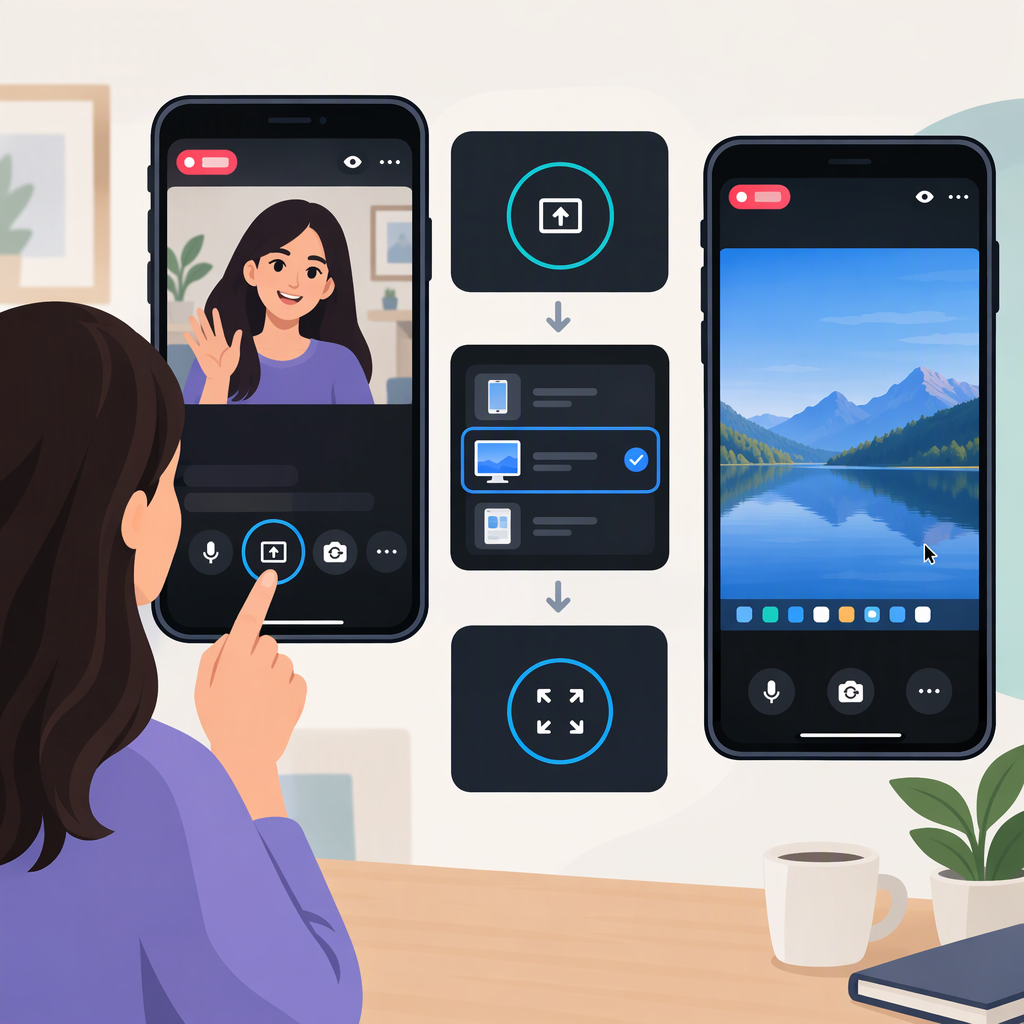
TikTok Live Screen Sharing: How to Share a Screen and Choose Full Screen
What “TikTok Live Screen” and “Full Screen” Can Mean
People searching for “TikTok LIVE screen” may mean either sharing their own screen during a broadcast or watching someone else’s LIVE in a full-screen view. This guide focuses on sharing a screen as a creator. TikTok’s published guidance covers creator screen sharing through LIVE Studio; it does not establish a specific viewer-side full-screen control, so the two features should not be treated as the same thing.
Short answer: TikTok documents screen sharing through its desktop LIVE Studio tool. You can add a source for a computer display, a single app window, a game, or a phone screen cast to LIVE Studio. Access is not guaranteed for every account or region. (tiktok.com)
Check Whether Live Studio Is Available to You
TikTok describes LIVE Studio as a desktop streaming tool for eligible LIVE creators and says it currently supports 64-bit Windows systems. Access requirements can vary by country or region and by account. To check yours, TikTok says to download LIVE Studio, sign in to the account you plan to use, and select Get access to go LIVE. You can also check in the TikTok app by tapping +, then LIVE, then Get access to go LIVE. TikTok says the eligibility screen will show any requirements still missing. (tiktok.com)
That check concerns access to LIVE Studio; it does not establish that screen sharing is available through every TikTok app, device, or account. If LIVE Studio or a source option does not appear, use TikTok’s access check rather than assuming a particular follower threshold, app version, or regional rule.
Share a Computer Screen During Live
In TikTok LIVE Studio, add the relevant source under the scene you want to use:
- For the whole desktop: Select Add source > Display capture, then choose a display if your computer has more than one.
- For one application: Select Add source > Window capture, then choose the application window.
- For a game: Open the game, select Add source > Game capture, and choose whether to capture a selected game or any full-screen game. TikTok notes that some games may not work with Game capture; its guide suggests trying Display capture or Window capture in that case. (tiktok.com)
Before going LIVE, check the preview and the selected display or window. Display capture shows the entire chosen desktop, so anything visible there—including notifications or other open material—may be shown to viewers. TikTok’s instructions describe how to add these sources, but do not specify a universal, separate “stop sharing” control. Don’t rely on an assumed button label: check the controls shown in your current LIVE Studio session before you start.
Cast a Phone Screen Through Live Studio
TikTok documents phone screen casting to LIVE Studio for both iOS and Android:
- In the selected LIVE Studio scene, choose Add source > Cast (iOS) or Add source > Cast (Android).
- Choose a wired or wireless connection and follow the instructions shown on screen.
- For iOS, TikTok says the connection uses the built-in Screen Mirroring feature. For Android, it uses the TikTok app.
- Check the LIVE Studio preview before broadcasting. TikTok warns that viewers can see the entire phone screen. (tiktok.com)
TikTok recommends using Do Not Disturb to avoid interruptions from calls or notifications, keeping the phone’s orientation locked to prevent unexpected rotation, and using a stable Wi-Fi connection or a wired connection to reduce lag and disconnections. These are practical precautions, not a guarantee of a particular stream quality. (tiktok.com)
What “Full Screen” Means for a Shared Broadcast
A full-screen game capture and a full-screen LIVE layout are different things. TikTok’s Game capture instructions describe capturing a game running in full-screen mode; its Display capture option instead captures the entire selected desktop. Neither description means that the viewer’s TikTok app will necessarily display the LIVE in a particular full-screen mode. (tiktok.com)
For broadcast layout, TikTok documents portrait and landscape modes in LIVE Studio. Its Compatibility Mode guide describes broadcasting in both orientations and says the layout adjusts to viewers’ screen orientation. It also says creators can edit the portrait layout and adjust the size and position of synced sources in landscape view. This is guidance about the creator’s broadcast layout—not a viewer-side control for expanding someone else’s LIVE. (livecenter.tiktok.com)
Choose the capture source and layout for what you want viewers to see: a single application window for a focused demonstration, the full desktop when viewers need to see multiple applications, or a game capture for supported gameplay. Preview the result in the layout you intend to use; a desktop or phone screen contains more than just the main content, and TikTok’s cited guidance does not promise that every source will fill every viewer’s screen identically.
If Screen Sharing Is Unavailable or Does Not Fit
- LIVE Studio access is missing: Use TikTok’s Get access to go LIVE check. Availability and requirements can vary by account and region. (tiktok.com)
- Game capture does not show the game: TikTok says some games may not be compatible; try Display capture or Window capture instead. (tiktok.com)
- The phone image rotates or interruptions appear: TikTok recommends locking orientation and enabling Do Not Disturb before casting. (tiktok.com)
- The composition looks wrong: Recheck the source and preview the portrait or landscape layout you intend to use. TikTok documents layout adjustments in Compatibility Mode, but the specific controls can depend on the current LIVE Studio interface. (livecenter.tiktok.com)
- You need to stop sharing but remain LIVE: The cited TikTok setup instructions do not give a verified, universal stop-sharing sequence. Check the controls presented in your current LIVE Studio session; avoid assuming that ending screen capture and ending the broadcast are the same action.
Sources
- TikTok Creator Academy, Get started with TikTok LIVE Studio
- TikTok LIVE Studio Help Center, Add a capture source to share your computer screen
- TikTok LIVE Studio Help Center, Add a cast source to share your phone screen
- TikTok LIVE Studio Help Center, LIVE Studio Compatibility Mode Guide