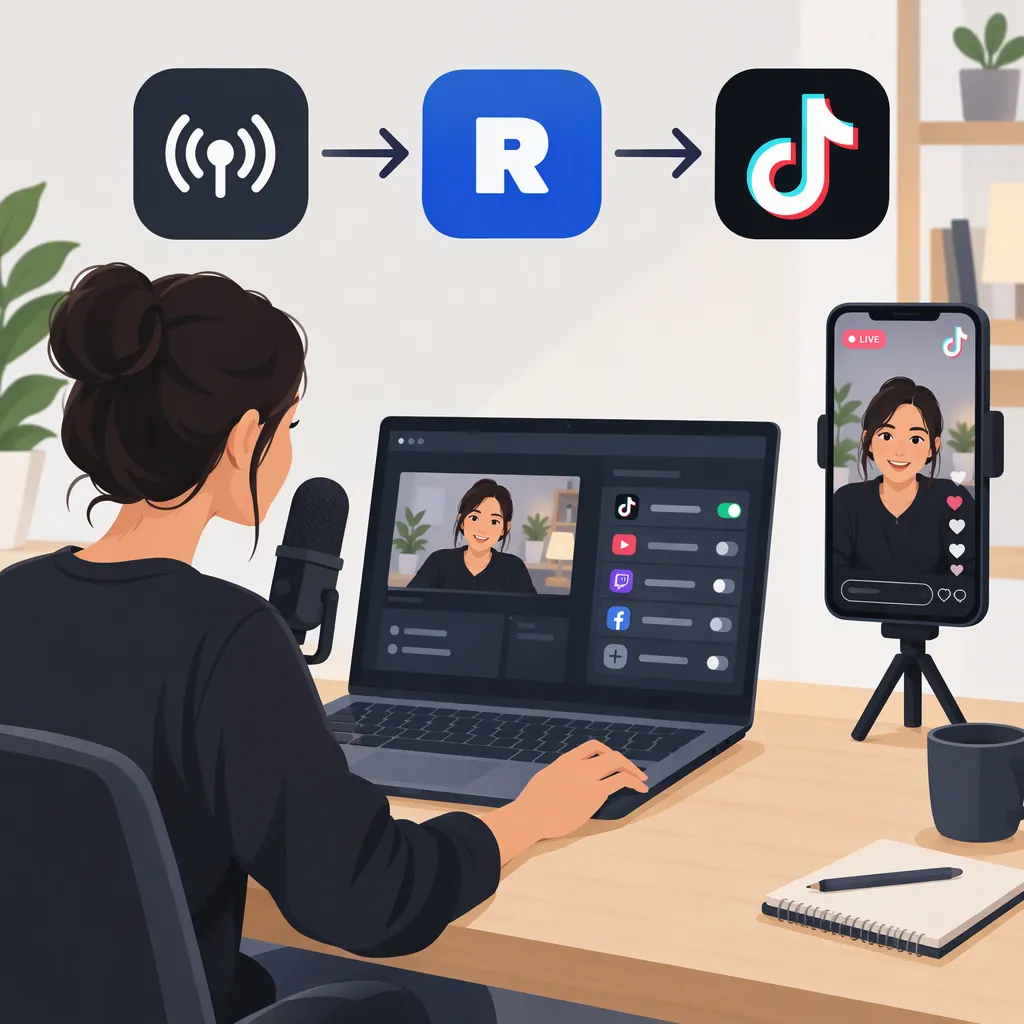
How to Stream to TikTok with Restream
To stream to TikTok with Restream, open Channels, select Add New, choose TikTok Live, and authorize your TikTok account. TikTok must approve third-party streaming access before you can broadcast. Then prepare your stream in Restream Studio or send your OBS output through Restream. If TikTok has issued you a stream key, a Custom RTMP connection is another option—not a way around eligibility requirements. [r1] [r2]
Check Your TikTok Streaming Access First
Being able to go LIVE in TikTok’s mobile app does not guarantee permission to stream through Restream. Access to TikTok LIVE Studio is also separate from third-party streaming access. TikTok makes the approval decision. [r1] [r2]
Restream’s help center reports that, effective July 7, 2025, TikTok requires at least 50% of recent content to be gaming-related for this access. It also says creators must maintain that ratio and may lose access if they do not. The help article describes reapplying after 14 days once content has been adjusted. These are Restream’s published descriptions of TikTok requirements, not an independent verification of your account’s eligibility. Check the access messages shown during connection before planning a broadcast. [r2]
If the connection displays “Streaming not allowed,” Restream says you can select Apply. The application asks for a primary streaming-channel link on a platform such as Twitch, YouTube, or Facebook—not your TikTok link—an estimate of average concurrent viewers, and screenshots demonstrating account ownership. Provide your actual information; submitting an application does not guarantee approval. [r2]
Connect TikTok to Restream
For the native connection, follow the sequence documented in Restream’s help center: [r2]
- Open the Restream home screen and select Channels.
- Select Add New.
- Choose TikTok Live.
- Follow the TikTok login and authorization prompts.
- After returning to Restream, check whether your account has permission to stream.
The native connection does not require you to enter a TikTok stream key. If TikTok has supplied one, Restream documents Custom RTMP as an alternative connection method. Restream does not issue TikTok stream keys, and using RTMP does not bypass TikTok’s access requirements. [r1] [r2]
For a stream-key setup, Restream’s help article notes that TikTok’s “End LIVE video if stream stops” setting ends the live broadcast if the connection is interrupted. Consider that behavior before enabling it. [r2]
Choose Restream Studio or Obs
The two production paths differ in where you assemble the broadcast: [r1]
- Restream Studio: Prepare the broadcast in a supported desktop browser, select your camera and microphone, and use portrait mode for a vertical composition. OBS is not required for this route.
- OBS through Restream: Assemble scenes and sources in OBS, then send its output to Restream for delivery to TikTok. This route keeps production in your desktop encoder.
Choose based on your production needs rather than your eligibility status: TikTok’s access requirements apply to both paths. Restream’s integration page identifies a desktop encoder as the better fit when advanced PC game capture is needed. [r1]
For framing, Restream recommends portrait mode. Its help center says TikTok adds black margins above and below landscape streams rather than cropping their edges. As a practical preparation step, check that text and important visual details remain readable in your intended mobile layout. [r2]
Prepare Settings and Stream Details
Restream’s TikTok help article lists the following recommended settings. Treat them as source-provided guidance, not a guarantee that a particular configuration will work for every connection: [r2]
| Setting | Guidance Listed by Restream |
|---|---|
| Resolution | 1080p recommended; at least 720p |
| Frame rate | 60 fps recommended; at least 30 for gaming or 24 for lifestyle |
| Video bitrate | Around 2,500 Kbps, depending on bandwidth and resolution |
| Encoder | x264 |
| Audio bitrate | 160 Kbps or 256 Kbps |
Before starting, review the TikTok title and category. Restream says the TikTok API limits title fields to 32 bytes, which is not necessarily 32 characters: languages and symbols can use different numbers of bytes. Longer titles may be shortened. The same help article states that titles and thumbnails cannot be updated after the stream begins. [r2]
To select a topic, open the stream setup or scheduled event, locate TikTok in the channel list, select Edit, choose the game or topic under Category, and save. [r2]
Run a Final Check Before Going Live
Once TikTok access is approved and production is ready, Restream’s documented workflow proceeds to Go Live. Keep the TikTok live monitor open in a separate tab or window to follow chat, views, and follows during the broadcast. [r1] [r2]
Use the checklist below as a preparation aid. Checking camera, microphone, and framing is practical workflow advice; it does not confirm TikTok approval or guarantee successful delivery.
TikTok Preflight Checklist
- [ ] Confirm that the connected TikTok account is approved for this streaming method.
- [ ] Confirm that the intended TikTok destination is selected.
- [ ] Check the camera preview and microphone input.
- [ ] Review the portrait layout and readability of on-screen text.
- [ ] Review the TikTok title and category before starting.
- [ ] Open the TikTok live monitor for chat and stream observation.
- [ ] For Custom RTMP, review the behavior of “End LIVE video if stream stops.”
- [ ] Start the broadcast only when access and production are ready.

Access, title, monitoring, and interruption guidance comes from Restream’s documentation. [r1] [r2]
FAQ
Do I Need a TikTok Stream Key for Restream?
Not for the native TikTok connection, which uses login and authorization. If TikTok has issued you a stream key, you can use a Custom RTMP channel instead. Restream does not issue TikTok stream keys. [r1] [r2]
Why Can I Go Live in the TikTok App but Not Through Restream?
TikTok treats third-party streaming access separately from mobile-app LIVE access. Restream’s help center says an account that can go LIVE in the app may still need approval to stream through Restream. [r2]
Is Obs Required?
No. Restream documents a browser-based Studio workflow without OBS. Alternatively, OBS can produce the broadcast and send it through Restream to TikTok. Both routes still require the relevant TikTok access. [r1]
Can I Send the Same Broadcast to Other Platforms?
Restream documents simultaneous delivery to TikTok and other selected destinations after TikTok access is approved. The number of destinations depends on the Restream plan, and each platform retains its own requirements. Because destinations receive the same stream, review whether the layout suits each one. [r1]