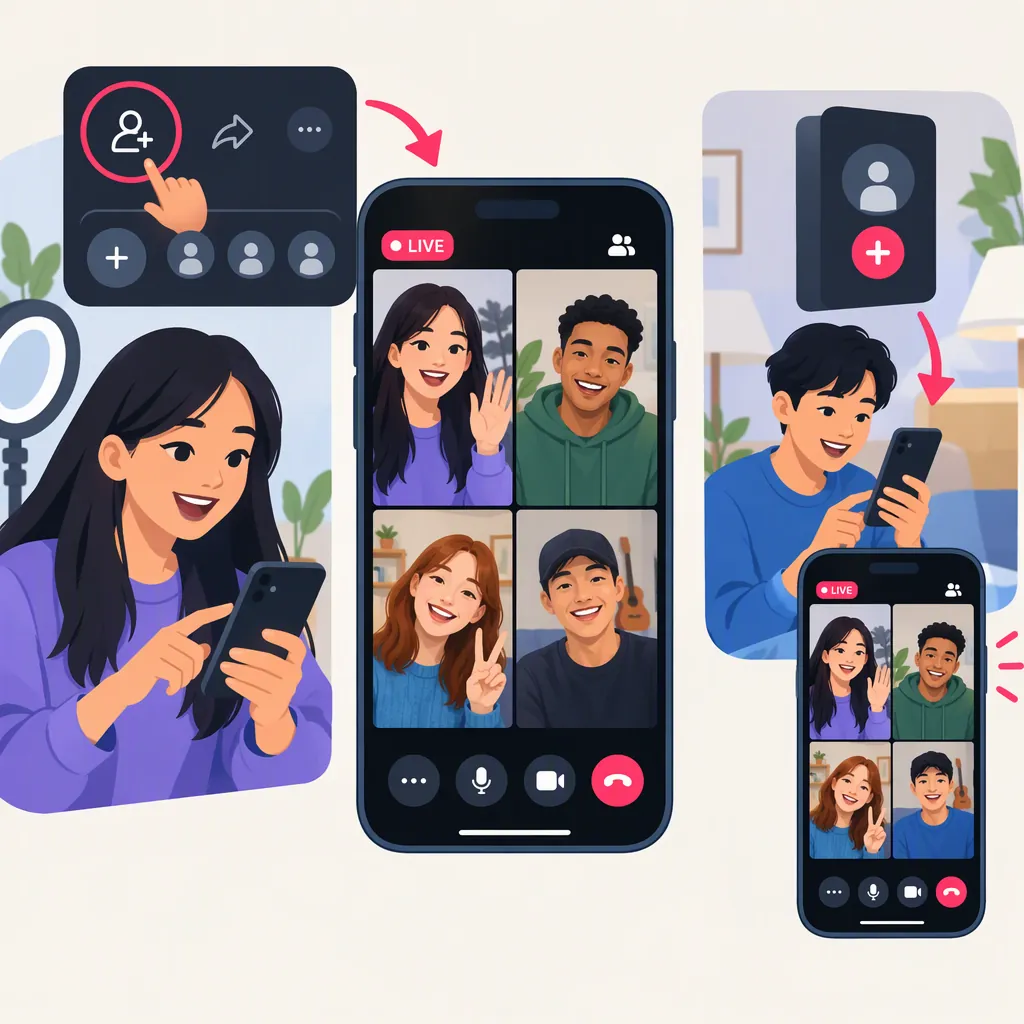
TikTok Live Multi-Guest: Inviting, Joining, and Managing Guests
TikTok LIVE multi-guest lets a host bring other users into a live broadcast. Hosts can invite participants through Multi-guest → Invite or approve incoming join requests with Accept. Viewers can request to join through Multi-guest → Apply, and invited guests can choose audio or video participation. [c1]
Source and Currency
The workflows below come from PUSH.fm’s May 17, 2023 guide, not current TikTok documentation. Treat them as a reference: current button labels, layouts, and account availability have not been verified. The guide does not establish current eligibility requirements or an exact guest limit. [c1]
How to Invite or Approve Guests as a Host
PUSH.fm’s 2023 guide describes two host actions once a LIVE is underway: inviting someone yourself or approving a viewer’s request. [c1]
Invite Someone
- Open Multi-guest at the bottom of the LIVE screen.
- Select Invite.
- Choose the person you want to add. [c1]
Approve a Join Request
Select Accept for an incoming request. The host decides whether to approve it and can deny a request instead. An invitation starts with the host; a join request starts with the viewer. [c1]
Pre-Live Guest Checklist
For a planned conversation, use this general preparation checklist—not a list of TikTok requirements:
- Agree on the discussion topic and approximate duration.
- Decide who will introduce each participant.
- Confirm whether guests intend to use audio or video.
- Check that private information is not visible in the camera frame.
- Agree on a signal for wrapping up or leaving the conversation.
How to Join a TikTok Live as a Guest
PUSH.fm’s 2023 guide describes two entry paths: accepting an invitation or requesting access while watching a LIVE. [c1]
Accept an Invitation
- When invited, choose Video Join or Audio Join.
- Review the available settings and check your camera and audio.
- Select Go Live when ready. [c1]
Request to Join
- While watching the LIVE, open Multi-guest.
- Select Apply.
- If the host accepts, review your video and audio settings.
- Select Go Live when ready. [c1]
The guide describes a five-second transition before a guest appears in the broadcast. Complete your checks before selecting the final join control rather than relying on that historical countdown. [c1]
As general preparation, have your opening point ready and check what your camera frame reveals before joining.
How to Choose a Multi-Guest Layout
PUSH.fm’s 2023 guide places layout controls under Multi-guest → Settings during a LIVE. It describes these options: [c1]
| Layout | Description in the guide |
|---|---|
| Panel | Keeps the host as the main screen, with a smaller guest view. |
| Grid | Arranges participants in a grid. |
| Fixed | Keeps the layout the same as participants join. |
These layout descriptions come from the same guide. [c1]
As an editorial choice, consider Panel for a host-led interview and Grid for a discussion where participants should have similar visual prominence. Check which controls are available in your LIVE before planning around a particular layout.
How to Remove a Guest
PUSH.fm’s 2023 guide describes removing a guest from the LIVE screen by:
- Selecting the X beside the guest.
- Selecting End now to confirm removal. [c1]
It also describes an alternative route through Multi-guest: use the X, or open the guest’s profile and select Disconnect. [c1]
For a planned discussion, explain participation boundaries before guests join. If someone shares private information or disrupts the conversation, prioritize ending their participation over continuing the segment. This is general moderation guidance, not a claim about additional TikTok safety controls.
FAQ
Do Guests Need an Invitation, or Can They Request to Join?
The 2023 guide describes both routes. A host can use Multi-guest → Invite, while a viewer can use Multi-guest → Apply. The host decides whether to approve a request. [c1]
Can I Join with Audio Instead of Video?
PUSH.fm’s guide describes Audio Join and Video Join when accepting an invitation. It does not verify whether both options are currently available for every account. [c1]
How Many Guests Can Join a TikTok Live?
The guide says guest numbers are limited but does not state an exact maximum. A current guest limit cannot be confirmed from this source. [c1]
Why Is the Multi-Guest Button Missing?
The guide does not explain missing-button causes or current access requirements. It therefore cannot establish whether a missing control is related to eligibility, region, or app version, or provide a verified fix. [c1]
First distinguish which workflow you are attempting—hosting and inviting someone, accepting an invitation, or requesting to join—because the guide describes different actions for each. [c1]
Can the Host Remove a Guest During the Live?
Yes, according to the 2023 guide. It describes X → End now, or a Disconnect option through the guest’s profile. Current control labels have not been verified. [c1]