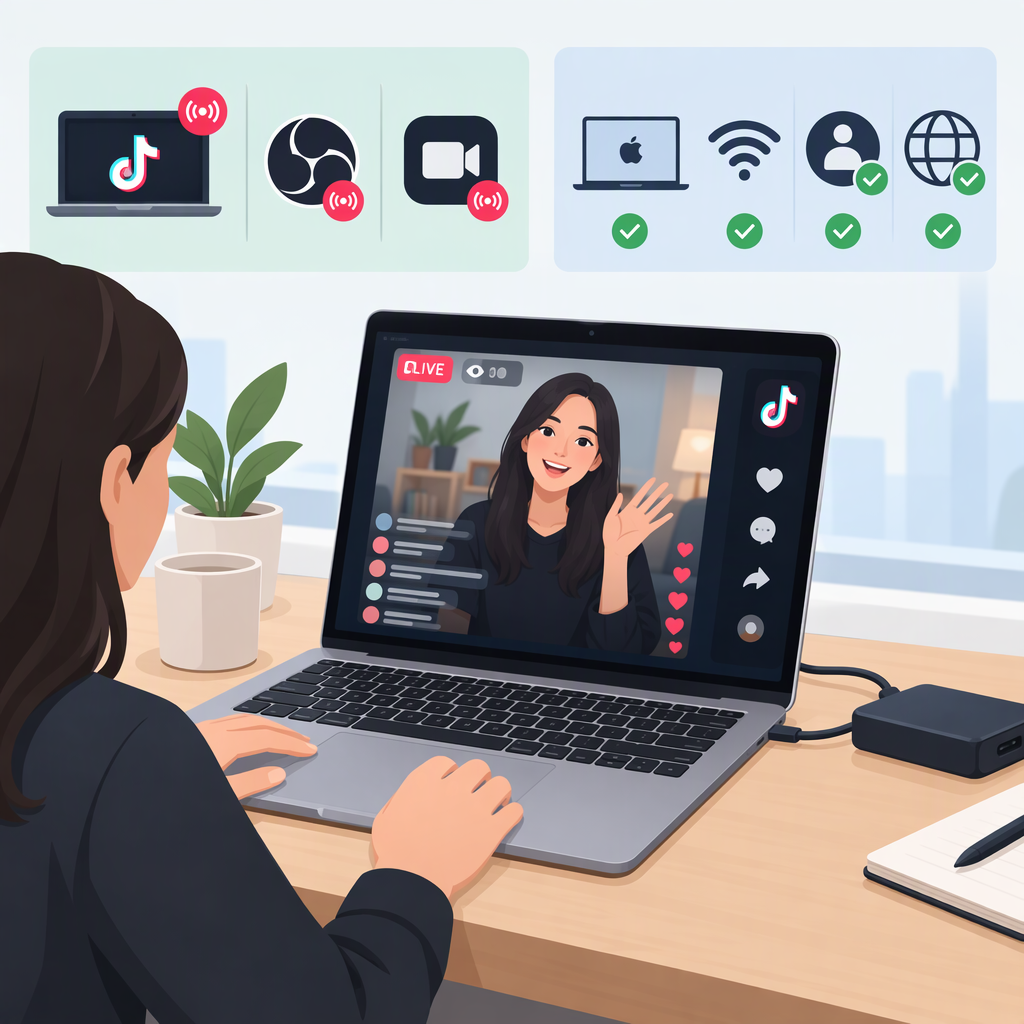
How to Go Live on TikTok from a Mac: Supported Options and Requirements
Can You Go Live on TikTok from a Mac?
Yes. TikTok’s official LIVE Studio is available for macOS and Windows. For a Mac broadcast, use LIVE Studio—not just TikTok in a browser. TikTok’s help pages describe the desktop app as the Mac route, while its documentation for TikTok Studio in a web browser describes limited creator tools rather than a browser-based LIVE broadcast workflow. (tiktok.com)
TikTok’s LIVE Studio setup instructions say to download the official app, sign in with your TikTok account, and configure your camera, microphone, and stream. If you aren’t already a LIVE creator in the TikTok mobile app, TikTok says you probably won’t have LIVE Studio access, but you can apply for LIVE access. Having a compatible Mac therefore does not guarantee your account can broadcast. (tiktok.com)
Check Your Mac and Account Access
TikTok’s LIVE Studio help center lists these macOS specifications:
- Minimum: Apple silicon M1, or an Intel iMac or Mac mini with an i7 or i9 CPU from 2019 or later. The listed minimum memory is 8 GB for Apple silicon and 16 GB for Intel.
- Recommended: Apple M2 Pro or later and 16 GB of memory.
These are the models and memory figures TikTok lists; its table does not establish support for every other Intel Mac configuration. If your Mac falls outside the listed minimums, don’t assume LIVE Studio will run as supported. (tiktok.com)
You also need LIVE access on your TikTok account. TikTok’s LIVE eligibility guidance says creators must be at least 18 and have 1,000 followers to go LIVE, though the follower threshold may vary by region. TikTok may ask you to confirm your age. LIVE features are not available everywhere, so a threshold alone does not guarantee access in every location or account. (tiktok.com)
Check access before troubleshooting your Mac: In the TikTok mobile app, tap + and look for LIVE. If the option is missing, check your account’s eligibility and any TikTok notifications or restrictions. TikTok says only eligible creators can go LIVE; if you believe you qualify but still cannot access it, report the issue through TikTok. (tiktok.com)
Start a TikTok Live from Your Mac
- Download TikTok LIVE Studio from TikTok’s official LIVE Studio page.
- Install and open it, then sign in with your TikTok account.
- Set up your stream and select your microphone and camera. Adjust the quality to suit your Mac and internet connection.
- If LIVE Studio says you don’t have access, follow its application steps. TikTok notes that people who cannot yet go LIVE in the mobile app probably won’t have desktop access either. (tiktok.com)
TikTok’s published minimum and recommended specifications can help you decide whether to try setup, but the available help page does not guarantee performance on a particular Mac. (tiktok.com)
If Live Studio Isn’t Available to You
Use the TikTok app on an eligible iOS or Android device as the straightforward alternative. TikTok’s instructions are: tap +, select LIVE (you may need to scroll along the bottom), add a title or adjust settings, then tap Go LIVE. If you need to show Mac content, TikTok’s LIVE Studio documentation describes desktop capture sources for that app; it does not establish that the browser workflow can broadcast your Mac screen. (tiktok.com)
Which Route Should You Choose?
- You have a supported Mac and LIVE Studio access: Use TikTok LIVE Studio.
- You have a Mac but no LIVE Studio access: Check LIVE availability in the mobile app and follow TikTok’s access application or eligibility steps.
- You need to go live now and the app offers LIVE: Start from the TikTok mobile app instead.
- You’re considering TikTok in a browser: Don’t treat browser-based TikTok Studio as a verified substitute for LIVE Studio; TikTok describes its web tools as limited creator tools, not a documented Mac broadcast route. (tiktok.com)